On this page▾
- TL;DR
- What iOS 26 actually changed for car widgets
- How to get more iPhone widgets on your car screen
- 1. Clock & time widgets
- 2. Weather widgets
- 3. Photo & family widgets
- 4. Music & Now Playing widgets
- 5. Navigation & speed widgets
- 6. Calendar & reminders widgets
- How to set up iPhone widgets on your car dashboard
- FAQ
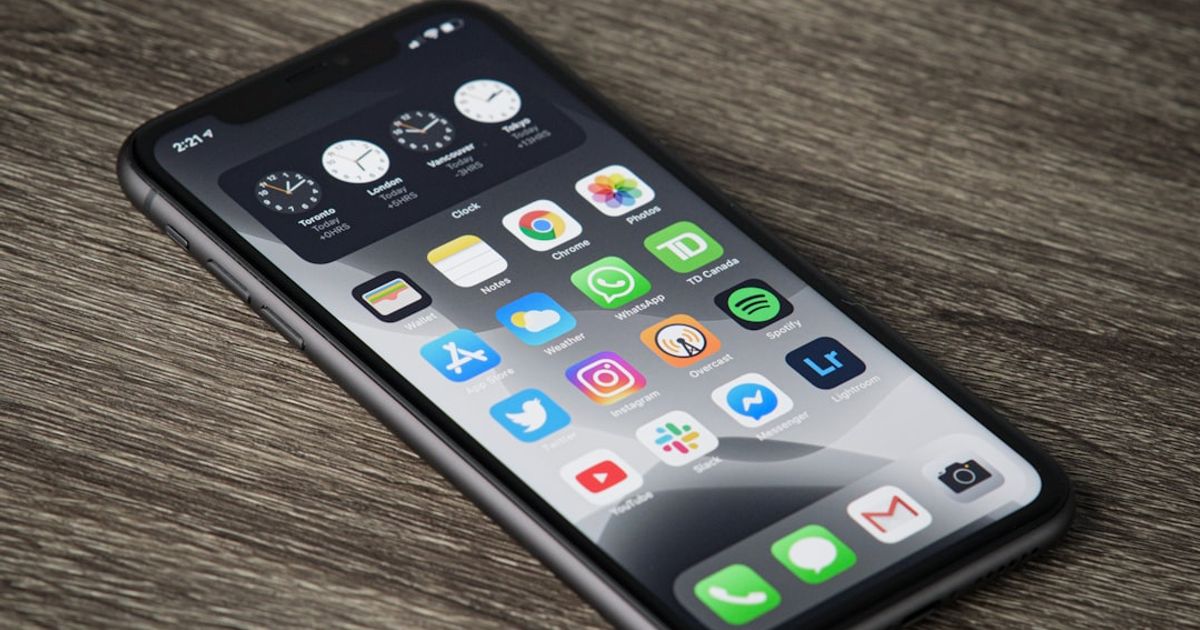
If you've spent time perfecting your iPhone home screen widgets — the perfect weather tile, a family photo frame, a sleek clock — iOS 26 has good news: those same widgets now live on your car's CarPlay screen too. No third-party hardware, no workarounds. Apple built widget support directly into CarPlay in iOS 26.0, and it works with most of the widget apps already on your phone.
This guide covers the best iPhone widgets for your car dashboard in 2026 — which widget categories actually matter while driving, which apps deliver the cleanest output on the CarPlay display, and how to push more widgets onto your car screen beyond iOS's five built-in slots.
TL;DR
The best iPhone widgets for a car dashboard are weather (CARROT Weather or Weather Up), a photo frame (your camera roll), and a clean analog or digital clock. iOS 26 gives you five widget slots natively. Install Car Play Connect to unlock 11 additional widget templates — including a GPS speedometer, AQI, and a live music widget — without replacing any of your existing apps.
What iOS 26 actually changed for car widgets
Before iOS 26, CarPlay was a closed system. You could run navigation, audio, and communication apps — that was it. No widgets, no customization beyond reordering app icons. The home screen widget ecosystem that exploded with iOS 14 (Widgetsmith, CARROT, Fantastical, etc.) had zero presence in the car.
iOS 26.0, released June 2025, added a widget pane on the CarPlay home screen. It works like a vertical stack on the right side of the display: up to five widget slots that pull from the same widget extensions your iPhone uses on the home screen. Any app that has published a home screen widget with a CarPlay-compatible extension can appear there automatically.
iOS 26.2 (December 2025) refined this — smoother animations, faster refresh on Live Activity widgets, and three additional built-in templates. iOS 26.3 (March 2026) added interactive widget support, meaning you can tap a widget to trigger an action without leaving CarPlay.
How to get more iPhone widgets on your car screen
The native iOS 26 system gives you five slots and limits you to widgets that app developers have explicitly published CarPlay extensions for. In practice, that covers maybe 20–30% of the widget apps on your phone. Your favorite niche weather app, your custom photo frame, your GPS speedometer — many don't have CarPlay extensions yet.
Car Play Connect fills that gap. It adds 11 widget templates that render inside the CarPlay widget stack, built specifically for driving conditions: large text, high contrast, glanceable at 60 mph. The templates include:
- Photo frame — any photo or album from your Camera Roll
- Analog + digital clock — 6 clock face styles
- Weather card — current conditions, high/low, UV index
- GPS speedometer — real-time speed in mph or km/h
- Air quality index — AQI with color coding
- Now Playing — album art + track info from any audio app
- Calendar event — next appointment with countdown
- Reminders — next due item
- Fuel/charge level — for CarPlay-connected vehicles that expose this data
- Countdown timer — custom label, useful for parking meters
- Custom text — a label you set once (address, reminder phrase, name)
These sit alongside iOS's native widget slots — you're not replacing anything, just adding more.
1. Clock & time widgets
A clock widget is the single highest-value widget you can add to your car dashboard. CarPlay already shows the time in the status bar, but a dedicated clock widget — especially an analog face — gives you instant time-glance without taking your eyes off the road as long.
Best options in 2026:
- Widgetsmith — the most downloaded widget app on the App Store has a CarPlay-compatible clock extension in its Pro tier. Analog, digital, and minimal styles. If you already have Widgetsmith, check Settings → CarPlay in the app to enable the extension.
- Car Play Connect clock widget — 6 face styles built for driving: high-contrast numbers, no clutter. Included in the free tier, no subscription needed for the clock alone.
- Clock mini (third-party) — a no-brainer free option if you want analog only. Small install, no account, immediate CarPlay extension.
One practical note: the clock widget refreshes every minute in iOS 26.2+. Earlier versions had a 2-minute lag — update to 26.2 if your clock seems frozen.
2. Weather widgets
Weather is the second most useful driving widget. Not because you're going to change your route based on it, but because knowing the temperature and conditions at a glance — especially precipitation probability — is genuinely useful for trip planning at red lights.
Best options in 2026:
- CARROT Weather — the gold standard. Its CarPlay widget extension shows current conditions, feels, high/low, and a 3-hour precipitation bar. Updated Live Activity support means severe weather alerts appear as banners on your CarPlay screen. $4.99/year for the tier that includes CarPlay.
- Weather Up— cleaner design than CARROT, free CarPlay widget, shows humidity and UV index. Better for people who don't want the CARROT personality.
- Mercury Weather— best-in-class precipitation radar, and the CarPlay widget shows a mini rain timeline. The only weather app where I'd check the widget before deciding whether to park in a covered lot.
- Car Play Connect weather widget— uses the same data source as iPhone's built-in Weather app (Apple Weather). Useful if you don't want to install a separate weather app just for the car.
3. Photo & family widgets
This one surprises people. A photo widget on a car dashboard sounds like a distraction — and it would be if the photo changed constantly. But a static family photo, a pet, or a favourite landscape in the widget stack is actually pleasant on long drives. You glance at it at a red light, not while moving.
The key is choosing a photo with simple composition and high contrast — faces work well, busy group shots with small faces don't.
- Car Play Connect photo frame— lets you pick any photo from your Camera Roll. You can also set a specific album to rotate through (one photo per connect session, not constantly cycling). This is the only CarPlay photo widget I've found that lets you pick from Albums rather than just Memories.
- Widgetsmith photo widget — Pro tier, same photo-or-album logic. Good option if you already pay for Widgetsmith.
- Frameo (family sharing) — if your family already uses Frameo for a shared photo frame device, its CarPlay widget pulls the same feed. Nice for family road trips.
4. Music & Now Playing widgets
CarPlay already shows album art and track controls in the audio app. So why add a Now Playing widget? Because when you're in a navigation screen (Maps or Google Maps) the audio app shrinks to a bottom bar. A Now Playing widget keeps full album art + title visible while you navigate.
- Car Play Connect Now Playing widget — pulls from the system now-playing info, works with Apple Music, Spotify, Tidal, Podcasts, and Audible. Shows large album art + track title + artist. No separate app install — it reads whatever is playing.
- MusicBox / Longplay — these album-art-focused iOS apps have CarPlay extensions that show your current queue or recently played. More of a music-discovery widget than a now-playing one.
Spotify and Apple Music don't (yet) publish standalone CarPlay widget extensions. Their CarPlay presence is through the full CarPlay app, not the widget pane.
5. Navigation & speed widgets
A GPS speedometer widget is the most requested feature in r/CarPlay, and for good reason: many built-in car speedometers lag by 1–2 seconds and some underread by 3–5 mph. A phone GPS speedometer is within 1 mph of actual and refreshes in real time.
- Car Play Connect speedometer widget — shows current speed in large type, mph or km/h, with an optional speed-limit overlay if you enter it manually. Free in the base tier.
- Speedometer & HUD (third-party) — multiple apps in this category have CarPlay widget extensions. Look for ones with a 4.5+ rating and recent update dates — this category has many abandoned apps.
- Waze speed widget — Waze publishes a speed + speed-limit CarPlay widget that pulls live data from the Waze app. Only works if Waze is running in the background. Very accurate on highways where Waze has speed-trap data.
6. Calendar & reminders widgets
Less essential while driving, but genuinely useful for morning commutes. A “next event” widget that shows your 9 AM meeting or a parking-meter reminder means you don't have to unlock your phone at a red light.
- Fantastical — the best calendar app on iOS has a CarPlay widget showing your next 3 events with time and title. Requires a Fantastical subscription ($4.99/month), but if you already use it, the CarPlay extension is included.
- Car Play Connect calendar widget— reads from the native iOS Calendar app (any account — Google, iCloud, Exchange). Shows the next appointment with a countdown like “in 23 min.” Good if you don't want to pay for Fantastical.
- Reminders (built-in iOS)— iOS 26's native Reminders app ships with a CarPlay widget extension. It shows your next due reminder. No additional app required.
How to set up iPhone widgets on your car dashboard
Step 1 — Update to iOS 26.0 or later. Settings → General → Software Update. Widget support on CarPlay requires iOS 26.0 minimum; iOS 26.2 is recommended for best performance.
Step 2 — Enable CarPlay widgets in Settings.Settings → CarPlay → tap your car name → Customize → Widgets. You'll see a list of available widget extensions from apps installed on your phone. Toggle the ones you want.
Step 3 — Install Car Play Connect for additional templates. Download Car Play Connect from the App Store. On first launch it walks you through adding its widget templates to your CarPlay widget stack. The clock, photo frame, and speedometer are free. The full 11-template set requires the annual subscription ($19.99/year).
Step 4 — Reorder widgets. Back in Settings → CarPlay → Customize → Widgets, drag widgets into priority order. The top widget in the stack shows largest — put your most-glanced widget (usually the clock or weather) at position 1.
Step 5 — Connect to CarPlay and verify. Plug in via USB or connect wirelessly. The widget stack appears on the right side of the CarPlay home screen within 3–5 seconds of connection. If a widget is missing, open the app that owns it on your iPhone first — some extensions require the parent app to be in the foreground at least once to register the extension.
FAQ
Do all iPhone widget apps work on CarPlay?
No — only apps that have published a CarPlay widget extension. In iOS 26, roughly 30–40% of popular widget apps have done this. Car Play Connect adds its own purpose-built CarPlay widgets that don't depend on third-party app extensions.
Does Widgetsmith work on CarPlay?
Yes, in Widgetsmith Pro ($1.99/month or $14.99/year). Enable the CarPlay extension in Widgetsmith's settings. Clock, photo, date, and weather widget types are supported. Custom text and countdown widgets are not yet available in the CarPlay extension as of June 2026.
How many widgets can I have on CarPlay?
iOS 26 supports up to 5 widget slots in the native widget stack. Car Play Connect's widgets occupy one slot each, so they count toward the same 5-slot limit. There is no way to exceed 5 slots on the CarPlay home screen in the current iOS version.
Do widgets drain my phone battery faster?
Slightly — each widget extension that refreshes (weather, calendar, now-playing) does consume a small amount of battery. In practice this is negligible if your phone is plugged into the car's USB port, which it should be for CarPlay anyway. Static widgets (photo, clock at 1-minute refresh) have essentially zero measurable impact.
Can I have different widgets for different cars?
Yes. iOS 26 lets you configure separate widget stacks per paired vehicle. Settings → CarPlay → select the car → Customize → Widgets. Changes to one car profile don't affect others.
Do widgets work on wireless CarPlay?
Yes. Widget refresh over wireless CarPlay is slightly slower (1–2 seconds) compared to wired, but all widget types work. Live Activity widgets (like now-playing track updates) work best on wired CarPlay or a fast 5 GHz wireless connection.