 Add Car Widgets
CarPlay widgets for iOS 27 — make the screen yours.
CarPlay widgets are iPhone widgets that render on the CarPlay screen, introduced in iOS 26 (June 2025) and carried on in iOS 27 (September 14, 2026): any compatible iPhone Home Screen widget, including third-party ones, can sit on the CarPlay dashboard. You add them per car via Settings → General → CarPlay → your car → Widgets → Add Widgets. Car Play Connect ships a whole gallery built for the dashboard: styled weather cards, date & time clocks, air quality, iPhone battery, year progress, your own photos, an AI Photo Widget, a MyCard car portrait, car-brand logos, affirmations, faith verses, football crests and country flags.

Build your CarPlay widget set.
The tiles are real widget previews captured straight from Car Play Connect — weather, dashboard clocks, air quality, battery, year progress, faith and more. Pick the ones you want and watch them lay out on a mock CarPlay screen, then copy your setup steps or save it as an image. Nothing leaves your browser.
Your CarPlay screen
3/3 widgetsLaid out like the real iOS 26 CarPlay widget screen — up to three widgets in one row. Widget designs are from Car Play Connect: Auto Sync; sample values are the app's own. Tap a widget to remove it.
Choose your widgets
Weather 7
Date & Time 8
Live Lyrics 1
Air Quality 3
iPhone Battery 4
Year Progress 3
Affirmations 6
Faith 2
Country Flags 24
The app ships far more within each type — plus your own photo widgets, car-brand logos, football crests and even more country flags — every one customizable (background colour, your photos, day/night theme).
Your set is planned — now put it on the screen
The builder plans it; Car Play Connect renders it on CarPlay.
Every widget you just picked — brand logos, weather cards, clocks, photos, the AI Photo Widget and more — ships in Car Play Connect and drops straight into the CarPlay widget area on iOS 27 and iOS 26. Free to try.

Car Play Connect: Auto Sync
4.6·2,300+ ratings·Free to try

CarPlay added real iPhone widgets in iOS 26, and iOS 27 carries them on. To add them on iOS 27, open Settings → General → CarPlay → tap your car → Widgets → Add Widgets, then add and reorder. The free Car Play Connect widget gallery— styled weather cards, dashboard clocks, air quality, battery, year progress, photo & AI widgets, a MyCard car portrait, car-brand logos, affirmations, faith verses, football crests and country flags — is free on first launch. Updated September 2026 for iOS 27.
What's new for CarPlay widgets in iOS 27.
iOS 26 made it possible to put iPhone widgets on the CarPlay screen. iOS 27, released on September 14, 2026, keeps that and builds on it — your widget set carries over, and the setup gets a few new controls.
- iPhone widgets on CarPlay continueAny compatible widget from your iPhone Home Screen can go on the CarPlay dashboard, including widgets from third-party apps like Car Play Connect.
- One place to add themSettings → General → CarPlay → your car → Widgets → Add Widgets. Apple only lets you change this when you're not driving.
- Smart Rotate and Widget SuggestionsTwo switches on the same Widgets screen, next to drag-to-rearrange and tap-to-remove.
- Your car decides how many stacks you getApple notes that the number of widget stacks you see depends on your car's CarPlay screen.
- The rest of the updateA progress bar you can drag to any point in a song or podcast, a persistent mini-player and new wallpapers. Video apps and sending a route to the car screen only work once your car maker adds support.
What it means for Car Play Connect:the widgets you set up on iOS 26 keep working on iOS 27 — on the new version you find them under Add Widgets, next to Apple's own. Still on iOS 26? The iOS 26 widget guide covers that setup.
Sources: Apple Support, Customize widgets in CarPlay (iOS 27) · MacRumors, September 17, 2026
How to add widgets to CarPlay (4 steps).
iOS 26 was the first version to put real widgets on the CarPlay screen, and iOS 27 carries them on. Here's the exact setup on iOS 27. Source: Apple confirmed widget support in their iOS 26 release notes.
- Step 1: Update to iOS 27Update your iPhone to iOS 27 (iOS 26.0 also works). CarPlay widgets need at least iOS 26.0 and do not work on iOS 25 or earlier.
- Step 2: Open Settings → General → CarPlay → your carOpen iPhone Settings, tap General, then CarPlay, and tap the car you want to customize. The widget settings are per-car. On iOS 26, CarPlay sits directly in Settings.
- Step 3: Tap Widgets → Add WidgetsYou'll see the widget layout and a list of compatible widgets. Add the ones you want and drag them to reorder. On iOS 26 the path is Customize → Widgets.
- Step 4: Reconnect CarPlayUnplug and replug, or toggle wireless off and back on. The new widget layout appears on the CarPlay screen.
The widget gallery — pick what fits your dashboard.
Car-brand logos
Your marque on the CarPlay screen — BMW, Mercedes, Audi, Tesla, Porsche and 30+ more, sitting clean on a near-black tile.
Weather cards
Six visual styles, not one card in six colours: a space-photo tile, a warm Sunny scene, a Dusk dashboard strip, and a big-number Minimal ring. Live local conditions.
Date & Time
A clock built for the dashboard — Digital Car, Neon Road, Front Car. Big time, today's date, over a driving backdrop.
Air Quality
Live AQI for your city — a bold colour-coded number, or a particle view with PM2.5. Green when the air's good, at a glance.
iPhone Battery
Your phone's charge as a gauge or a fill bar, sized to read from the driver's seat without squinting.
Year Progress
How far through the year you are — a filling bar with the month, or an elegant Roman-numeral calendar tile.
Photo Widget
Your own photos on CarPlay. Single, a vertical Photo Collage, or a horizontal Photo Pair — pick the album and it cycles.
AI Photo Widget
Upload your car and yourself; Google's Gemini generates a one-of-a-kind composite. The image is made only when you tap Generate.
MyCard
A portrait of your exact model on a generated gradient — pick the brand, then the model in a two-step picker.
Affirmations
Poster-type cards for the drive: “Don't quit”, “Slow down and breathe”, “Eyes on the road”, “Almost there”.
Faith
A short verse on a generative scene — Faith, Light, Lotus, Mandala, Shalom — with culturally-tuned wording per language.
Football clubs
Your club's colours on the dashboard, from Real Madrid and Barcelona to Liverpool and Bayern.
Country flags
Fly your flag on CarPlay — 30 nations, from the United States and United Kingdom to Germany and Japan.
The whole gallery, free on first launch.
Premium photo packs and themed widget skins are part of the annual subscription.
Free browser tool
Speedometer calibration after a tire change
Planning a GPS speedometer widget? First check how far the factory needle sits from true speed when you fit new rubber. Enter stock and new sizes — get real speed, percent error, and a 30–90 lookup table. Then put the live GPS tile on CarPlay.
Open the speedometer calibration calculator →Other tools you can run right here.
Wireless CarPlay adapter picker
Pick your make and year — find out whether a wireless CarPlay adapter fits your car, which connector to buy, or whether you already have wireless and shouldn't bother.
CarPlay compatibility checker
Pick your make and year — get a plain yes/no on CarPlay, whether it's wired or wireless, and what to do if it isn't supported.
Dashboard warning light identifier
Match the shape and colour of a dashboard symbol to the standard warning light it maps to, plus how urgent it is and what to do now.
CarPlay startup sound maker
Upload a clip, trim it to the 5-second import limit, normalise and download a ready-to-add CarPlay startup sound — all in your browser.
Speedometer calibration calculator
Enter stock and new tire sizes plus a dash reading — get real speed, percent error, a 30–90 lookup table, or a GPS-vs-dash correction factor.
The other things the app does.

Custom CarPlay startup sound
Built-in presets across 7 packs, plus your own .m4a. Different sounds for connect and disconnect.
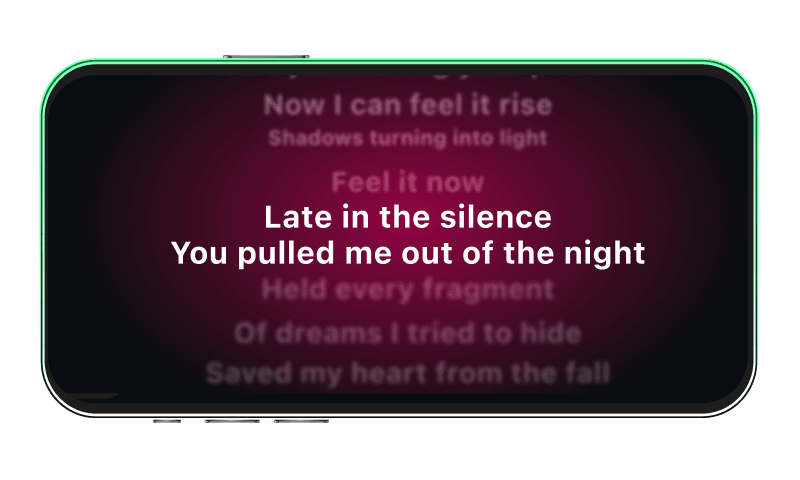
Synced CarPlay lyrics
Time-coded karaoke lyrics on the CarPlay display for Apple Music and Spotify. The active line highlights as the song plays.
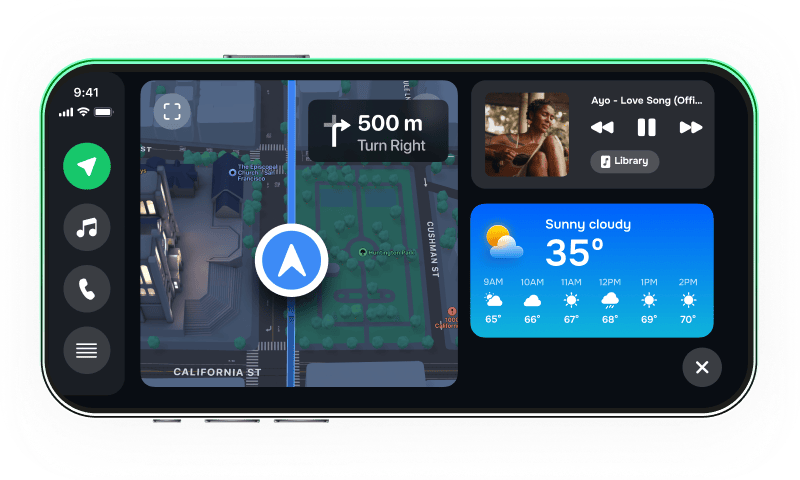
iPhone car dashboard
For Teslas, older cars, motorcycles — Mount Mode runs the dashboard on your iPhone when the car has no CarPlay.
Frequently asked
What are CarPlay widgets?
CarPlay widgets are iPhone widgets that render on the CarPlay screen, introduced in iOS 26 (June 2025) and carried on in iOS 27 (September 14, 2026): any compatible iPhone Home Screen widget can sit on the CarPlay dashboard. On iOS 27 you add them per car via Settings → General → CarPlay → your car → Widgets → Add Widgets. Car Play Connect ships a whole gallery designed for the dashboard: styled weather cards, date & time clocks, air quality, iPhone battery, year progress, your own photos, an AI Photo Widget, a MyCard car portrait, car-brand logos, affirmations, faith verses, football crests and country flags.
How do I add widgets to CarPlay?
On iOS 27, open iPhone Settings → General → CarPlay → tap your car → Widgets → Add Widgets. Add the widgets you want and drag to reorder. On iOS 26 the path is Settings → CarPlay → tap your car → Customize → Widgets. The layout persists per-car. Reconnect CarPlay for changes to take effect.
How do I edit CarPlay widgets?
Same path: Settings → General → CarPlay → your car → Widgets on iOS 27 (Settings → CarPlay → your car → Customize → Widgets on iOS 26) — drag to reorder, tap to remove, or add. iOS 27 also adds Smart Rotate and Widget Suggestions toggles there. To change what a specific widget shows (the album for a Photo Widget, the weather look, or the car model on MyCard), open Car Play Connect and edit that widget there.
What are the best CarPlay widgets?
The most-picked in Car Play Connect are the styled weather cards, a date & time clock, the live Air Quality tile, the iPhone Battery gauge, and the car-brand logos. Year Progress, your own Photo Widget, the AI Photo Widget, affirmations, faith verses, football crests and country flags round out the gallery. All of them are free.
Do CarPlay widgets work on iOS 27?
Yes. iPhone widgets on the CarPlay screen arrived in iOS 26 and carry on in iOS 27 (September 14, 2026): any compatible Home Screen widget, including third-party ones, can go on the CarPlay dashboard. Car Play Connect's widgets keep working on iOS 27 — you add them under Settings → General → CarPlay → your car → Widgets → Add Widgets. The app itself also runs on iOS 16.2+ with a reduced feature set.
How many widgets can I show on CarPlay?
You can add several widgets to the CarPlay widget area and reorder them in Settings → General → CarPlay → your car → Widgets (iOS 27). Build the set you want in Car Play Connect, then arrange them per car.
Do widgets work on older iOS versions?
Live Activities have shown on CarPlay since iOS 17. True iPhone widgets on the CarPlay screen require iOS 26 or later. Car Play Connect still runs on iOS 16.2+ with limited features.
Can I put my own photo on a CarPlay widget?
Yes. The Photo Widget lets you pick any album on your iPhone and cycles through it. There's also a Photo Collage and a Photo Pair layout, plus the AI Photo Widget, which generates a one-of-a-kind composite from photos you choose.