Add Car Widgets
On this page▾
- The 30-second Zlink check
- Zlink CarPlay: wired vs wireless at a glance
- Step 1: Find Zlink on your head unit
- Step 2: Set up wired Zlink CarPlay
- Step 3: Set up wireless Zlink CarPlay
- Fix 4: When Zlink won't connect to your iPhone
- Method 5: No Zlink, or a unit that keeps failing? Mount your iPhone
- Frequently Asked Questions
Quick answer
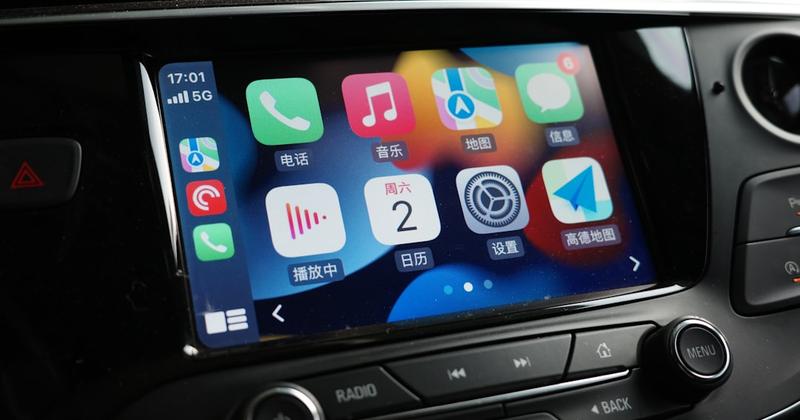
Zlink is the built-in app on many aftermarket Android head units that runs Apple CarPlay and Android Auto. Open Zlink on the car screen, pick wired or wireless CarPlay, then connect your iPhone by USB or Bluetooth. It comes pre-installed on the unit, so you won't find Zlink in the App Store.
Running an iPhone through Zlink?
Once CarPlay is up, get more out of the screen
If there's an iPhone feeding Zlink, Car Play Connect adds car-tuned widgets, a custom startup sound, and a Mount Mode dashboard for iPhone drivers. Free to try before you spend on anything else.

Car Play Connect: Auto Sync
4.6·2,735+ ratings·Free


Zlink runs CarPlay two ways on Android head units such as Dasaita and Atoto: wired over a plain USB data cable, or wireless after a Bluetooth pairing. Either way, video apps are skipped. That's normal: Zlink is built for maps, music, and calls, not streaming.
The 30-second Zlink check
Before you change any settings, work out which situation you're in. It takes half a minute and points you to the right step below.
- Your head unit has a Zlink icon. Good. Decide wired or wireless next, then jump to Step 2 or Step 3.
- You have an iPhone. Zlink needs one for CarPlay. An Android phone uses Android Auto through the same app instead — the Android CarPlay guide covers every route from an Android phone or head unit.
- No Zlink icon, or it keeps failing. Skip to Method 5 and run CarPlay from the phone itself.
New to the platform? Start with what Apple CarPlay is, then come back. Not sure your factory car ever had CarPlay? The list of cars with Apple CarPlay settles it by make and year.
Zlink CarPlay: wired vs wireless at a glance
Here's how the two connection modes compare, plus the no-head-unit fallback, so you can pick before you start:
| Setup | Phone needed | How it connects | Best for |
|---|---|---|---|
| Wired Zlink CarPlay | iPhone | USB data cable to the unit | A rock-steady link, no lag |
| Wireless Zlink CarPlay | iPhone | Wi-Fi/hotspot + Bluetooth | Getting in and going, no cable |
| Mounted iPhone (Mount Mode) | iPhone | Phone runs its own screen | A dead or missing Zlink unit |
Step 1: Find Zlink on your head unit
Zlink is pre-installed, so the first job is to confirm it's there and up to date. You don't install it from the App Store, and you don't need to sideload anything on a working unit.
- Wake the head unit and look on the home screen or app drawer for a Zlink icon (it may appear under a slightly different name on your unit).
- Open it once so it can finish first-run setup and request any permissions it needs.
- Check the unit runs Android 5.0 or newer under its system settings; older builds don't support current Zlink.
- If a newer build exists for your model, take the maker's update, not a random file off a forum.
When this won't work: a few budget units ship without CarPlay licensing, so Zlink only offers Android Auto. If there's no Zlink and no CarPlay option at all, the unit can't do it in software. Jump to Method 5.
Step 2: Set up wired Zlink CarPlay
Wired is the more reliable mode for daily driving. There's no Wi-Fi to drop, and it charges the phone at the same time. You need a real data cable, not a charge-only one.
- Open Zlink on the head unit and choose the wired CarPlay option.
- Plug your iPhone into the unit's data USB port with an Apple or MFi cable.
- On the iPhone, tap Allow or Trust when the CarPlay prompt appears.
- Wait a few seconds; the CarPlay home screen loads on the car display.
When this won't work: a charge-only cable is the number-one cause of a dead wired link. Swap the cable, then try the other USB port, since many units keep one media port and one charge-only port. Restart the phone if the prompt never shows.
Step 3: Set up wireless Zlink CarPlay
Wireless drops the cable, but it leans on Bluetooth and Wi-Fi, so it's a touch fussier to start. Once paired, it usually reconnects on its own each drive.
- In the unit's settings, turn on Wi-Fi and its hotspot, or join a known network.
- On the iPhone, open Settings → Bluetooth and pair with the head unit.
- Back in Zlink, choose wireless CarPlay and accept the connection prompt on the phone.
- Keep the phone near the dash for the first pairing; move it after the link holds.
When this won't work: if it sticks on Connecting, forget the unit under Settings → Bluetooth on the iPhone, restart both devices, and pair again. A weak head-unit Wi-Fi radio is a common wireless-only fault; wired (Step 2) sidesteps it entirely.
Fix 4: When Zlink won't connect to your iPhone
If Zlink loads but CarPlay never appears, it's almost always one of these. Work through them in order:
- Swap the cable and port first. On wired setups, this fixes most failures on its own.
- Restart both. Turn the car fully off and on, and restart the iPhone.
- Re-pair from scratch. Delete the car under Settings → General → CarPlay on the phone, then set it up again.
- Check for a firmware or app mismatch. A head-unit update can install the wrong Zlink build for your model; reflash the maker's matching version.
When this won't settle it: if CarPlay also fails on the iPhone in a different car, the fault is likely the phone, not Zlink. The full walkthrough in why Apple CarPlay isn't working covers the rarer causes, from Siri being off to a USB restriction setting.
Before you replace the unit
A free CarPlay-style screen you can try tonight
If Zlink keeps dropping the link, Car Play Connect's Mount Mode turns the iPhone you already carry into a CarPlay-style dashboard with maps, a GPS speedometer, driver-mode buttons, and hands-free dialing. Free to try before you spend on hardware.
Car Play Connect: Auto Sync
Free
Method 5: No Zlink, or a unit that keeps failing? Mount your iPhone
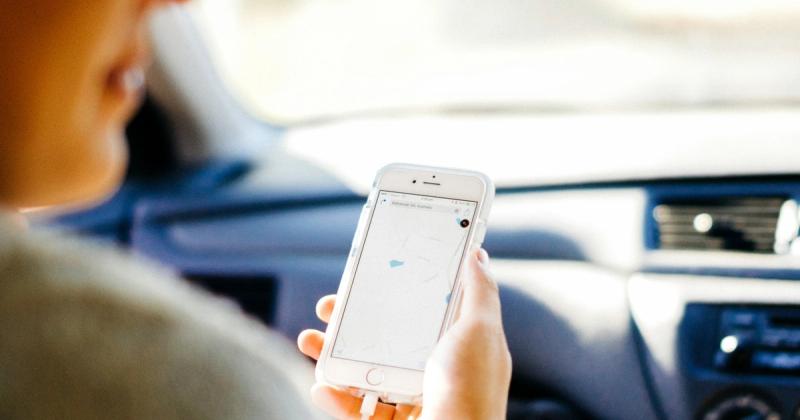
If your head unit has no Zlink, only offers Android Auto, or keeps dropping CarPlay, the iPhone itself is the cheapest screen. Mount it and run a dashboard app, and you get a CarPlay-style display with no unit involved. It also works in a Tesla, which can't get native CarPlay at all. Car Play Connect's Mount Mode is built for exactly this.
- Put the iPhone in any car mount: vent, suction, or dash.
- Open Car Play Connect and switch on Mount Mode.
- You get maps, a GPS speedometer, driver-mode buttons, and hands-free dialing on the phone screen.
- Send audio to the car over Bluetooth, or a cheap FM transmitter if it has none.
The honest limit: a mounted iPhone won't drive the head unit's own display or steering-wheel buttons. But when Zlink is missing or flaky, it turns any mount into a real driver screen, and it's free to try before you spend on a new unit or a wireless CarPlay adapter.
Frequently Asked Questions
What is Zlink CarPlay?
Zlink CarPlay is a built-in app on many aftermarket Android head units that runs Apple CarPlay on the car screen. It also runs Android Auto for Android phones. The head unit maker pre-installs it, and it relays a CarPlay session from your connected iPhone to the display over USB or Bluetooth.
Is Zlink on the App Store?
No, Zlink is not on the Apple App Store. It comes pre-installed on compatible Android head units from brands like Dasaita, Atoto, and Joying, so you don't download it onto your iPhone. If a listing claims to be Zlink for iPhone, it isn't the genuine head-unit app and won't add CarPlay.
Why is my Zlink CarPlay not connecting?
Zlink CarPlay usually fails because of a charge-only USB cable or a non-data port. Swap to an Apple or MFi data cable, try the other USB port, then restart both the phone and the head unit. If it loops on “Connecting,” forget the unit under Settings → Bluetooth on the iPhone and pair again.
Does Zlink support wireless CarPlay?
Yes, Zlink supports wireless CarPlay on units with Wi-Fi and Bluetooth. Turn on the head unit's Wi-Fi or hotspot, pair the iPhone over Bluetooth, then pick wireless CarPlay in the app. Wireless is handy, but a weak head-unit radio can make it drop; wired CarPlay is steadier for daily use.
Can Zlink play YouTube or Netflix?
No, Zlink does not stream YouTube or Netflix by design. It focuses on driving apps like maps, music, calls, and messages, the same set Apple CarPlay allows. To add video apps to a car screen, you need a separate Android AI box, and most cars still block video playback while the vehicle is moving.
Which head units come with Zlink?
Zlink ships pre-installed on many aftermarket Android head units, including brands like Dasaita, Atoto, and Joying. The unit must run Android 5.0 or newer to support current CarPlay builds. Factory (built-in) car systems don't use Zlink; they run Apple's own CarPlay directly once you connect an iPhone. If your car already has that factory wired CarPlay and you just want it wireless, a dongle like the Ottocast U2Air Pro, the Jemluse wireless CarPlay adapter, the AutoSky wireless CarPlay adapter, the AutoSky Pro Slim, the Aluratek wireless CarPlay adapter, or the Rexing CPW-1 wireless CarPlay adapter does that job instead of Zlink.
Whichever way Zlink connects, you can still get more onto the CarPlay screen. Car Play Connect adds 124 car-tuned widgets, a custom startup sound, and a Mount Mode dashboard for iPhone drivers. Want the official platform details? Read Apple's CarPlay overview.