On this page▾
- The 30-second test
- Method 1: Confirm your Mini Cooper has Apple CarPlay
- Method 2: Connect Apple CarPlay with a cable
- Method 3: Connect Apple CarPlay wirelessly
- Method 4: Fix common Mini Cooper CarPlay problems
- Method 5: Customize your Mini's CarPlay screen
- Wired vs. wireless CarPlay in a Mini Cooper
- Frequently Asked Questions
- Related guides
Apple CarPlay availability in a Mini Cooper depends on the trim and model year, so check yours rather than assume. Start the car and look for a CarPlay icon on the home screen of the central touchscreen. If it's there, connect it with a cable or, on some trims, wirelessly. Once CarPlay loads, you can customize the screen with widgets, a different connection sound, and synced lyrics.
CarPlay setup looks almost identical across Mini Hardtop, Convertible, Clubman, and Countryman models. The software comes from Apple, not from Mini. What changes between them is the hardware: USB port location, whether a wireless toggle even exists, and how the car's own menus name things. Any iPhone that still gets software updates runs the same CarPlay session once it connects. That covers an iPhone 12 just as much as an iPhone 17.
In practice, the most common snag isn't a broken car. It's a cable that charges but doesn't carry data, or a Bluetooth pairing that went stale after an iOS update. Both are quick to rule out, and the methods below go in the order that fixes the most cars first.
The 30-second test
Before you dig into settings, run this check. Start the engine, glance at the home screen on the central display, and look for a CarPlay or phone-mirroring icon. Plug in a USB cable if one isn't already connected. If a "Use CarPlay?" prompt or similar pops up, your Mini already supports it. Skip ahead to whichever connection method matches your cable or trim.
Build your CarPlay
Make your Mini's CarPlay screen yours
Once CarPlay connects, Car Play Connect adds weather, clock, and battery widgets to the screen, plus a custom connection sound and synced lyrics.

Car Play Connect: Auto Sync
4.6·2,735+ ratings·Free


Method 1: Confirm your Mini Cooper has Apple CarPlay
Park, start the car, and check the home screen on the central touchscreen for a CarPlay tile or a phone icon. Some Mini infotainment systems only surface the option after you plug a phone in, so don't rule it out from the home screen alone. Try a cable before you assume the car can't do it.
On the iPhone side, open Settings and look for a CarPlay entry under General — if it's there, the phone itself is ready. MINI publishes its own CarPlay availability details by model and year. Check it against your specific trim before you buy a cable or plan a workaround.
Method 2: Connect Apple CarPlay with a cable
Plug a USB cable into the Mini's USB port and into the iPhone. Use the cable that came with the phone, or any cable rated for data transfer. A charge-only cable will power the phone but never trigger CarPlay. Unlock the iPhone if it's asleep.
A "Trust This Computer?" or "Allow"-style prompt may appear the first time. Tap Allow. CarPlay should take over the Mini's screen automatically after that. If it doesn't, unplug the cable, wait a few seconds, and plug it back in.
Method 3: Connect Apple CarPlay wirelessly
If your Mini has a wireless CarPlay option, pair the iPhone over Bluetooth first. Open Settings → Bluetooth on the iPhone, then select the Mini from the list. Keep Wi-Fi turned on too — wireless CarPlay streams video and audio over Wi-Fi even though Bluetooth starts the handshake.
Once paired, the car should offer to connect to CarPlay the next time you start it with that iPhone nearby. If no wireless prompt ever appears, your trim likely only supports the wired version — that's not a bug, just a hardware limit. A cable still gives you the full CarPlay experience.
Build your CarPlay
Add widgets, sounds, and lyrics to CarPlay
Once CarPlay connects reliably, Car Play Connect is what turns the stock screen into something worth looking at — free to try on the App Store.
Car Play Connect: Auto Sync
Free
Method 4: Fix common Mini Cooper CarPlay problems
Work through these in order before assuming the car itself is at fault:
- Try a different cable. Many "charging" cables skip the data wires entirely. A cable that charges other devices fine can still fail CarPlay.
- Forget and re-add the car. On the iPhone, go to Settings → General → CarPlay, tap your Mini, choose Forget This Car, then reconnect from scratch.
- Re-pair Bluetooth. Under Settings → Bluetooth, forget the Mini, then pair again with the engine running rather than just the ignition accessory position.
- Restart the iPhone. A stuck background process on the phone can block CarPlay from launching even when the cable and pairing are both fine.
- Check for software updates. Update the iPhone's iOS version, and check with your Mini dealer about an infotainment software update if the car is older.
MINI's own CarPlay connection troubleshooting page covers errors specific to its ID6-generation infotainment system. It's worth a look if the steps above didn't fix the connection.
Method 5: Customize your Mini's CarPlay screen
Once CarPlay is reliably connecting, the stock screen is just the starting point. Install Car Play Connect, open Settings → CarPlay → Customize → Widgets on the iPhone, and turn its widgets on. The app adds weather cards, clocks, an iPhone battery widget, year-progress trackers, your own photos, and more to the CarPlay screen.

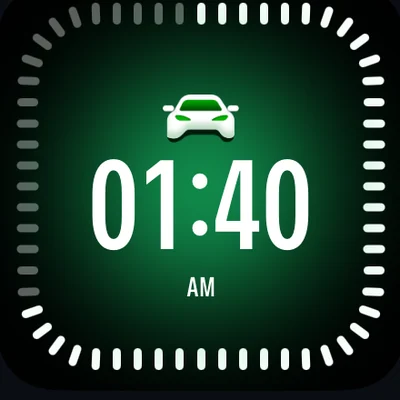
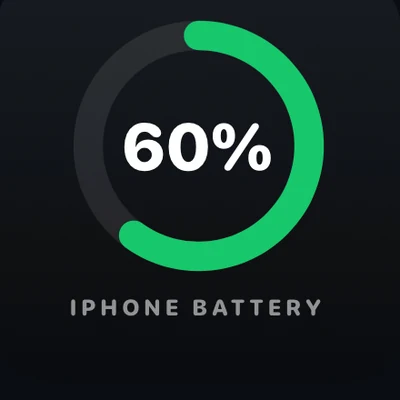
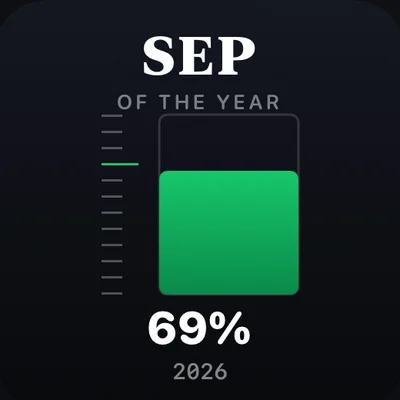
The same app also covers two other things CarPlay doesn't do on its own. A custom connection sound lives under Sounds → Connect Sound. Synced, karaoke-style lyrics on supported tracks run through its Dynamic Lyrics widget. Both are optional — CarPlay works fully without them — but they're the parts of the dashboard that are actually ours to add.
Car Play Connect is free to try. The annual plan is $19.99/year.
Wired vs. wireless CarPlay in a Mini Cooper
| Connection | Cable needed | Reconnects automatically | Works in every CarPlay Mini | Best if |
|---|---|---|---|---|
| Wired CarPlay | Yes, every time | No — plug in each drive | Yes | Your trim has no wireless toggle, or you'd rather not depend on Bluetooth and Wi-Fi staying connected |
| Wireless CarPlay | No, after first pairing | Yes, once Bluetooth and Wi-Fi stay on | No — depends on trim and infotainment package | Your Mini has the wireless option and you'd rather skip the cable |
Frequently Asked Questions
How do I turn off CarPlay in my Mini Cooper?
Unplug the cable, or on a wireless connection open Settings → General → CarPlay. Tap your Mini, then choose Forget This Car. Turning off the ignition also ends the session on its own. If you want CarPlay blocked everywhere, use Screen Time → Content & Privacy Restrictions → Allowed Apps instead.
How do I enable Siri for CarPlay in a Mini Cooper?
Siri works on CarPlay automatically once it's turned on under Settings → Siri on your iPhone. In the Mini, press and hold the voice button on the steering wheel, or say "Hey Siri" if that toggle is also on. If Siri stays silent, check Settings → Apps → Siri on the iPhone first.
How do I change the CarPlay background in my Mini Cooper?
Apple CarPlay doesn't have a separate wallpaper picker; the layout Apple ships with iOS stays fixed. iOS 26 widgets sit on top of that layout instead of a photo. For an actual photo on the screen, add a Car Play Connect photo widget from Settings → CarPlay → Customize → Widgets.
How do I change the Apple CarPlay startup sound in a Mini Cooper?
iOS has no built-in setting for this — the default CarPlay connection sound hasn't changed since 2014. Install Car Play Connect, open Sounds → Connect Sound, and pick a preset or import your own .m4a, .mp3, or .wav. It plays every time CarPlay connects in your Mini, cable or wireless.
Does the Mini Cooper support wireless Apple CarPlay?
Some do and some don't — it depends on the trim and infotainment package. Check your own Mini's CarPlay settings for a wireless toggle rather than assuming. If you don't find one, a cable still gets you full CarPlay. Wireless only changes how you connect, not what CarPlay can do.
Why does CarPlay keep disconnecting in my Mini Cooper?
Most drops trace back to a loose cable, a charge-only cable with no data wires, or a stale Bluetooth pairing. Swap the cable first, then forget the car under Settings → General → CarPlay and reconnect. If it still drops, also forget the Mini under Settings → Bluetooth and pair again with the engine running.
Related guides
Want more on what you can add to the CarPlay screen itself? See our guides on CarPlay widgets, a custom CarPlay startup sound, and synced lyrics on CarPlay. If you drive an older car or a Tesla with no native CarPlay at all, Mount Mode turns an iPhone into a dashboard instead. Or browse the full CarPlay blog for more guides like this one.