Add Car Widgets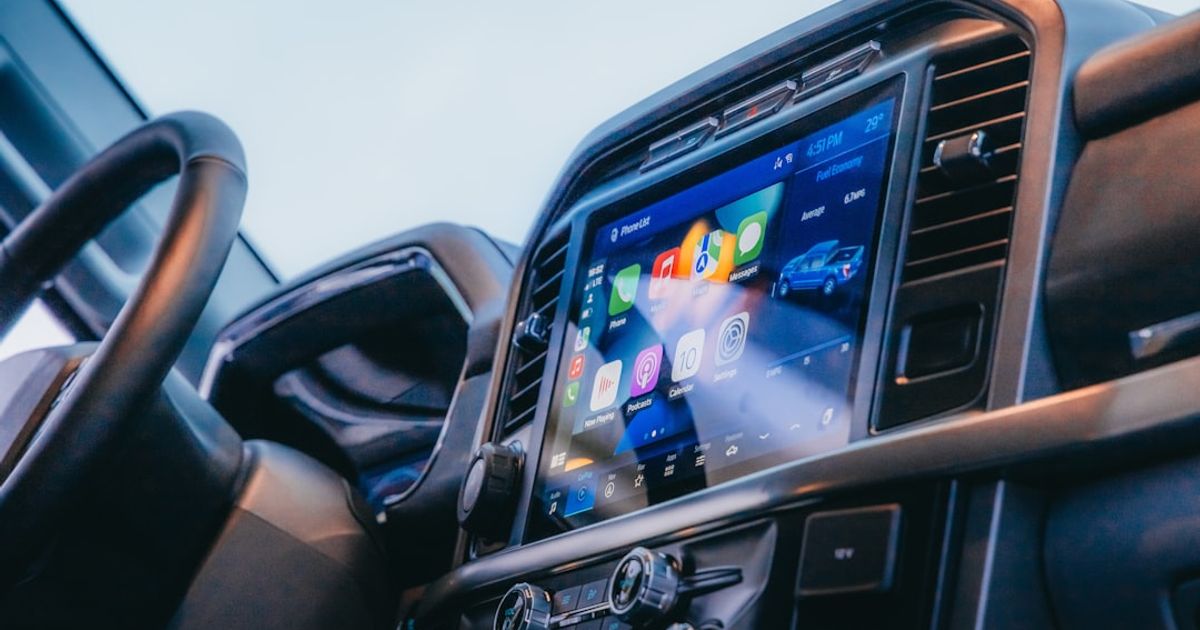
On this page▾
- TL;DR — how to add widgets to CarPlay
- Before you start: what you actually need
- How to add widgets to CarPlay (step-by-step)
- How to edit existing CarPlay widgets
- How to reorder (change) the CarPlay widget stack
- How to remove widgets from CarPlay
- Best widgets to add to CarPlay in 2026
- Best widgets at a glance
- Troubleshooting: widgets not appearing on CarPlay
- FAQ
Quick answer
To add widgets to CarPlay on iOS 26: Settings → General → CarPlay → tap your car → Customize → Widgets. Drag up to 5 into the stack, then reconnect. If a third-party widget is missing, open the app on iPhone first — Car Play Connect adds 11 templates beyond the default iOS picker.
On iOS 27? the path is Settings → General → CarPlay → your car → Widgets → Add Widgets — full rundown of CarPlay widgets in iOS 27.
Widgets arrived on CarPlay with iOS 26 in June 2025 — and Apple buried the controls four taps deep in iPhone Settings, behind a per-car submenu most people never open. Here is the exact path, so you don't have to dig.
This guide covers all four actions — how to add widgets to CarPlay, how to edit CarPlay widgets, how to reorder the stack, and how to change CarPlay widgetsby removing the ones you don't want. Each section is the literal sequence of taps as of iOS 26.2 (December 2025), with screenshots-in-words and the gotchas that trip up new CarPlay users. Already have a stack and just want to manage it? Our guide to editing CarPlay widgets focuses only on reordering, swapping, and changing the widgets you already added.
TL;DR — how to add widgets to CarPlay
To add widgets to CarPlay in iOS 26: open iPhone Settings → General → CarPlay → tap your car name → tap Customize → tap Widgets. The top section shows your current stack (up to 5 widgets). The bottom section is the gallery of every widget your installed apps offer. Tap the green “+” on any gallery widget to add it to the stack, then long-press and drag to reorder. The next CarPlay connection shows the new stack in the right-side widget pane.
Before you start: what you actually need
Three prerequisites that aren't obvious until you hit them — and one of them is the reason most “widgets aren't showing” complaints exist on r/CarPlay.
- iOS 26.0 or later. Widgets on CarPlay shipped in 26.0 (June 2025) and got stability fixes in 26.2 (December 2025). On iOS 18 and earlier, the option does not exist in Settings — there is no fix except updating iOS.
- A car with CarPlay widget support.Not all CarPlay cars render widgets. The right-side widget pane requires CarPlay 2.0 support, which most 2018+ vehicles have. Older head units (most 2015-2017 factory CarPlay) show only the legacy two-pane app launcher with no widget stack. If your car's CarPlay home screen has no right-side panel at all, widgets won't appear regardless of iOS version.
- The widget's parent app installed on your iPhone. CarPlay widgets are sourced from the iPhone widget gallery. If you want a Spotify widget on CarPlay, the Spotify app has to be on the iPhone. Removing the app removes the widget.
For the broader context on what widgets can and can't do on CarPlay — and which ones are worth a slot — start with our iOS 26 CarPlay widgets pillar.
How to add widgets to CarPlay (step-by-step)
This is the core path. It works the same on every car that supports widgets, every iPhone on iOS 26.0 or later. Total time: about 30 seconds once you know where to tap.
- Open iPhone Settings. (You do this from the iPhone, not from inside CarPlay — there's no widget customization UI on the dashboard screen itself.)
- Tap General → tap CarPlay. You'll see a list of every car you've ever paired to your iPhone.
- Tap the name of the car you want to customize. If you've never renamed it, it'll be the make + model (“Mazda CX-5”) or whatever the head unit announced itself as.
- Tap Customize. This opens the per-car layout editor — wallpaper, app icons, dark mode, and widgets all live here.
- Tap Widgets. The top of the screen shows your active stack (empty by default). The bottom shows the gallery of every widget your installed apps offer.
- Find the widget you want in the gallery and tap the green + button. It jumps to the top of the active stack. Repeat for up to four more — the maximum is five per stack.
- (Optional) Tap any widget in the active stack to configure it — pick an album for Photos, a list for Reminders, a location for Weather. Most widgets have a settings gear.
- Connect iPhone to CarPlay (wired or wireless). The new stack appears in the right-side widget pane within 10 seconds.
One quirk: if you add a widget while CarPlay is already connected, the change doesn't always sync until the next connection. Unplug, wait 5 seconds, plug back in — or for wireless, toggle Bluetooth off and on. This re-handshakes the widget snapshot.
Skip the gallery hunt
Want widgets that are already tuned for the car?
Car Play Connect ships 11 purpose-built CarPlay widget templates — album-locked Photos, GPS speedometer, weather, calendar — so you fill your five slots without digging through the gallery.

Car Play Connect: Auto Sync
4.6·2,300+ ratings·Free to try

How to edit existing CarPlay widgets
Editing a widget means changing its content source — the photo album it pulls from, the weather location it shows, the reminder list it displays. Every widget exposes its own configuration screen, but the entry point is the same.
- iPhone Settings → General → CarPlay → tap your car name → Customize → Widgets.
- In the active stack section (top), tap the widget you want to edit. Don't use the green minus button — that removes the widget. Tap the widget tile itself.
- A configuration sheet slides up. The fields depend on the widget — Photos shows an album picker, Weather shows a location field, Reminders shows a list picker, Music shows a source toggle (recent / Apple Music recommendations / a specific playlist).
- Make your changes. Tap Done in the top right.
- Reconnect to CarPlay so the new configuration syncs. Same drill as adding — unplug, wait 5 seconds, plug back in.
Two widgets worth editing first: Photos (locked to one album so the rotation is consistent — the default “recommended” setting gives you whatever the algorithm picks) and Weather (pinned to the destination city for any road trip, not the departure city). Apple's Weather widget supports route-aware locations in iOS 26.2, but you have to manually toggle it on per-widget — it's not the default. Our CarPlay weather widget guide walks the whole setup, including pinning a city so the tile stops showing departure-city weather.
How to reorder (change) the CarPlay widget stack
The order of widgets in the active stack matters — the top widget is what CarPlay shows first when you connect. Reordering is the most common way people change CarPlay widgets, and it's a long-press-and-drag gesture that Apple didn't document well.
- iPhone Settings → General → CarPlay → tap your car name → Customize → Widgets.
- In the active stack section, long-press any widget tile. After about half a second the tile lifts slightly and becomes draggable.
- Drag the tile up or down to its new position. The other widgets slide out of the way.
- Release. The new order saves immediately — there's no “Save” button.
- Reconnect CarPlay. The widget pane now shows the new top widget first; scroll the stack to see the rest.
Two rules of thumb on stack order: put your most glance-heavy widget on top (Photos is a popular choice), and never put Music in slot 1 because the now-playing pane already shows track info elsewhere on the CarPlay screen.
How to remove widgets from CarPlay
Removing a widget gets it out of the active stack without uninstalling the parent app. Useful if you're experimenting, or if a widget you added turned out to be useless at 65 mph (looking at you, Stocks).
- iPhone Settings → General → CarPlay → tap your car name → Customize → Widgets.
- In the active stack section, find the widget you want to remove. Tap the red minus (−) button to the left of the widget tile.
- Tap Removeto confirm. The widget drops out of the stack and back into the gallery (it's not deleted — you can re-add it later).
- Repeat for any other widgets you want to remove. The stack supports zero to five widgets, so it's fine to clear it completely if you don't want any.
- Reconnect to CarPlay. The widget pane updates to show only the remaining widgets, or collapses entirely if you removed all five.
One gotcha: removing a widget here doesn't remove it from your iPhone home screen. The two galleries are separate. If you want a widget gone from both, you also need to long-press it on the iPhone home screen and tap the minus.
One install, five slots
The tiles worth a permanent slot, without per-widget setup
Car Play Connect bundles album-locked Photos and synced Musixmatch lyrics for Apple Music and Spotify into the iOS 26 widget stack — configured once, no per-widget setup.
Car Play Connect: Auto Sync
Free to try
Best widgets to add to CarPlay in 2026
Five slots, so each one has to earn it. This slate covers the most common needs:
- Photos (album-locked). Pin a specific album — kids, dog, last trip. Rotates every 30 seconds. See our CarPlay photos widget guide for the native setup and how to lock it to one album.
- Weather (destination-aware).Apple's Weather widget shows current location by default — useless on a road trip. Pin destination manually or use a route-aware widget like Carrot.
- Dynamic Lyrics. The native lyrics view takes over the full now-playing screen, which forces a choice between Maps and lyrics. A widget keeps lyrics in the stack alongside your navigation. Car Play Connect's version works across Apple Music, Spotify, YouTube Music, and Tidal.
- Calendar Today.Next two events + countdown. The widget that prevents the “wait, was that meeting at 2 or 3?” phone-grab.
- Charging Status (EV drivers only).New in iOS 26.2. State of charge, time to full, current rate. Bonus tile that didn't exist six months ago.
- GPS Speedometer.A live MPH readout that's often clearer than the dash. See how to get a speedometer on CarPlay to add it and compare it with Waze. If you just fitted bigger tires, run the speedometer calibration calculator first so you know how far the needle sits from ground speed.
Free browser tool
How far is the dash from true speed?
Enter stock and new tire sizes (or overall diameters) plus a dash reading. Get real speed, percent error, and a lookup table for common highway speeds — all in the browser.
Calibrate your speedometer →Skip Stocks (zero glance value), Calendar Month View (unreadable at speed), and the ChatGPT widget (voice belongs to Siri in the car, not to a tile you tap). Full ranked list in best CarPlay widgets 2026.
Best CarPlay widgets at a glance
The same five tiles side by side — what each one shows in the stack and the one setup step it needs before it earns a slot.
| Widget | What it shows | Setup note |
|---|---|---|
| Photos (album-locked) | A pinned album, rotating every 30 seconds | Lock to a specific album; the default “recommended” setting is algorithmic |
| Weather (destination-aware) | The forecast | Defaults to current location; pin the destination manually or use route-aware Carrot |
| Dynamic Lyrics | Song lyrics, kept in the stack alongside navigation | Works across Apple Music, Spotify, YouTube Music, and Tidal |
| Calendar Today | Next two events plus countdown | — |
| Charging Status | State of charge, time to full, current rate | EV drivers only; new in iOS 26.2 |
Troubleshooting: widgets not appearing on CarPlay
If you've added widgets and they're not showing up on the CarPlay screen, it's almost always one of four causes. In order of how often each one is the culprit:
- The widget pane is collapsed.Some cars (Mazda especially) default to the legacy two-app split view that doesn't show widgets. Tap the home button on the dashboard to switch to the widget pane. If there's no widget pane at all, your car may not support CarPlay 2.0 widgets — see why CarPlay widgets aren't available.
- CarPlay cached the old permissions. If you added or edited widgets while CarPlay was already connected, the change might not sync until the next session. Unplug for 5 seconds and plug back in. Wireless: toggle Bluetooth off/on.
- You're on iOS 26.0 or 26.1 with the widget cache bug.The early 26.x releases had a bug where the widget stack would silently fail to sync to certain head units after the third connection. iOS 26.2 (December 2025) fixed it. Update if you haven't already — see our iOS 26.2 CarPlay changes post.
- The parent app needs a refresh.Third-party widgets (Carrot, Marvis Pro, Fantastical) sometimes need the iPhone app brought to foreground at least once after installing the widget before they'll render on CarPlay. Open the app on the iPhone, let it sit on the home screen for 5 seconds, then reconnect.
For a symptom-by-symptom walkthrough — blank tiles, an empty column, one app's widget that never appears — see our guide to CarPlay widgets not loading. For deeper CarPlay troubleshooting beyond widgets, including the diagnostic flowchart that covers the common cases, see our complete CarPlay customization guide. Apple's official CarPlay support page is at support.apple.com/en-us/118427 and the r/CarPlay subreddit at reddit.com/r/CarPlay is good for car-specific edge cases.
FAQ
How do I add widgets to CarPlay in iOS 26?
Open iPhone Settings → General → CarPlay → tap your car name → tap Customize → tap Widgets. The bottom section is the gallery of every widget your installed apps offer; tap the green + on any widget to add it to the active stack at the top. The stack supports up to five widgets. Reconnect to CarPlay and the new widgets appear in the right-side pane within 10 seconds. You can't add widgets from inside CarPlay itself — only from the iPhone Settings app.
How do I edit or change CarPlay widgets?
Same path: iPhone Settings → General → CarPlay → tap your car name → Customize → Widgets. In the active stack section, tap the widget tile itself (not the red minus) to open its configuration sheet — pick a Photos album, set a Weather location, choose a Reminders list. Tap Done. To change the order of widgets, long-press any tile in the active stack and drag it up or down. Reconnect CarPlay to sync the changes.
Why aren't my widgets showing up on CarPlay?
Four common causes: the widget pane on your dashboard is collapsed (tap the home button to switch to it); CarPlay cached old permissions before you added widgets (unplug and plug back in); you're on iOS 26.0 or 26.1, which had a widget sync bug fixed in 26.2; or the parent app needs to be opened on iPhone once before its widget will render on CarPlay. Also confirm your car supports CarPlay widgets — pre-2018 head units often don't.
How many widgets can I add to CarPlay?
The CarPlay widget stack supports up to five widgets per car. You can also have zero — the widget pane collapses if the stack is empty. Each car you've paired has its own independent stack, so you can configure a different set of widgets for a work car and a weekend car. The order matters: the top widget shows first when CarPlay connects, and the rest scroll into view as you swipe down on the dashboard.
Can I add third-party widgets to CarPlay?
Yes, with one prerequisite: the third-party app must have a CarPlay-compatible widget that Apple has approved. Carrot Weather, Marvis Pro, Fantastical, Apollo, and Car Play Connectall ship CarPlay widgets in iOS 26. Install the parent app on your iPhone, open it once so the system registers the widget, then add it from iPhone Settings → CarPlay → Customize → Widgets. Apps that haven't updated for CarPlay yet show their widgets on the iPhone but not in the CarPlay gallery. If you want a set of free CarPlay widgets to fill the stack without paying per app, Car Play Connect ships all 11 templates unlocked on first launch.
Once you've added the basics, the next step is the rest of CarPlay personalization — wallpaper, dark mode, startup sound, icon labels. Our complete customization guide walks through every setting iOS 26 exposes. Or if you want a curated five-widget stack you can install in one tap, see Car Play Connect's widget pack — Dynamic Lyrics, route-aware Weather, album-locked Photos, Calendar Today, and the new iOS 26.2 Charging Status tile.