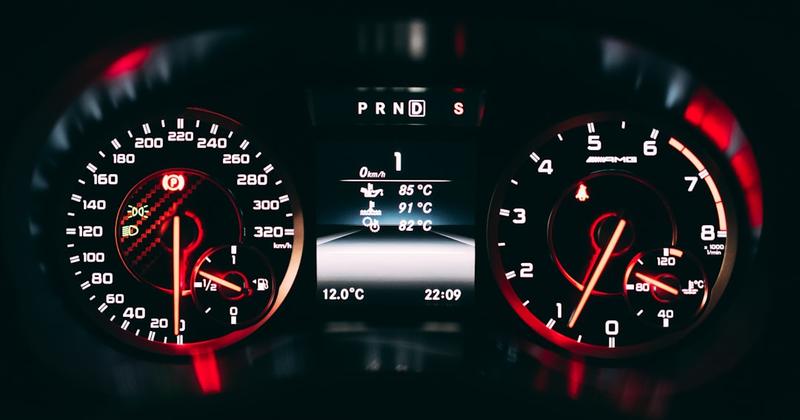
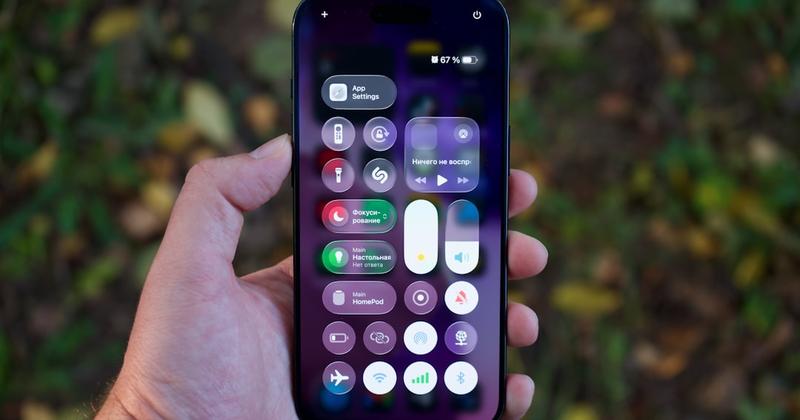
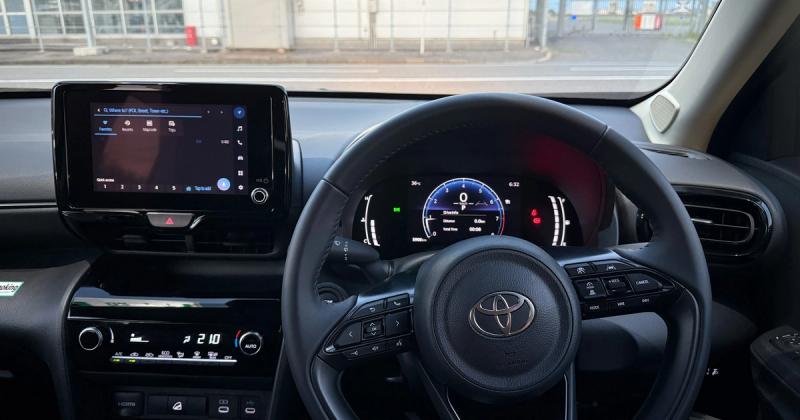
Add Car Widgets
On this page▾
- The 30-second test: do you need a new screen at all?
- Method 1: Use your car's built-in CarPlay screen
- Method 2: Add a CarPlay screen with an aftermarket head unit
- Method 3: Add a portable or standalone CarPlay screen
- Method 4: Turn a mounted iPhone into a CarPlay screen
- Why your CarPlay screen is black or won't show up
- CarPlay screen options compared
- Frequently Asked Questions
Quick answer
A CarPlay screen is the in-car display that shows your iPhone's Maps, music, and messages while you drive. There are four honest ways to get one: your car's built-in center display, an aftermarket head unit, a portable CarPlay monitor, or a mounted iPhone running a dashboard app. All four run the same CarPlay apps.
There are three main ways to get a CarPlay screen — a factory display, an aftermarket head unit, or a mounted iPhone in a car that never had CarPlay. Each one earns its place for a different budget and a different dash. Here's how to pick the right route, and what to do when the screen you already have stays black.
The 30-second test: do you need a new screen at all?
Before you spend a dollar, work out which problem you actually have. Start the car and plug your iPhone into the USB port nearest the dash.
- CarPlay loads on the center screen. You already have a CarPlay screen — you just needed the right port and cable. Nothing to buy. If it drops out later, see the CarPlay not working fixes.
- The screen is there but stays black or says “not available.” Your car has the hardware; something is blocking it. Skip to why your screen is black.
- Your car has no CarPlay at all.A pre-2016 model, a base trim, or a Tesla. Now you're choosing a real screen — Methods 2, 3, or 4 below.
That's the whole decision tree. Not sure your car qualifies for the built-in route? Check which cars have Apple CarPlay first.
No CarPlay screen in the dash?
Turn the iPhone you already own into a CarPlay-style screen
If your car can't run native CarPlay — a Tesla, a pre-2016 model, or a base trim — Car Play Connect's Mount Mode makes a mounted iPhone your driver screen: big maps, a GPS speedometer, and glanceable widgets, with audio over Bluetooth. Free to try.

Car Play Connect: Auto Sync
4.6·2,735+ ratings·Free


Method 1: Use your car's built-in CarPlay screen
If your car shipped with CarPlay, the screen is already in the dash — you just have to wake it up. This is the cleanest result because audio, mic, and controls are all wired in.
- Start the car and unlock your iPhone with Face ID or your passcode.
- Plug the phone into the USB port marked with a CarPlay or smartphone icon — usually the one closest to the head unit. Back-seat and armrest ports are often power-only.
- Tap Use CarPlay on the prompt that pops up on the iPhone.
- Wait 10–30 seconds for the CarPlay home screen to fill the car display.
When this won't work: a charging-only cable carries power but no data, so the screen never loads — swap in a known-good data cable. For the full wired-and-wireless pairing walkthrough, follow how to set up Apple CarPlay. Want to drop the cable? A wireless CarPlay adapter turns a wired-only built-in screen into a wireless one for about $40–80. You can confirm your car on Apple's official compatible-models list.
Method 2: Add a CarPlay screen with an aftermarket head unit
No factory CarPlay? Replace the stereo. An aftermarket head unit from Pioneer, Kenwood, Sony, or Alpine gives you a proper touchscreen wired into your speakers and steering controls. It's the best permanent result for an older car.
- Measure your dash opening — single-DIN and double-DIN units are different sizes.
- Buy a CarPlay head unit plus the matching dash kit and wiring harness for your make and model.
- Fit it yourself or pay a shop — budget roughly $300–800 installed, depending on the screen.
- Plug in the iPhone (or pair wirelessly if the unit supports it) and CarPlay loads.
Many budget Android head units start CarPlay through a built-in app called Zlink; if yours does, the Zlink CarPlay setup guide walks through the wired and wireless steps.
When this won't work: some cars route climate controls or reverse-camera feeds through the factory screen, so a straight swap can break them. On those, ask the installer about an interface adapter before you buy — or use Method 3 or 4 to avoid touching the dash at all. Shopping in Australia? See the best CarPlay screen options ranked for Australia, with local prices and retailers.
Method 3: Add a portable or standalone CarPlay screen
A portable CarPlay screen is a self-contained box that mounts on the dash or windshield. Nothing gets wired in. It's the fastest option and it moves between cars.
- Mount the screen on the dash or windshield with the included bracket or suction cup.
- Power it from a 12V socket or USB port — the cable is visible, so route it neatly.
- Pair your iPhone to the screen over its own Bluetooth or Wi-Fi.
- Send its audio to your speakers over Bluetooth or an FM transmitter.
When this won't work:audio over FM or Bluetooth can lag or hiss, and a dash-mounted box adds glare and clutter. It's great for maps and music, weaker for calls. Expect to spend about $80–200 for a decent one.
Already have the best screen in your pocket
Skip the $200 gadget — your iPhone is a bigger, sharper screen
A modern iPhone display beats most portable CarPlay boxes on size and clarity. Car Play Connect's Mount Mode runs a CarPlay-style dashboard on it — large maps, speedometer, and 11 car-tuned widgets — no wiring and no extra hardware. Free to try.
Car Play Connect: Auto Sync
Free
Method 4: Turn a mounted iPhone into a CarPlay screen
You already own the best screen in the car. Mount your iPhone and run a dashboard app, and you get a CarPlay-style layout without buying or installing anything. It is the natural route for a car that never had CarPlay.
- Clip your iPhone into a vent or dash mount where you can glance at it, not stare.
- Open Car Play Connect's Mount Mode and pick a layout.
- Add the widgets you actually use — maps, a GPS speedometer, music, weather.
- Pair the phone to your car over Bluetooth so audio and calls play through the speakers.
When this won't work:it doesn't control your car's own display or show up on the factory screen — it's a separate driver screen on the mount. That's exactly the point for a Tesla or a pre-2016 car, but if you want CarPlay on the dash, use Method 1 or 2. You can also give it a custom startup sound so it feels finished.
Why your CarPlay screen is black or won't show up
If your car has CarPlay but the screen sits black, it's almost never the screen itself. Work down this short list before you assume it's broken.
- Bad cable. A charging-only cable powers the phone but sends no video. Swap in a known-good data cable — this is the top cause.
- Wrong USB port. Only the data port runs CarPlay; the others just charge. Try each one.
- Screen Time is blocking it. Settings → Screen Time → Content & Privacy Restrictions → Allowed Apps → switch CarPlay on.
- The head unit needs a restart. Turn the car fully off, open and close the door, wait 30 seconds, then restart.
Still black after all four? The full walkthrough with car-specific quirks is why your CarPlay screen goes black, and the broader checklist is CarPlay not working.
CarPlay screen options compared
Four ways to get a CarPlay screen, four different trade-offs. Match the row to your car and your budget.
| Option | Rough cost | Best for | Main trade-off |
|---|---|---|---|
| Built-in screen (Method 1) | $0 | Cars that already have CarPlay | None — you just connect |
| Aftermarket head unit (Method 2) | $300–800 installed | Older cars, permanent fix | Install work; can affect factory features |
| Portable screen (Method 3) | $80–200 | Renters, moving between cars | Visible cables; laggy audio |
| Mounted iPhone (Method 4) | Free to try | Teslas, pre-2016 cars, no install | Separate screen, not on the dash |
Frequently Asked Questions
How do I get CarPlay on my car screen?
Plug your iPhone into the data USB port with a known-good cable, then tap Use CarPlay on the prompt that appears. CarPlay loads on your car's built-in screen within about 30 seconds. If your car has no CarPlay, you get a screen another way: an aftermarket head unit, a portable CarPlay monitor, or a mounted iPhone running a dashboard app.
Why is my CarPlay screen black?
A black CarPlay screen is almost always a cable or port problem, not a broken display. Charging-only cables carry power but no video, and only one USB port usually runs CarPlay. Swap in a data cable, try each port, and check that Screen Time isn't blocking CarPlay under Allowed Apps. Restarting the head unit clears most of the rest.
Can I add a CarPlay screen to an older car?
Yes. You can add a CarPlay screen to almost any older car with an aftermarket head unit from Pioneer, Kenwood, Sony, or Alpine, usually $300–800 installed. If you'd rather not rewire the dash, a portable CarPlay screen or a mounted iPhone running Car Play Connect's Mount Mode gives you a CarPlay-style display for far less.
What size is a CarPlay screen?
A CarPlay screen has no fixed size — CarPlay scales to fit whatever display it runs on. Factory screens usually range from about 7 to 15 inches, aftermarket head units from 6.8 to 10 inches, and portable units from 5 to 9 inches. A mounted iPhone uses its own screen, roughly 6 inches, but sits much closer to your eyeline.
Can I use my phone as a CarPlay screen?
Yes. You can use your iPhone as a CarPlay-style screen by mounting it and running a dashboard app like Car Play Connect's Mount Mode. It shows large maps, a GPS speedometer, and glanceable widgets, with audio over Bluetooth. It won't appear on your car's built-in display, but it turns any phone mount into a proper driver screen.
Whichever screen you end up with, the iPhone side is the same: keep the connection clean and fill it with what you actually glance at. Car Play Connect adds 11 car-tuned widgets, custom startup sounds, and a Mount Modedashboard for the Teslas and older cars that can't run native CarPlay at all. Free to try, annual subscription afterward.