Add Car Widgets
On this page▾
- The 30-second version: the two places CarPlay settings live
- Step 1: Open the CarPlay settings screen on your iPhone
- Step 2: Change settings from the CarPlay screen in your car
- Step 3: Manage your paired cars in My Cars
- Step 4: Set notifications and Do Not Disturb While Driving
- Step 5: Change the look — apps, wallpaper, and widgets
- Why the CarPlay settings screen is empty or missing
- Every CarPlay setting and where it lives
- Frequently Asked Questions
Quick answer
CarPlay settings live in two places: on your iPhone under Settings → General → CarPlay, and in the car itself through the Settings icon on the CarPlay home screen. The iPhone screen manages your paired cars and per-car toggles. The in-car screen controls the wallpaper, dark mode, and Do Not Disturb While Driving.
Most people open Settings, scroll, and never find a “CarPlay” row where they expect it. That's because CarPlay splits its settings across two screens on purpose — and the layout is the same on every iPhone and every car once you know where to look.
The 30-second version: the two places CarPlay settings live
Before you dig through menus, know that there are only two settings screens. Almost every option sits in one of them.
- On your iPhone: Settings → General → CarPlay. This is the “master” screen. It lists every car you've paired under “My Cars” and holds the per-car toggles — Allow While Locked, app layout, widgets, and Forget This Car.
- In the car: tap the Settings icon on the CarPlay home screen on the dashboard. This one changes what you see while driving — wallpaper, dark or light appearance, and the Do Not Disturb While Driving switch.
One rule keeps it straight: the phone screen manages cars and permissions, the car screen manages how CarPlay looks and behaves. If a setting isn't on one, check the other.
Looking for a setting that isn't there
Some things people hunt for in CarPlay settings simply don't exist yet
A GPS speedometer, an album-locked Photos widget, a custom startup chime — none ship in Apple's CarPlay settings. Car Play Connect adds all three, plus 11 car-tuned widgets, without touching your existing CarPlay setup. Free to try.

Car Play Connect: Auto Sync
4.6·2,800+ ratings·Free to try


Step 1: Open the CarPlay settings screen on your iPhone
This is the screen you'll use most. It only shows the full set of options after a car has connected at least once.
- Open Settings on your iPhone.
- Tap General.
- Scroll down and tap CarPlay.
- Under “My Cars,” tap the car you want to adjust. Every per-car toggle lives inside that car's page.
When this won't work:if there's no CarPlay row at all, or it's greyed out, something is blocking it — jump to why the screen is missing. If you've never connected a car, “My Cars” is empty until you make that first connection; the full pairing walkthrough is how to set up Apple CarPlay.
Step 2: Change settings from the CarPlay screen in your car
A handful of settings only appear on the dashboard, not the phone. You reach them without touching your iPhone at all.
- Start the car and let CarPlay load on the dashboard.
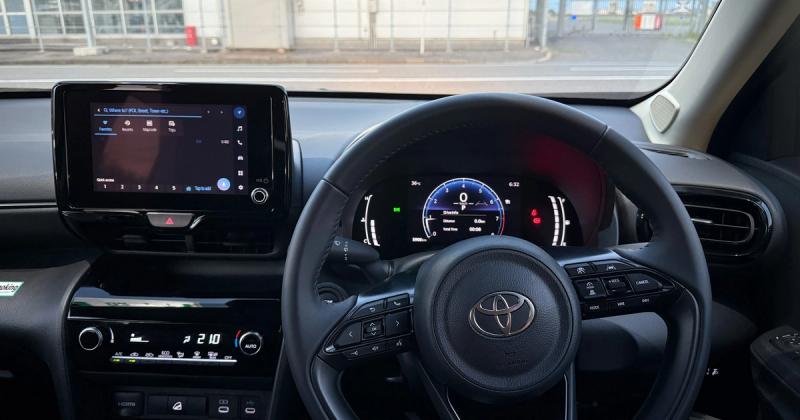
- On the CarPlay home screen, find the Settings icon (a grey gear, same as on iOS).
- Tap it to open the in-car settings list.
- Adjust Wallpaper, Appearance (light, dark, or automatic), and Do Not Disturb While Driving right there.
Why two screens?Apple keeps the “while driving” controls in the car so you can change them without unlocking your phone. The trade-off: options like dark mode aren't in iPhone Settings, which is exactly why people can't find them. To force dark mode on the whole car UI, see how to customize CarPlay.
Step 3: Manage your paired cars in My Cars
“My Cars” is where you rename, reorder, or remove the cars CarPlay remembers. It's also where the two per-car toggles that trip people up live.
- Allow CarPlay While Locked. Settings → General → CarPlay → your car. Off means CarPlay refuses to start unless the phone is unlocked at plug-in. Leave it on for wireless cars.
- Add a wireless car. On the main CarPlay screen, wait for the car under Available Cars, tap it, and confirm the code shown on both screens. A wired-only car can't be made wireless in software — a wireless CarPlay adapter handles that in hardware.
- Forget This Car. Tap the car, then Forget This Carat the bottom. This wipes its saved layout and pairing — the clean-slate fix when CarPlay acts up. It's also the first half of turning CarPlay off; the full walkthrough is how to turn off CarPlay.
When this won't work:the per-car toggles only exist after a car connects once. If “My Cars” is empty, connect first. Not sure your car even supports CarPlay? Check which cars have Apple CarPlay.
Step 4: Set notifications and Do Not Disturb While Driving
This is the setting people most want to change and least expect to find under Focus rather than CarPlay. Notifications on the car screen are governed by the Driving Focus.
- Open Settings → Focus → Driving.
- Set it to turn on Automatically or When Connected to CarPlay.
- To hear messages read aloud, turn on Announce Notifications in Settings → Notifications → Announce Notifications, then enable CarPlay under it.
- For per-app control, open Settings → Notifications → the app → and check whether it's allowed to show on CarPlay.
Honest limitation:CarPlay doesn't give you a single “show all notifications” switch. Silenced apps stay silent in the car, and a strict Driving Focus can hide texts you actually wanted. If notifications vanished entirely, the Driving Focus is almost always the cause — loosen it before you blame CarPlay.
No CarPlay settings screen at all?
Some cars never get a CarPlay settings screen
No Tesla supports CarPlay in 2026, and pre-2016 cars never had it — so there's nothing to configure. Car Play Connect's Mount Mode runs a CarPlay-style dashboard on a mounted iPhone: glanceable widgets, big controls, audio over Bluetooth. Free to try.
Car Play Connect: Auto Sync
Free to try
Step 5: Change the look — apps, wallpaper, and widgets
The appearance settings are split across both screens. Here's the short version — the full walkthrough for each lives in the customization guide.
- Rearrange or hide apps: Settings → General → CarPlay → your car → Customize. Drag icons, or tap the minus to hide the ones you never use.
- Widgets (iOS 26): same Customize screen → Widgets. Pick which tiles fill the right pane.
- Wallpaper and dark mode: the in-car Settings icon (Step 2).
For the deep version — icon folders, custom wallpaper, a custom startup sound, synced lyrics on the CarPlay screen, and the full dark-mode auto-switch — follow how to customize CarPlay. Which widgets are actually worth a slot? See the iOS 26 CarPlay widgets breakdown.
Why the CarPlay settings screen is empty or missing
If Settings → General has no CarPlay row, or it's dimmed, one of four things is true. Work down the list.
- Screen Time is blocking it. The most common cause. Settings → Screen Time → Content & Privacy Restrictions → Allowed Apps → switch CarPlay on. Full steps: how to enable CarPlay on iPhone.
- No car has connected yet. “My Cars” and its toggles only appear after a first pairing. That's normal, not a bug.
- Siri is off. CarPlay needs Siri; with it fully off you get “CarPlay is not available.” Fix: CarPlay not available — enable Siri.
- Your iOS is too old. The modern widget settings need iOS 26. Update in Settings → General → Software Update. If the screen appears but nothing responds, the reset path is CarPlay not working fixes.
Every CarPlay setting and where it lives
“CarPlay settings” points at eight different controls across three screens. Match what you want to change to its exact path.
| Setting | Where it lives | What it does |
|---|---|---|
| The CarPlay settings hub | iPhone: Settings → General → CarPlay | Lists paired cars and per-car toggles |
| Wallpaper & appearance | CarPlay display → Settings icon | Background image, light/dark/auto |
| Allow CarPlay While Locked | General → CarPlay → your car | Lets CarPlay start with the phone locked |
| Rearrange or hide apps | General → CarPlay → your car → Customize | Reorder or remove app icons |
| Widgets (iOS 26) | Customize → Widgets | Choose the right-pane widget tiles |
| Add a wireless car | General → CarPlay → Available Cars | Pairs a car for cable-free CarPlay |
| Do Not Disturb While Driving | Settings → Focus → Driving | Silences alerts while connected |
| Forget This Car | General → CarPlay → your car → Forget This Car | Removes the car and its saved layout |
For anything Apple documents officially, its CarPlay support page and the compatible-cars list are the sources to trust over any forum answer.
Frequently Asked Questions
Where do I find CarPlay settings on my iPhone?
CarPlay settings are in Settings → General → CarPlay on your iPhone. That screen lists every car you've paired under “My Cars” and holds the per-car toggles, like Allow CarPlay While Locked and Customize. There is no “CarPlay” row directly in the main Settings list — it's nested one level down under General, which is why most people miss it.
How do I change settings on the CarPlay screen itself?
Tap the Settings icon (a grey gear) on the CarPlay home screen on your car's dashboard. That opens the in-car settings, where you change the wallpaper, switch between light and dark appearance, and toggle Do Not Disturb While Driving. These options aren't in iPhone Settings — Apple keeps them in the car so you can adjust them without unlocking your phone.
Can I change CarPlay settings while driving?
You can change the in-car settings — wallpaper, appearance, and Do Not Disturb — from the CarPlay screen while stopped, but do it parked for safety. The deeper settings under Settings → General → CarPlay require your iPhone, which stays locked and out of reach while driving. Pull over before rearranging apps or changing per-car toggles.
Why can't I find CarPlay in my iPhone settings?
CarPlay is missing from Settings → General almost always because Screen Time is blocking it. Open Settings → Screen Time → Content & Privacy Restrictions → Allowed Apps and switch CarPlay on. If it's still gone, no car has connected yet, Siri is switched off, or your iOS is older than the version your car needs.
How do I reset CarPlay settings?
Reset one car by opening Settings → General → CarPlay, tapping the car, and choosing Forget This Car — that wipes its layout and pairing so you can start fresh. To reset every network and pairing setting, use Settings → General → Transfer or Reset iPhone → Reset → Reset Network Settings, then reconnect the car.
Once you know where every CarPlay setting lives, the next step is adding the ones Apple left out. Car Play Connect brings 11 car-tuned widgets, a custom startup sound, and a Mount Mode dashboard for Teslas and older cars that never get a CarPlay settings screen at all. Free to try, annual subscription afterward.