On this page▾
- Which update do you actually need?
- Method 1: Update the Android Auto app (Android 11 and older)
- Method 2: Update your phone's OS (Android 12 and newer)
- Method 3: Update your car's own infotainment software
- Method 4: Update a wireless adapter's companion app
- Android Auto update paths compared
- If your household also has an iPhone
- Frequently Asked Questions
- Related guides
Updating Android Auto means updating one of three separate things. On Android 11 and older, open Google Play and update the Android Auto app directly. On Android 12 and newer, Android Auto lives inside the phone's operating system, so a system update is the only path. Your car's own infotainment software is a third, unrelated update, done through the car itself.
Most of the confusion around this topic comes from treating Android Auto as one single thing to update. It isn't. The phone-side app, the phone's OS, and the car's own screen software all ship on different schedules, from different companies, with no shared update button. Fixing the wrong layer is the single most common reason a driver updates "everything" and still sees the same old icons on the dash.
Which update do you actually need?
Open Settings on your phone and search for Android Auto. What you see tells you which path applies.
- A separate Android Auto app with its own icon — you're on the older model, common on Android 11 and earlier. Go to Method 1.
- Android Auto settings open inside the Settings app, no separate icon — it's built into the OS, standard on Android 12 and newer. Go to Method 2.
- Android Auto looks current, but the car's menus or icons look dated — the phone side is fine. Go to Method 3.
- Your car connects through a small dongle plugged into the USB port, not a built-in wireless system — check Method 4 as well.
Build your CarPlay
Switching to an iPhone instead of chasing Android updates?
Car Play Connect sets up your CarPlay screen with widgets, a custom connect sound, and synced lyrics — free to try on the App Store.

Car Play Connect: Auto Sync
4.6·2,735+ ratings·Free


Method 1: Update the Android Auto app (Android 11 and older)
On phones running Android 11 or earlier, Android Auto installs as its own app, downloaded separately from the Google Play Store. Updating it is the same as updating any other app.
- Open the Google Play Store app.
- Tap your profile icon, then Manage apps & device.
- Search for Android Auto in the list of installed apps.
- Tap Update if one is listed. If it says Open instead, you're already current.
When this won't work: if Settings never shows a separate Android Auto app to search for, your phone is already on the newer, OS-integrated model. Updating in Play will find nothing to update. Move to Method 2 instead.
Method 2: Update your phone's OS (Android 12 and newer)
Google folded Android Auto into the operating system itself starting with Android 12, retiring the standalone app for phones on that version and later. There is no separate Android Auto listing to update in Play Store on these phones — the feature rides along with the next system update instead.
- Open Settings.
- Tap System, then System update (the exact wording varies slightly by phone maker).
- Download and install any update that's available.
- Restart the phone, then plug in or connect wirelessly to your car again.
Google's own Android Auto help center is the right place to check your specific phone model if the menu wording doesn't match exactly — manufacturers like Samsung and Pixel label the system update screen a little differently.
When this won't work: a carrier-locked or older phone sometimes stops receiving Android system updates entirely. If System update shows no new version and the phone is more than a few years old, that may be the ceiling. Android Auto will keep working at whatever version it already has.
Method 3: Update your car's own infotainment software
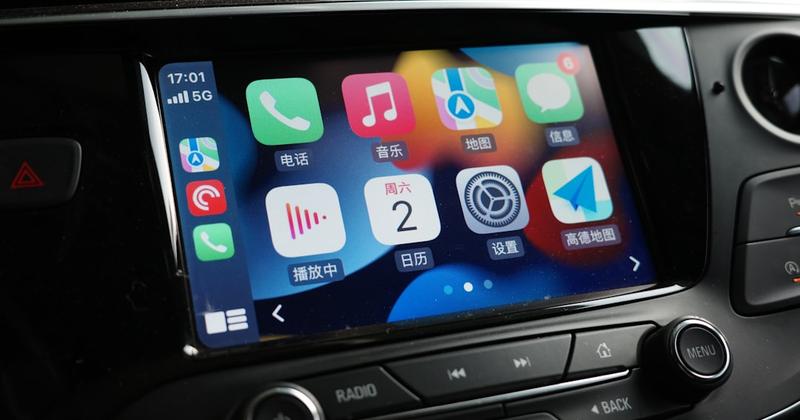
This is the update people forget exists. The screen in your dash runs its own software, built by the car maker, completely separate from anything Google ships to your phone. A fully updated phone can still sit behind an outdated head unit.
- Open your car's own settings menu on the dashboard screen and look for a system, software, or infotainment update option.
- If nothing shows up there, check your car maker's support site for a USB update file — some brands distribute updates this way instead of over the air.
- A dealer service visit can also check and install this update if you'd rather not do it yourself.
The exact menu path differs by manufacturer, and I won't invent one generic set of steps that fits every dashboard — Toyota, Honda, Ford, and the rest each design their own settings screens. Your owner's manual or the manufacturer's support site for your exact model is the reliable source here, not a forum post about a different car.
When this won't work: some older head units never receive another software update after the car leaves the factory. If the manual and the support site both come up empty, that's likely the case, and Methods 1 and 2 are still worth doing on their own.
Build your CarPlay
On the iPhone side, widgets land differently
Car Play Connect adds weather, clocks, battery, and lyrics to the CarPlay screen once the phone connects — rated 4.6 from 2,700+ App Store ratings.
Car Play Connect: Auto Sync
Free
Method 4: Update a wireless adapter's companion app
Not every car connects through a built-in system. Plenty of older cars reach Android Auto through a small USB-plugged dongle instead, and those boxes run their own interface software — separate again from your phone and your car's factory firmware.
A common one is an app called zLink, used by several budget wireless CarPlay and Android Auto adapters to draw the on-screen menu. If your setup uses one of these boxes, open that companion app on your phone and check its own settings for a firmware or app update, rather than assuming the phone-side Android Auto update covers it.
When this won't work: if your car's Android Auto connection is built in — no separate box plugged into the USB port — this step doesn't apply to you at all. Skip straight to checking Methods 1 through 3.
Android Auto update paths compared
| What you're updating | Who controls it | Where you do it |
|---|---|---|
| Android Auto app (Android 11 and older) | Google Play Store | |
| Android Auto built into the OS (Android 12+) | Google / phone maker | Settings → System → System update |
| Car infotainment software | Car manufacturer | Car's own settings menu, manufacturer site, or dealer |
| Wireless adapter companion app (e.g. zLink) | Adapter maker | The adapter's own app |
If your household also has an iPhone
Android Auto and Apple CarPlay are separate systems that don't mix. An iPhone cannot run Android Auto, and an Android phone cannot run CarPlay — the two are built by different companies for different operating systems, and Google's own Android Auto page describes it as the Android counterpart to a phone-on-the-dash system, not a shared standard with Apple's.
If one driver in the house is on Android and another just switched to iPhone, the iPhone side doesn't go through any of the update steps above at all. Car Play Connect's Mount Mode covers older cars and Teslas that don't have native CarPlay, and the CarPlay widgets gallery or a custom connect sound dress up the screen once CarPlay itself is already working. None of it touches the Android Auto side of the car.
Frequently Asked Questions
How do I update Android Auto in my car?
It depends on your phone. On Android 11 or older, open Google Play, search Android Auto, and tap Update. On Android 12 and newer, Android Auto is built into the phone's operating system, so you update it by running a system update under Settings instead. Your car's own infotainment software is a separate update, done through the car, not the phone.
Does CarPlay work with Android phones?
No. Apple CarPlay only runs on iPhones; it does not pair with Android devices at all. Android Auto is Google's equivalent, built for Android phones. If your household has one of each, the iPhone owner uses CarPlay and the Android owner uses Android Auto — two separate systems in the same car.
What is zLink, and do I need to update it separately?
zLink is a companion app that many budget wireless CarPlay and Android Auto adapter boxes use to run the on-screen interface. If your car connects through one of those dongles instead of a built-in system, zLink has its own update, separate from both your phone's Android Auto and the car's native software. Check the adapter's own settings menu for an update prompt.
Why does Android Auto look out of date even after I updated my phone?
Usually because two different pieces of software are involved. Updating the Android Auto app or your phone's OS only refreshes the phone side. Your car's head unit runs its own firmware, and that gets stale independently. If icons, layouts, or app support look dated, check the car's software version next, not just the phone.
Do I need to update my car's software to use Android Auto?
Not always, but an outdated head unit can cause lag, missing app icons, or dropped wireless connections. If Android Auto feels slow or behind after a phone update, check your car's settings menu for a system or infotainment update, or ask a dealer to check it during a service visit.
Related guides
- Mount Mode for Tesla & older cars — an iPhone dashboard for cars with no native CarPlay, built by the same team.
- CarPlay widgets — the gallery that dresses up an iPhone's CarPlay screen once it's connected.
- Custom CarPlay connect sounds — presets and your own imported audio for the connection chime.
- More CarPlay guides — the full blog index.