On this page▾
- The 30-Second Test
- Fix 1: Turn Off Apple Music's Autoplay
- Fix 2: Stop CarPlay or Bluetooth From Resuming Old Tracks
- Fix 3: Find and Disable a Shortcuts Automation
- Fix 4: Turn Off Automatic Ear Detection on Your Headphones
- Fix 5: Spot and Stop Surprise Playback Faster on CarPlay
- Which fix matches your situation
- Frequently Asked Questions
- Related guides
Music starts playing on its own most often because Apple Music's Autoplay feature is turned on. The other usual causes are a Bluetooth or CarPlay connection sending an old resume command, or a Shortcuts automation triggering playback. Turn off Autoplay in Settings → Music, check Shortcuts → Automation for a CarPlay trigger, and review your headphones' Bluetooth ear-detection setting.
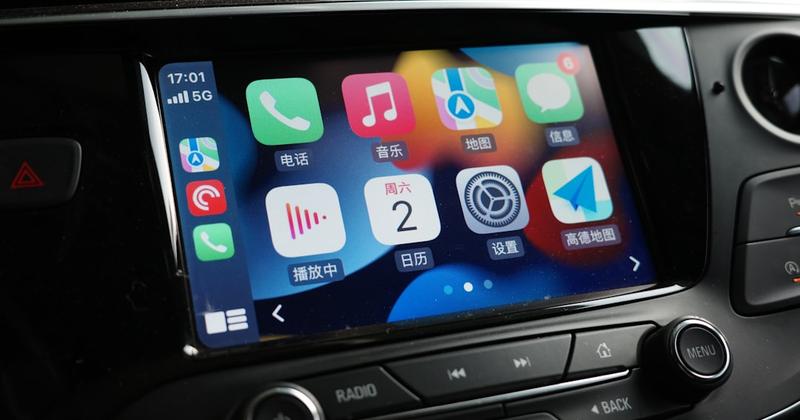
It is a familiar moment for drivers who connect an iPhone to CarPlay: a song starts before they have touched anything. The cause is typically Apple Music's Autoplay feature, a Bluetooth reconnect, or a Shortcuts automation nobody remembers building. Work through the test below, then jump to the fix that matches what you are seeing.
The 30-Second Test
Before changing any settings, figure out which trigger you are dealing with. It takes less than a minute.
- Open Apple Music and look at the Now Playing screen. See a colored, infinity-shaped icon near the bottom? Autoplay is on and it is choosing your next song. Go to Fix 1.
- Does music start the moment you plug into CarPlay or pair Bluetooth, even with Apple Music closed? Skip to Fix 2 or Fix 3.
- Does it start specifically when you put your AirPods or headphones in your ears? Jump to Fix 4.
Fix it on the dashboard
See exactly what started playing before you pick a fix
Car Play Connect puts Now Playing and synced lyrics on your CarPlay screen, so you know what started and can stop it in one tap instead of fumbling for your phone.

Car Play Connect: Auto Sync
4.6·2,735+ ratings·Free


Fix 1: Turn Off Apple Music's Autoplay
Autoplay is a common reason an iPhone keeps playing music nobody asked for. When your album, playlist, or song finishes, Apple Music picks something similar and keeps going unless you tell it to stop.
Two ways to turn it off:
- Open Apple Music and start playing anything, then tap the Now Playing bar to open the full-screen player.
- Look for the Autoplay icon — a looping infinity symbol — near the bottom of the screen, and tap it so it turns gray instead of colored.
- For a setting that sticks across the app, go to Settings → Music and switch the Autoplay toggle off.
This only changes what happens after a song ends. It will not stop music that starts for a different reason, like a Bluetooth reconnect — that is Fix 2.
Fix 2: Stop CarPlay or Bluetooth From Resuming Old Tracks
Here is the part that confuses people: there is no single setting called "stop CarPlay autoplay." What is actually happening is standard Bluetooth behavior. When your iPhone reconnects to a car stereo, headphones, or any Bluetooth speaker, the device sends a signal asking the phone to resume playback. CarPlay often goes along with it.
The practical fix:
- Before you walk away from the car or take off your headphones, fully stop the track instead of just pausing it. Press and hold the pause button, or swipe the Now Playing widget away.
- Check the lock screen for a Now Playing card. If a song still shows there, tap it and stop playback too.
- If your car has no CarPlay and you use a mounted iPhone instead, the same resume habit applies — stop playback before you unmount the phone.
This fix has one honest limit: some cars and aftermarket Bluetooth adapters send a play command no matter what state your phone was in. If that is your setup, Fix 3 is usually the better lead.
Fix 3: Find and Disable a Shortcuts Automation
Autoplay complaints sometimes trace back to a Shortcuts automation nobody remembers building. It was often set up months earlier to play a driving playlist the moment the phone connects to the car.
To check:
- Open the Shortcuts app and tap Automation at the bottom.
- Scroll through your Personal Automations for anything triggered by CarPlay, Bluetooth, or Arrive at a location.
- Tap the automation and look at its actions. Play Music, Play Podcast, or Open App pointing at a music app is your culprit.
- Tap Delete Automation, or turn off Notify When Run if you just want to confirm it first.
If Shortcuts shows no automations at all, this is not your cause — move on to Fix 4.
Build your CarPlay
Customize what shows up the moment you connect
Instead of guessing what will play next, add Car Play Connect's widgets so your CarPlay screen shows the song, lyrics, and weather you actually want to see.
Car Play Connect: Auto Sync
Free
Fix 4: Turn Off Automatic Ear Detection on Your Headphones
If music only starts the moment you put your AirPods or compatible earbuds in, Automatic Ear Detection is the likely cause. It is designed to resume whatever you were last playing.
To turn it off:
- Open Settings → Bluetooth.
- Tap the info button next to your AirPods or headphones.
- Switch off Automatic Ear Detection.
The tradeoff: you will need to press play manually every time, and audio will not pause automatically when you take one earbud out either. Still, it is a fair trade when surprise playback bothers you more than one extra tap.
Fix 5: Spot and Stop Surprise Playback Faster on CarPlay
Even after trying every other fix, you will still hit the occasional automatic restart — a car firmware update, a borrowed Bluetooth pairing, something outside Apple's settings entirely. When that happens, the fastest fix is just seeing what started.
Car Play Connect's Dynamic Lyrics widget shows synced lyrics on your CarPlay screen the instant something starts. No more fumbling for your phone at a red light. To turn it on:
- Install Car Play Connect from the App Store.
- Open Settings → CarPlay → Customize → Widgets, and turn on Car Play Connect.
- Pick the Dynamic Lyrics widget for your CarPlay screen layout.
If your car has no CarPlay at all — a pre-2016 model or a Tesla — Mount Mode turns a mounted iPhone into the same kind of dashboard. It adds driver-mode buttons for volume and next-track within easy reach.
This will not stop the underlying trigger. Pair it with Fix 1 through Fix 4 for that. What it buys you is a faster, safer way to react when something does start.
Which fix matches your situation
| Symptom | Likely cause | Where to fix it |
|---|---|---|
| Music restarts after your playlist ends | Apple Music Autoplay | Settings → Music → Autoplay |
| Music starts the second you connect to CarPlay or Bluetooth | Bluetooth/CarPlay resume behavior | Fully stop playback before disconnecting |
| Music starts and you don't remember setting it up | A Shortcuts automation | Shortcuts → Automation tab |
| Music starts the moment you put earbuds in | Automatic Ear Detection | Settings → Bluetooth → info button → Automatic Ear Detection |
| It still happens occasionally no matter what | A trigger outside your settings | Car Play Connect's Dynamic Lyrics widget, to react fast |
Frequently Asked Questions
How do you stop Apple Music from automatically playing?
Turn off Autoplay. Open the Now Playing screen in Apple Music and tap the infinity-shaped Autoplay icon so it's no longer highlighted. Or go to Settings → Music and switch Autoplay off instead. This stops Apple Music from queuing similar songs once your playlist or album finishes. It does not delete anything — your library and playlists stay exactly as you left them.
Why does music start playing on my iPhone by itself?
Usually it's Apple Music's Autoplay feature picking a new song once your last one ends. It can also be a Bluetooth or CarPlay connection resuming whatever was last paused, or a Shortcuts automation that runs a Play Music action when you connect to your car. Check Settings → Music first, then Shortcuts → Automation.
Why does CarPlay play music as soon as I connect?
CarPlay often resumes the last track your iPhone was playing. That's because Bluetooth audio devices are built to request playback on connection, not because of one specific CarPlay setting. Fully stop playback, not just pause it, before you leave the car. Also check Shortcuts → Automation for a CarPlay-triggered automation you may have built months ago and forgotten about.
How do I stop Spotify from autoplaying on my iPhone?
Open Spotify, go to Settings, and look for its own Autoplay toggle under Playback. Turning it off stops Spotify from adding related tracks once your queue ends. This setting lives inside Spotify itself and is separate from Apple Music's Autoplay, so switching off one app's toggle has no effect on the other.
Does turning off Autoplay delete my playlists?
No. Turning off Autoplay only stops Apple Music or Spotify from picking a new song automatically after your current one finishes. Your playlists, downloaded songs, and library stay untouched — Autoplay is strictly a now-playing behavior, not a library setting.
How do I find a Shortcuts automation that's playing music?
Open the Shortcuts app and tap Automation at the bottom of the screen. Look through your Personal Automations for one triggered by CarPlay, Bluetooth, or Arrive at a location. Tap it and check its actions for Play Music or Open App. Delete the automation if you don't remember creating it.