On this page▾
- The 30-second test
- Method 1: Check your Toyota's model year for Apple CarPlay
- Method 2: Confirm CarPlay with your VIN or Apple's vehicle list
- Method 3: Connect Apple CarPlay in a Toyota that has it
- Method 4: Add Apple CarPlay to an older Toyota
- Method 5: Customize the CarPlay screen
- Toyota models and the model year Apple CarPlay arrived
- Frequently Asked Questions
- Related guides
Apple CarPlay first came to Toyota with the 2019 Toyota Avalon, announced at the January 2018 Detroit Auto Show. Toyota then added it across most of its lineup for the 2019 and 2020 model years, including the Camry, RAV4, Corolla, and Tacoma. A Toyota built before that still has no factory CarPlay radio.
Shoppers checking a used Toyota's window sticker for CarPlay run into this question a lot. The model year matters far more than the trim level or the price tag. Two Camrys parked side by side can look almost identical and still split on this one feature, simply because one is a 2018 and the other a 2019.
The 30-second test
Sit in the driver's seat. Turn the key or press the start button to accessory mode, then wake the touchscreen. Answer one question: is there a CarPlay icon on the home screen?
- Icon is there — your Toyota supports CarPlay. Plug in a data cable and skip to Method 3.
- No icon — your Toyota was most likely built before the 2019 model year, before Toyota added CarPlay. A wireless dongle will not add it to a radio that cannot run it. Go to Method 4 instead.
Still unsure of your exact model year? Model-year labels run ahead of the calendar: a "2019" Avalon went on sale in late spring 2018, months before the calendar flipped to 2019. Check the door sticker or your title paperwork for the real model year, not the year you bought the car.
Build your CarPlay
Already have CarPlay? Dress up the Toyota's screen
Car Play Connect adds weather, clocks, battery, and car-brand logos to the CarPlay widget row. Free to try on iOS 16.3 and up; the annual plan is $19.99/year.

Car Play Connect: Auto Sync
4.6·2,735+ ratings·Free


Method 1: Check your Toyota's model year for Apple CarPlay
Toyota held off on CarPlay longer than most competitors. That changed at the 2018 Detroit Auto Show, when Toyota unveiled the redesigned 2019 Avalon with standard Apple CarPlay on every grade, calling it one of the car's "Toyota-firsts." The Avalon went on sale in late spring 2018. Toyota rolled CarPlay out to more of the lineup for the 2019 and 2020 model years after that, model by model rather than all at once.
- Park, then wake the touchscreen without plugging in anything.
- Look for a CarPlay icon next to the radio, Bluetooth, and camera icons.
- Unlock the iPhone and plug in a cable that carries data, not a charge-only cable from a gas station rack.
- Open Settings on the iPhone, search "CarPlay," and see whether your Toyota appears under Available Cars.
When this fails: no icon, and no session after a data cable. That points to a Toyota built before CarPlay reached that specific model. Nothing in Methods 2 and 3 fixes a radio that was never built for it — go to Method 4.
Method 2: Confirm CarPlay with your VIN or Apple's vehicle list
A model year alone does not settle it, because CarPlay reached different Toyota nameplates in different years. Use one of these before you buy a cable, an adapter, or a new car.
- Check Apple's official CarPlay-compatible vehicle list for your exact Toyota nameplate and model year.
- Look at the window sticker that came with the car, if you still have it — CarPlay usually shows up as part of the Entune or Audio Multimedia package.
- Call a Toyota dealer with your VIN and ask them to confirm the infotainment package your specific car shipped with.
- Do not trust a forum post about a different trim or a different region. CarPlay availability has differed by market.
When this fails: the VIN lookup or the dealer comes back negative. That is the car's answer, not a bug. Move to Method 4 for an add-on path instead of re-checking the same VIN again.
Method 3: Connect Apple CarPlay in a Toyota that has it
Wired is the connection every CarPlay-capable Toyota supports, so start here even if your trim can also go wireless.
- Unlock the iPhone and keep it on the lock screen.
- Plug the cable into the Toyota's USB port, not an auxiliary charging port if the car has more than one.
- Wait a few seconds for the CarPlay splash screen to load.
- Open Settings → Siri & Search on the iPhone and confirm Siri is turned on if you plan to use voice commands in CarPlay.
Toyota's own 2019 Avalon announcement only mentions a wired connection. Wireless CarPlay came to parts of the Toyota lineup later, and it still depends on the model, trim, and touchscreen size. Pair once by cable, then check Settings → General → CarPlay → Available Cars on a later trip without a cable plugged in. If your Toyota does not show up there, treat it as wired-only.
When this fails: the session starts and drops right away, or never starts at all. Try a different cable first — a charge-only cable is an easy thing to miss. If a second cable and a different port both fail, the radio itself may need a dealer look.
Method 4: Add Apple CarPlay to an older Toyota
A Toyota built before CarPlay reached that nameplate is not stuck without options. Apple's own CarPlay page confirms CarPlay can be added to a current car with an aftermarket system, listing Alpine, Blaupunkt, Clarion, JVC, Kenwood, Pioneer, and Sony as brands that make CarPlay-ready head units.
- Have a car audio shop confirm your dash opening and wiring harness match an available aftermarket head unit for your Toyota.
- Budget for the install, not just the unit — wiring and dash kits add to the job.
- Ask the shop to confirm the new unit's USB port carries data, not just power, before you drive off.
Do not want to touch the dashboard at all? Car Play Connect's Mount Mode turns the iPhone itself into a dashboard. It covers maps, calls, and a GPS speedometer, with no radio swap required — the same approach the app uses for Teslas and other cars that never shipped with CarPlay.
When this will not work: a dash that cannot physically fit a standard aftermarket unit, or a shop that cannot source a harness for your specific Toyota. Mount Mode sidesteps both, since it changes nothing about the factory radio.
Build your CarPlay
Pick your path, then make the screen yours
Car Play Connect's widget gallery and connect-sound library work whether CarPlay came factory-installed or arrived through Mount Mode. Rated 4.6 from 2,700+ App Store ratings.
Car Play Connect: Auto Sync
Free
Method 5: Customize the CarPlay screen
Getting CarPlay onto the dash, factory or aftermarket, is only half the job. Car Play Connect adds a widget gallery built for the CarPlay screen. Weather cards, clocks, air quality, and iPhone battery sit next to year progress and your own photos. Car-brand logos, affirmations, faith verses, football crests, and country flags round out the set.

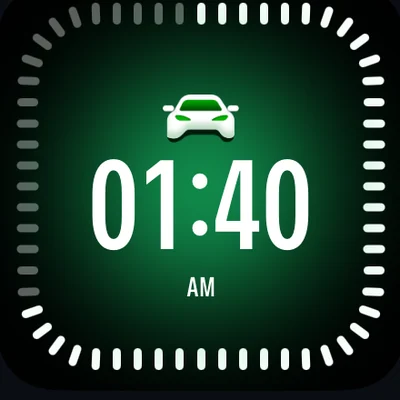
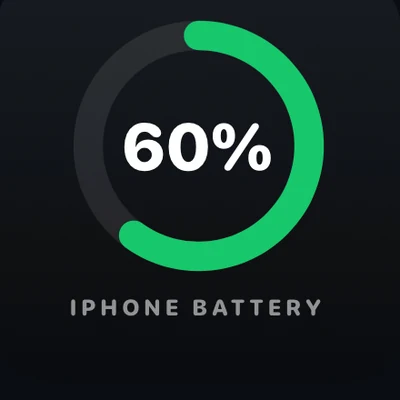
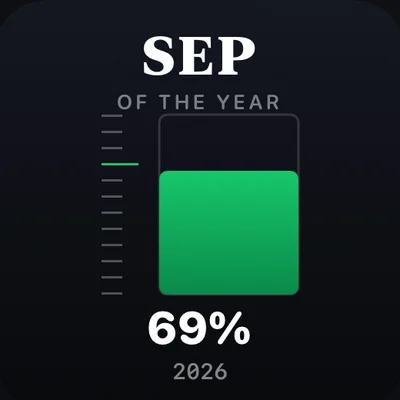
Add them per car under Settings → CarPlay → Customize → Widgets. The app lists iOS 16.3 as its minimum. Background colour, your own photos, and a day/night theme are all editable from there.
Want the car to announce itself when it connects? Open Sounds → Connect Sound in the same app and pick a preset, or import your own file. A separate disconnect sound is optional, and setup takes about 30 seconds.
Music on the dash can also show Dynamic Lyrics. It syncs to Apple Music or Spotify, with the active line highlighted on the CarPlay screen instead of a static card.
Toyota models and the model year Apple CarPlay arrived
Pulled from Apple's official CarPlay vehicle list. It covers far more Toyota nameplates than fit here; use it to check a model not shown below.
| Model | First model year with Apple CarPlay |
|---|---|
| Avalon | 2019 |
| Camry | 2019 |
| RAV4 | 2019 |
| Corolla Hatchback | 2019 |
| Sienna | 2019 |
| Corolla (sedan) | 2020 |
| 4Runner | 2020 |
| Highlander | 2020 |
| Tacoma | 2020 |
| Tundra | 2020 |
A Toyota one model year below the number in this table almost never has CarPlay. Confirm with Method 2 before you assume either way.
Frequently Asked Questions
What was the first Toyota with Apple CarPlay?
The 2019 Toyota Avalon. Toyota announced it at the January 2018 Detroit Auto Show, naming standard Apple CarPlay one of the Avalon's "Toyota-first" features, and the car reached dealers in late spring 2018. Toyota then added CarPlay across most of the 2019 and 2020 model-year lineup, including the Camry, RAV4, Corolla Hatchback, and Tacoma.
Does my Toyota have Apple CarPlay?
Only if it's a 2019 model year or newer, and even then it depends on the nameplate. Park, wake the touchscreen, and look for a CarPlay icon next to the radio and Bluetooth icons. No icon there? Check your VIN against Apple's official CarPlay vehicle list, or ask a Toyota dealer to confirm the infotainment package your car shipped with.
Is Apple CarPlay wireless in Toyota vehicles?
Not on the earliest models. Toyota's own 2019 Avalon announcement mentions only a wired connection, and wireless CarPlay support since then varies by model, trim, and model year. Open Settings → General → CarPlay on your iPhone and check whether your Toyota shows up under Available Cars without a cable plugged in — that's the only reliable way to confirm it on your specific car.
Can I add Apple CarPlay to an older Toyota?
Yes, in two ways. If the dashboard can hold a new head unit, Apple lists Alpine, Pioneer, Kenwood, JVC, Sony, Clarion, and Blaupunkt as aftermarket brands that add CarPlay to a car that never shipped with it. If your Toyota has no factory CarPlay radio at all, Car Play Connect's Mount Mode turns the iPhone itself into a dashboard, with maps, calls, and a GPS speedometer.
How do I turn on Apple CarPlay in a Toyota?
Plug a data-capable USB cable into the Toyota's USB port with the iPhone unlocked, then wait for the CarPlay screen to load. If your model and trim support wireless CarPlay, pair once by cable, then check Settings → General → CarPlay → Available Cars on later trips without plugging in. A charge-only cable is the most common reason a wired connection fails on the first try.
Related guides
- CarPlay widgets for iOS 26 — the full gallery to add once your Toyota already runs CarPlay.
- Custom CarPlay connect sound — set a preset or your own file for when the car connects.
- Dynamic Lyrics for CarPlay — synced lyrics on the dash for Apple Music and Spotify.
- Mount Mode — an iPhone dashboard for a Toyota built before CarPlay reached that nameplate.
- More CarPlay guides — setup, wireless, and troubleshooting for other cars.