On this page▾
- The 30-second test
- Method 1: Turn on Driving Focus from iPhone Settings
- Method 2: Turn on Driving Focus from the CarPlay screen
- Method 3: Turn off notifications for one specific app
- Method 4: Let key contacts and calls get through anyway
- Which method actually silences what
- Frequently Asked Questions
- Related guides
Turn off CarPlay notifications by turning on Driving Focus, either from iPhone Settings or straight from the CarPlay screen itself. It silences texts, app alerts, and badges while you drive, though calls still ring through CarPlay by design. For one noisy app only, turn off Allow Notifications for that app instead of muting everything.
People usually land on this question with their iPhone already plugged into the car. A text banner slides over the map mid-turn, or a game sends an alert while music is playing. CarPlay is working fine. The notifications are just too loud for driving. The fix lives in two places: the iPhone's own Focus settings, and a second copy of those same settings inside CarPlay.
The 30-second test
Before changing anything, check whether Driving Focus is already doing part of the job. Swipe down from the top-right corner to open Control Center and look for the Focus button.
- Driving is already highlighted — Focus is on, but notifications are still getting through. Skip to Method 3 for the one app that's causing it.
- No Focus is active — nothing is silencing anything yet. Start with Method 1 or Method 2, whichever is easier to reach right now.
Build your CarPlay
Quieter notifications, a screen worth glancing at
Car Play Connect adds weather, clocks, battery, and more to the CarPlay widget row, so a quick glance replaces a notification you'd otherwise have to read. Free to try on iOS 16.3 and up; the annual plan is $19.99/year.

Car Play Connect: Auto Sync
4.6·2,735+ ratings·Free


Method 1: Turn on Driving Focus from iPhone Settings
This is the main switch, and Apple built it specifically for driving. Apple's own guide says turning it on silences or limits text messages and other notifications. Incoming calls still come through when the iPhone is connected to CarPlay, a car's Bluetooth system, or a hands-free accessory.
- Open Settings on the iPhone, tap Focus, then tap Driving.
- Tap Auto-Reply to decide whether certain people get an automatic reply while you're driving. You can edit the reply text, too.
- Tap While Driving, under Turn On Automatically, and pick a trigger: Automatically, When Connected to Car Bluetooth, Activate With CarPlay, or Manually from Control Center. Automatically means the iPhone detects driving on its own.
When this falls short: Driving Focus mutes texts and app alerts, not phone calls routed through the car. If an incoming call is the interruption you're trying to stop, that part is working as Apple designed it. Method 1 can't change that part.
Method 2: Turn on Driving Focus from the CarPlay screen
The iPhone might already be mounted with the car running. Skip touching the phone and turn Driving Focus on from the dash instead. CarPlay carries its own copy of this setting.
- Open Settings inside CarPlay using the car's own controls. It's the app icon that looks like iPhone Settings, living on the CarPlay Home Screen.
- Go to Driving Focus, then select Activate With CarPlay.
- If a passenger triggers it by mistake, tap the Driving Focus notification as it appears, then tap "I'm not driving" to cancel it for that trip.
When this falls short: on some cars, Settings doesn't show up on the CarPlay Home Screen right away. Tap through the other pages of CarPlay apps first; it's usually one swipe away, not missing.
Method 3: Turn off notifications for one specific app
Driving Focus silences everything at once. Sometimes only one app is the actual problem — a game, a shopping app, a group chat you're not part of right now. Turning off that single app is faster than toggling Focus on and off all day.
- Open Settings on the iPhone and tap Notifications.
- Tap the app under Notification Style, then turn off Allow Notifications.
- Apple's notification settings guide notes other options too. Choose where that app's alerts appear, or turn on Time Sensitive Notifications instead of shutting the app off entirely.
When this falls short: this toggle is global, not CarPlay-specific. Turning off an app's notifications here mutes it everywhere, including at home, so flip it back on later if you still want those alerts off the road.
Build your CarPlay
Once the noise is gone, make the connection feel finished
Car Play Connect also sets a custom sound for when CarPlay connects or disconnects — pick a preset or import your own. Rated 4.6 from 2,700+ App Store ratings.
Car Play Connect: Auto Sync
Free
Method 4: Let key contacts and calls get through anyway
Silencing everything works until the one message you actually needed gets buried with the rest. Two settings handle that without turning Focus back off.
- Inside Driving Focus setup, tap Auto-Reply and choose who receives an automatic reply — everyone, no one, or just your Favorites and certain contacts.
- Open the Messages app and tap a contact's name at the top of a conversation. Turn on Emergency Bypass so that person's calls and texts override Focus completely. Use it for a partner, a kid's school, or anyone on-call.
- Calls through CarPlay, a car Bluetooth connection, or a hands-free accessory already ring through on their own, per Method 1. This step is just for the texts that would otherwise wait.
When this falls short: Emergency Bypass is set per contact, one at a time. There's no single switch for "my whole family" — each person who needs to break through gets the toggle turned on individually.
Which method actually silences what
Use this before deciding which setting to touch first.
| Method | Silences | Still comes through | Best for |
|---|---|---|---|
| Driving Focus (Method 1) | Texts, app alerts, badges | Calls via CarPlay, car Bluetooth, or hands-free | Setting it once before you drive |
| Driving Focus from CarPlay (Method 2) | Same as Method 1 | Same call exception | Turning it on without touching the iPhone |
| Per-app toggle (Method 3) | One chosen app, everywhere | Every other app keeps notifying | One specific app, not the whole phone |
| Auto-Reply / Emergency Bypass (Method 4) | Nothing — this adds exceptions | The contacts you choose, on purpose | Family, on-call contacts, a kid's school |
Driving with the screen quieter often means glancing at it less, too. Car Play Connect's widget gallery puts weather, a clock, iPhone battery, and more directly on the CarPlay screen. There's less reason to reach for the phone once notifications stop popping up.

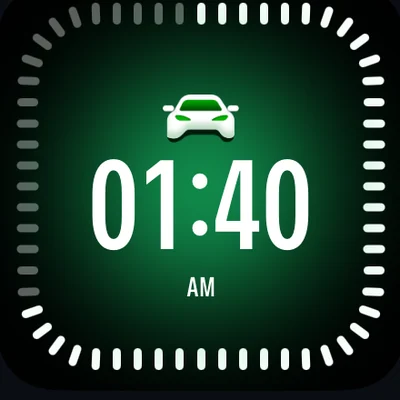
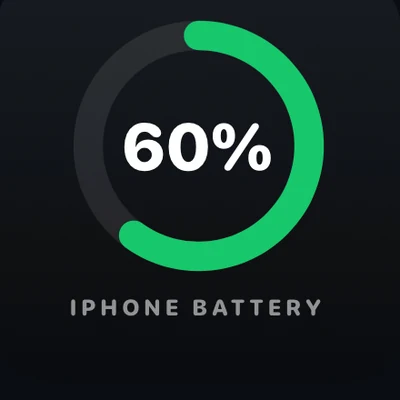
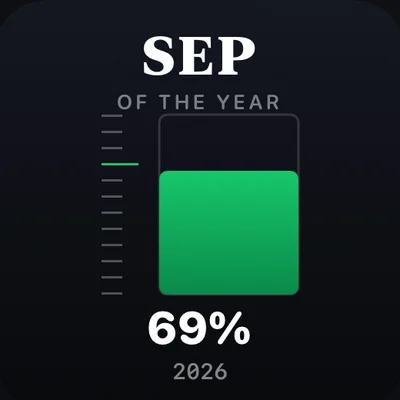
Add them under Settings → CarPlay → Customize → Widgets once the app is installed. The app lists iOS 16.3 as its minimum supported version.
Frequently Asked Questions
How do I turn off CarPlay notifications without turning off CarPlay itself?
Turn on Driving Focus. Open Settings → Focus → Driving on the iPhone, or open Settings inside CarPlay and select Driving Focus there. Either way, CarPlay keeps running — maps, music, and calls stay on — while texts and app alerts stop popping up on the screen.
Why do I still get phone calls through CarPlay when Driving Focus is on?
That's by design, not a bug. Apple's own setup guide for Driving Focus says incoming calls are still allowed when the iPhone is connected to CarPlay, a car's Bluetooth system, or a hands-free accessory. Driving Focus silences texts and other alerts, but it does not block calls that come in through the car itself.
How do I turn off notifications for just one app instead of everything?
Open Settings → Notifications on the iPhone, tap the app, then turn off Allow Notifications. This stops that one app everywhere, not only on CarPlay, so turn it back on later if you still want those alerts at home.
How do I stop Driving Focus from turning on when I'm a passenger, not driving?
Tap the Driving Focus notification as soon as it appears, then tap "I'm not driving." That cancels Focus for the current trip. If it keeps guessing wrong, switch its trigger from Automatically to When Connected to Car Bluetooth or Activate With CarPlay instead, so it only turns on when the phone is actually paired to the car.
Can I let certain people's messages through while CarPlay notifications are off?
Yes, two ways. Inside Driving Focus setup, tap Auto-Reply and choose who gets an automatic reply when you don't respond. Separately, open a contact's info in Messages and turn on Emergency Bypass so that one person's texts and calls can override Focus entirely.
Related guides
- CarPlay widgets for iOS 26 — a quieter screen still worth a glance, once notifications settle down.
- Custom CarPlay connect sound — set a preset or your own file for when CarPlay connects.
- Dynamic Lyrics for CarPlay — synced lyrics on the dash for Apple Music and Spotify.
- Mount Mode — an iPhone dashboard for cars with no built-in CarPlay screen at all.
- More CarPlay guides — setup, wireless, and troubleshooting for other cars.