Add Car Widgets
On this page▾
- What is Apple CarPlay, in plain terms?
- How does Apple CarPlay work?
- Step 1: Check your car and iPhone are compatible
- Step 2: Connect your iPhone for the first time
- Step 3: Rearrange apps and add iOS 26 widgets
- What's new in Apple CarPlay for iOS 26 (and 26.2 / 26.4)?
- Apple CarPlay vs Android Auto, at a glance
- What if your car doesn't have CarPlay?
- Frequently Asked Questions
Quick answer
Apple CarPlay is a feature that shows your iPhone's apps on your car's built-in screen, so you can use Maps, Music, Messages, and Phone while you drive. Your iPhone does the work; the car screen just displays it. It connects with a USB cable or wirelessly, and it's free on any iPhone 5 or newer. iOS 26 added a widget pane and a tinted look.
I've run Apple CarPlay daily for years — first on an iPhone 11 in a 2018 Volkswagen Golf over a cable, now on an iPhone 17 that pairs wirelessly in a 2023 Kia Sportage. The one-line answer above is true, but it skips the parts that decide whether CarPlay actually helps you. Below is what it really is, how the connection works, how to start using it in three steps, and what iOS 26 changed this year.
What is Apple CarPlay, in plain terms?
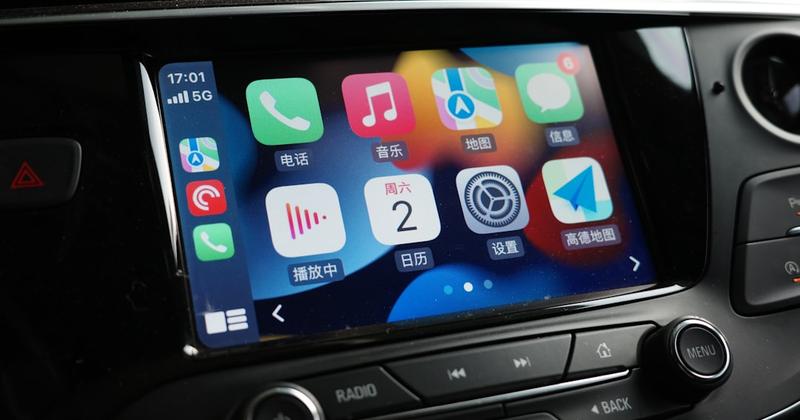
Apple CarPlay is a projection system. Your iPhone runs the apps, fetches the directions, and streams the audio. Your car's screen simply acts as a bigger, driver-safe display and a set of controls. Think of it as your phone borrowing the dashboard, not the car running its own copy of your apps.
It replaces the car's dated entertainment screen with a tidy grid of large icons: Maps, Music, Phone, Messages, podcasts, plus third-party CarPlay appslike Spotify, Waze, and Google Maps. The car's own software keeps running underneath for climate, the backup camera, and seat settings. CarPlay only takes over the center display, and only for navigation, calls, messages, and audio.
That's why CarPlay looks the same in a cheap rental and a luxury SUV — the car is just the canvas, and the pixels come from your phone. For the marketing overview, Apple keeps its own CarPlay page, but the day-to-day reality is below. For a broader beginner walk-through of the term itself, our what is CarPlay explainercovers the basics from scratch; this guide focuses on Apple CarPlay as it works today, in iOS 26.
No CarPlay in your car?
Tesla, Rivian, or a pre-2016 car? There's a phone-side route.
Some cars — every Tesla and Rivian, plus most cars built before about 2016 — never shipped CarPlay, so there's nothing to switch on. Car Play Connect's Mount Mode runs a CarPlay-style dashboard on a mounted iPhone instead: big maps, a speedometer, and glanceable widgets, with audio over Bluetooth. Free to try.

Car Play Connect: Auto Sync
4.6·2,300+ ratings·Free to try

How does Apple CarPlay work?
CarPlay connects one of two ways: through a USB cable (wired) or over a Wi-Fi and Bluetooth handshake (wireless). Once the session is live, both look and feel identical on screen. The difference is in the connection.
- Wired CarPlay.You plug your iPhone into the car's data USB port with a proper Lightning or USB-C cable. CarPlay appears in about two seconds, audio moves to the car speakers, and your phone charges. It's the original 2014 method and still the most reliable. A charge-only cable won't work — it powers the phone but carries no data.
- Wireless CarPlay.Bluetooth handles the first pairing, then the phone switches to a private Wi-Fi link to carry the picture and sound. You pair once; after that CarPlay connects on its own within 5–15 seconds each time you get in. It drains the battery faster, so most people still keep a charger handy.
If your car only has wired CarPlay and you want to drop the cable, a small dongle adds a wireless connection — see how a wireless CarPlay adapterworks. When CarPlay won't start at all, the cable or USB port is the usual culprit; the CarPlay diagnostic flowchart walks through it.
Step 1: Check your car and iPhone are compatible
Before anything else, confirm both sides support CarPlay. The iPhone part is easy; the car part is where most surprises hide.
- On the phone side, you need an iPhone 5 or newer running a current iOS. Almost any iPhone still in use qualifies.
- On the car side, check Apple's list of CarPlay-compatible cars, or look for an Apple CarPlay logo in the car's manual or on the box of an aftermarket stereo.
- As a rough rule, most mainstream cars from the 2016 model year and newer have CarPlay, many 2015s do, and almost nothing before 2014 does.
When this won't settle it:trim matters — base models sometimes skipped CarPlay even when the fancier trim had it. For a make-by-make breakdown, see which cars have Apple CarPlay. Teslas and Rivians never had it, no matter the year.
Step 2: Connect your iPhone for the first time
The very first connection sets up the pairing; after that CarPlay is mostly automatic. Do this parked, not while driving.
- Make sure Siri is on — CarPlay needs it. Settings → Siri & Search, and turn on Listen for “Siri” or the press-to-talk option.
- Wired: plug into the USB port marked with a phone or CarPlay icon (usually the one nearest the screen). CarPlay should launch on its own.
- Wireless: hold the car's voice-command button to enter pairing mode, or open Settings → General → CarPlay → your car on the iPhone, then follow the on-screen prompt.
- Approve the “Allow CarPlay” prompt on the iPhone the first time. That's it — the car remembers your phone from now on.
When this won't settle it: if nothing appears after a solid connection, the cause is usually a charge-only cable, the wrong USB port, or a Screen Time restriction. The full first-time walk-through lives in how to set up Apple CarPlay.
Step 3: Rearrange apps and add iOS 26 widgets
Once CarPlay runs, you can make it yours. The layout you set on the phone carries into every car you connect to.
- Open Settings → General → CarPlay → your car → Customize to reorder or hide app icons.
- In iOS 26, tap Widgets in that same menu to add up to five tiles — weather, calendar, music, and more — to the widget pane.
- Reconnect CarPlay (unplug or step out and back in) so the new layout takes effect.
New to the widget pane? Our guide to adding widgets to CarPlay walks the same menu in detail, and the best CarPlay widgets for 2026 covers which tiles earn a slot.
The iOS 26 widget pane feels thin?
Add 11 car-tuned widgets Apple's stack still skips.
Standard CarPlay only gained widgets in iOS 26, and it still has no GPS speedometer, no album-locked Photos, and no destination weather. Car Play Connect adds 11 widgets built for the car screen, plus a custom startup sound — without changing how your CarPlay connects. Free to try.
Car Play Connect: Auto Sync
Free to try
What's new in Apple CarPlay for iOS 26 (and 26.2 / 26.4)?
iOS 26 was the biggest CarPlay refresh in years. It brought the “Liquid Glass” tinted look, a proper widget pane, and Live Activities, then follow-up updates kept tuning it. Here's what landed and roughly when.
| Update | What it added to CarPlay | Why it matters day to day |
|---|---|---|
| iOS 26 | Widget pane, Liquid Glass tint, Live Activities | Glanceable tiles and live trackers (flights, orders) on the car screen |
| iOS 26 messaging | Tapbacks, pinned conversations, Messages in more layouts | Reply and react without leaving the driving view |
| iOS 26.2 | Refinements and fixes for the new widget and tint behavior | Steadier widgets and fewer reconnection quirks |
| iOS 26.4 | Ongoing feature and stability tuning for the redesign | The redesign keeps maturing across point releases |
The headline change is the widget pane. For the first time, standard CarPlay shows small tiles next to your map. It's a real upgrade, but it's limited to five tiles and a short list of first-party widgets. The full breakdown lives in our iOS 26 CarPlay widgets guide. Apple also keeps pushing toward CarPlay Ultra, a deeper version that can drive every screen in supported cars.
Apple CarPlay vs Android Auto, at a glance
CarPlay is Apple's system for iPhones; Android Auto is Google's equivalent for Android phones. Most cars support both, and you use whichever matches your phone. Here's how they line up.
| Feature | Apple CarPlay | Android Auto |
|---|---|---|
| Works with | iPhone 5 and newer | Android 8.0 and newer phones |
| Voice assistant | Siri | Google Assistant |
| Default maps | Apple Maps (Google Maps and Waze also work) | Google Maps (Waze also works) |
| Home-screen widgets | Yes, added in iOS 26 | Yes, via the Google Assistant panel |
| Cost | Free | Free |
What if your car doesn't have CarPlay?
Plenty of cars can't run CarPlay — every Tesla and Rivian, and most cars built before roughly 2016. You can't “turn on” something the car never shipped, so you have two honest routes.
- Replace the head unit.Aftermarket stereos from Pioneer, Kenwood, Sony, and Alpine add real wired-or-wireless CarPlay, usually for $300–800 installed. It's the closest thing to factory CarPlay in an older car.
- Mount your iPhone and run a CarPlay-style dashboard.For a Tesla, a lease, or a classic you won't rewire, Car Play Connect's Mount Mode turns a phone mount into a driver display: large maps, a speedometer, and glanceable widgets, with audio over Bluetooth. The honest limit — it runs on the phone, not the car's own screen.
Frequently Asked Questions
Is Apple CarPlay the same as CarPlay?
Yes — “Apple CarPlay” and “CarPlay” are the same feature. CarPlay is the official product name, and people add “Apple” to make clear it's the iPhone system rather than Android Auto. Both refer to the same thing: mirroring iPhone apps onto your car's built-in screen in a driver-safe layout.
Does Apple CarPlay cost anything?
No, Apple CarPlay is free. It's built into iOS on every iPhone 5 and newer, so there's nothing to buy or subscribe to. As long as your car has CarPlay (or an aftermarket stereo that supports it), you just connect and go. Some carmakers charge for other connected services, but those are separate from CarPlay itself.
What do you need to use Apple CarPlay?
You need three things: an iPhone 5 or newer, a car or aftermarket stereo that supports CarPlay, and either a data-capable USB cable or a wireless-CarPlay connection. Siri must be enabled on the iPhone. That's the whole list — no app to install and no account to create, since CarPlay is built into iOS.
What's new with Apple CarPlay in iOS 26?
iOS 26 gave CarPlay its biggest refresh in years: a widget pane with up to five tiles, a tinted “Liquid Glass” look, Live Activities for things like flights and orders, and improved Messages with Tapbacks and pinned chats. Later point releases such as iOS 26.2 and 26.4 added fixes and refinements to that redesign.
Can you add Apple CarPlay to a car that doesn't have it?
Yes, in two ways. If the car has a standard stereo, an aftermarket CarPlay head unit adds real CarPlay for roughly $300–800 installed. If you can't swap the stereo — a Tesla, a lease — a mounted iPhone running Car Play Connect's Mount Mode gives you a CarPlay-style dashboard on the phone, with maps, a speedometer, and widgets.
Is Apple CarPlay safe to use while driving?
Apple built CarPlay for driving, with large touch targets, a fixed grid, and Siri so you can keep your eyes on the road. It only surfaces navigation, calls, messages, and audio — not your full phone. It's far safer than handling the iPhone directly, though the safest habit is still to set up your route and playlist before you pull away.
Now you know what Apple CarPlay is and how to start using it. If your car already has it, the next win is the screen itself: even in iOS 26 the widget pane stays thin. Car Play Connect adds 11 car-tuned widgets, a custom startup sound, and a Mount Mode dashboard for the Teslas and older cars that can't run native CarPlay at all. Free to try, annual subscription afterward.