Add Car Widgets
On this page▾
Apple CarPlay does not have a user-togglable split-screen mode for running two apps side by side. What you actually get depends on your car and iOS version. You might see a built-in combined view that pairs navigation with music and suggestions, a small playback bar during turn-by-turn, or up to three iOS 26 widgets docked next to your app grid.
Build your CarPlay
Get more on the CarPlay screen right now
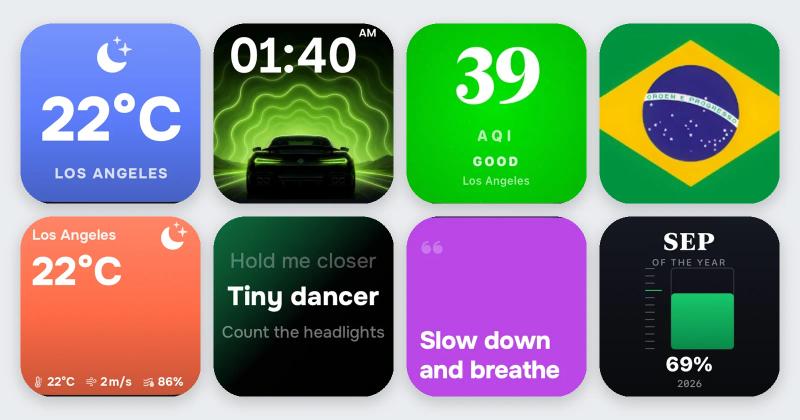
Car Play Connect adds an iOS 26 widget row — weather, clock, battery, and more — next to your app grid. Free to try on iOS 16.3 and up.

Car Play Connect: Auto Sync
4.6·2,735+ ratings·Free


In practice, whether your car shows anything like split screen comes down to the screen itself, not a setting buried in the iPhone. Wide, horizontal center screens in recent SUVs and sedans tend to support Apple's combined view. Older, narrower factory screens usually don't, no matter which iOS version you install.
The 30-second test
Plug in. Start any route in Maps while music is playing. Watch the bottom of the screen.
- A small playback bar appears over the map — your car already shows two things at once. Skip to Method 3.
- Nothing else appears, just the full-screen map — your screen likely doesn't support the combined layout. Methods 2 and 5 still work regardless of screen size.
- Maps sits next to smaller music and suggestion tiles with no route started — that is Apple's built-in combined view, covered in Method 1.
For the general shape of what CarPlay puts on a car display, see Apple's own CarPlay page. It covers maps, phone, messages, and music as the core categories. It does not promise a resizable split-screen mode, because CarPlay was never built around one.
Method 1: Check your car's built-in combined view
Some car screens show more than one thing automatically, with no setup at all. Maps sits on one side. A compact music panel and a suggested app sit on the other. You did not open this layout — the car chose to show it.
This is a vehicle decision, not an iPhone setting. There is no toggle in Settings that forces a narrow factory screen into this layout. Screen width and the car maker's own software decide it.
When this will not work: a small or portrait-style factory screen may never show the combined layout, on any iOS version. If your 30-second test came back with just a full-screen map, stop chasing this method. Move to widgets or Mount Mode instead.
Method 2: Add an iOS 26 widget row
This is the closest thing to a permanent split view that you control yourself. Car Play Connect ships a widget gallery built for the CarPlay screen. iOS 26 lets you dock up to three widgets in one row next to your app icons. Pick from weather, a clock, iPhone battery, air quality, year progress, your own photos, car-brand logos, affirmations, and country flags.
Add them per car: open Settings → CarPlay → Customize → Widgets on the iPhone, then turn on Car Play Connect. The app lists iOS 16.3 as its minimum. The widget gallery is free to try; the annual plan is $19.99/year.
When this will not work: widgets sit beside the app grid, not inside an open app. You still cannot run Maps and Messages as two resizable windows. If you want sound feedback alongside the new screen, a matching custom connect sound rounds it out. That's a separate feature from the widget row itself.
Build your CarPlay
Build your widget row before your next drive
Pick weather, clocks, battery, and more from the Car Play Connect gallery, then add them under Settings → CarPlay → Customize → Widgets. Rated 4.6 from 2,700+ App Store ratings.
Car Play Connect: Auto Sync
Free
Method 3: Let the mini player handle music
If music is already playing when you start a route, most CarPlay setups drop a small playback bar over the map. You see artist artwork and basic transport controls without leaving the full-screen navigation view.
This needs nothing from you. Start the song first, then start the route, and the bar should appear on its own on supported cars.
When this will not work: the mini player only pairs maps with music. It will not show a third app. Some older car units skip it entirely even when a tile exists for it. Treat it as a bonus, not a setting you can turn on.
Method 4: Turn on Siri Suggestions
The suggestion tile sits in your car's combined view, when your screen supports one. It depends on Siri being on at the iPhone level. Open Settings → Siri & Search and confirm Siri is turned on.
CarPlay does not have its own separate Siri switch. It reuses the same setting as the rest of the phone. Turn Siri off system-wide, and the suggestions pane and voice requests both go quiet in the car too.
When this will not work: a narrow factory screen with no combined view has nowhere to put a suggestions tile. That's true whether Siri is on or not. Siri itself still answers voice commands through the regular CarPlay mic button either way.
Method 5: Add a second screen with Mount Mode
If your car has no CarPlay at all, or you drive a pre-2016 vehicle, Car Play Connect's Mount Mode turns the iPhone itself into a second screen next to the factory display. This is the only method here that gives you two literal screens instead of one shared layout.
Mount the phone, plug it in, and drive. Mount Mode adds a GPS speedometer and driver-mode buttons for volume and calls. It also adds full-screen Apple Maps or Google Maps, plus hands-free dialing from a contacts grid. The car keeps climate and its own controls on its own screen.
When this will not work: Mount Mode is a phone-as-dashboard substitute, not native CarPlay. If your car already has a CarPlay tile, Methods 1 through 4 are the better fit. Save Mount Mode for cars that never got the protocol.
CarPlay split-screen options compared
These are five different ways to see more than one thing at a time. None of them is a true resizable split screen.
| Path | What you see together | Needs | Honest limit |
|---|---|---|---|
| Combined view (Method 1) | Maps, a music panel, and Siri Suggestions | A car screen wide enough for the layout | Controlled by the car, not a toggle on the iPhone |
| iOS 26 widgets (Method 2) | Up to three widgets next to the app grid | iOS 26 and Car Play Connect | Sits beside an open app, not inside it |
| Mini player (Method 3) | Full-screen Maps plus a small playback bar | Music already playing before the route starts | Only pairs maps with music, nothing else |
| Siri Suggestions (Method 4) | A suggested-app tile inside the combined view | Siri turned on in Settings → Siri & Search | Same screen-size limit as Method 1 |
| Mount Mode (Method 5) | The car's own screen plus a mounted iPhone dashboard | A mount and Car Play Connect | Two separate screens, not one split screen |
Frequently Asked Questions
Does Apple CarPlay support split screen?
No. CarPlay has no setting that splits the screen into two resizable app windows the way an iPad does. What looks like split screen is really one of three things. It could be your car's built-in combined view pairing maps with music and suggestions, a small playback bar during navigation, or up to three iOS 26 widgets docked next to your app grid.
How do I get two apps on screen at once in CarPlay?
You can't open two full apps side by side on purpose. The closest options are letting your car show its built-in combined view automatically, or adding an iOS 26 widget row through Settings → CarPlay → Customize → Widgets. You can also mount your iPhone next to the car's own screen with Car Play Connect's Mount Mode for a true second display.
How do I enable Siri for CarPlay?
Open Settings → Siri & Search on your iPhone and turn Siri on. CarPlay doesn't have a separate Siri switch — it uses whatever Siri setting your iPhone already has. If Siri stays off there, voice requests and the suggestions pane in your car's combined view won't work either.
Why does my car show navigation and music together without me doing anything?
That's your vehicle's built-in combined CarPlay view, not an app you opened. Apple lets supported car screens show Maps alongside a small Now Playing panel and Siri Suggestions automatically. Narrower factory screens in older cars usually skip this layout entirely. You won't find a way to turn it on from the iPhone side.
Do CarPlay widgets count as split screen?
Not in the traditional sense, but they come closest. iOS 26 lets you dock up to three widgets — weather, clock, battery, and more through Car Play Connect — next to your CarPlay app grid. That way you see several things at a glance. You still open one app at a time; the widgets just sit alongside it.
Related guides
- CarPlay widgets for iOS 26 — the full gallery behind the widget row in Method 2.
- Mount Mode for Tesla & older cars — the phone-as-dashboard option from Method 5.
- Car Play Connect — the app behind every method above.
- More CarPlay guides — setup, troubleshooting, and feature walkthroughs.