Add Car Widgets
On this page▾
- The 30-second Flitsmeister-on-CarPlay check
- Step 1: Install Flitsmeister and allow location access
- Step 2: Connect your iPhone to CarPlay
- Step 3: Open Flitsmeister from the CarPlay home screen
- Fix 4: When Flitsmeister won't appear on CarPlay
- Method 5: No CarPlay? Run Flitsmeister on a mounted iPhone
- Flitsmeister in the car: three ways compared
- Frequently Asked Questions
Quick answer
Yes, Flitsmeister works with Apple CarPlay. Install it from the App Store, grant location access, then connect your iPhone to your car. The Flitsmeister icon appears on the CarPlay home screen and shows speed-camera warnings, average-speed checks, and your speed limit right on the car display.
Flitsmeister is the Dutch driver app that warns you about speed cameras (flitsers), average-speed zones (trajectcontroles), and the current speed limit. The one thing people always ask: does it run on the car screen, not just the phone? It does — through Apple CarPlay — and setup takes about two minutes. New to the platform? Start with what Apple CarPlay is, then come back.
Flitsmeister runs on wireless and wired CarPlay alike, and on a mounted phone in a car that can't get CarPlay at all. Below is what works, plus the two spots where people get stuck.
The 30-second Flitsmeister-on-CarPlay check
Before you touch any settings, confirm the three things CarPlay needs. It takes 30 seconds and tells you which section below is yours:
- You have an iPhone.CarPlay is iPhone-only, so Flitsmeister on CarPlay needs one. An Android phone uses Android Auto instead — see the note in the FAQ.
- Your car supports CarPlay.Most cars from about 2017 do. If yours doesn't, skip to Method 5 and mount the phone.
- Flitsmeister is installed and opened once.An app only shows on CarPlay after you open it on the phone and grant its permissions — go to Step 1.
Not sure your car ever shipped with CarPlay? The list of cars with Apple CarPlay settles it by make and year.
Once Flitsmeister is on the screen
Flitsmeister handles the alerts. Car Play Connect fills the rest of the screen.
Flitsmeister is great for camera and speed-limit warnings, but the CarPlay dashboard still skips a GPS speedometer, destination weather, and glanceable widgets. Car Play Connect adds 11 car-tuned widgets and a custom startup sound — free to try alongside the apps you already run.

Car Play Connect: Auto Sync
4.6·2,800+ ratings·Free to try


Step 1: Install Flitsmeister and allow location access
Flitsmeister has to run on your iPhone first. CarPlay only mirrors an app that is already installed and set up on the phone.
- Install Flitsmeister from the App Store and open it once.
- Create a free account or sign in — the app uses it to sync your alerts and settings.
- When it asks for location, choose Always, not “While Using.” Flitsmeister needs background location to warn you before you reach a camera.
- Allow Motion & Fitness access too, so it can tell your speed accurately.
When this won't work:if you pick “While Using” or deny motion access, alerts get flaky and the CarPlay icon may not appear. Fix it under Settings → Flitsmeister → Location → Always. The camera and speed-limit alerts work on the free plan; a few extras sit behind Flitsmeister's paid tier, and the app shows you which. Their own help pages at flitsmeister.nl list the current feature split.
Step 2: Connect your iPhone to CarPlay
With Flitsmeister set up, connect the phone to your car the way CarPlay normally works. Nothing here is Flitsmeister-specific — it's the standard CarPlay link.
- Wired: plug the iPhone into the car's CarPlay USB port with a good data cable, not a charge-only one.
- Wireless: if your car supports wireless CarPlay, pair the phone over Bluetooth once, then it connects on its own next time.
- Unlock the iPhone and tap Allow if the car asks to use CarPlay.
- Wait for the CarPlay home screen to load on the car display.
When this won't work: a charge-only cable is the most common failure on wired cars. If CarPlay itself never loads, the full walkthrough in how to set up Apple CarPlay covers first-time pairing on both wired and wireless cars.
Step 3: Open Flitsmeister from the CarPlay home screen
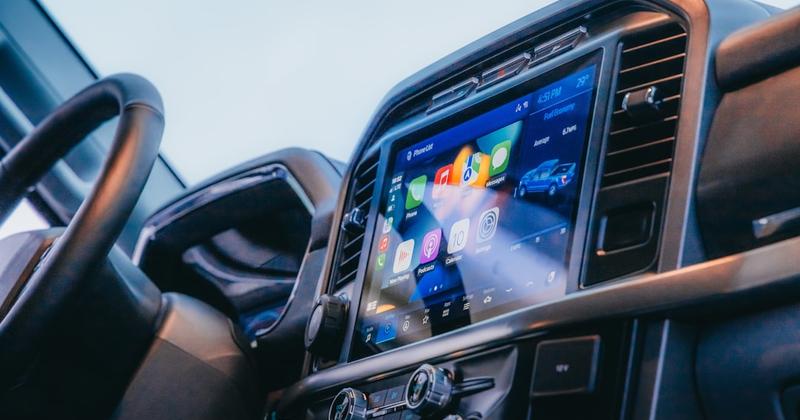
Once CarPlay is up, Flitsmeister works like any other CarPlay app. Its icon sits on the home screen alongside Maps and your music.
- On the car screen, find the Flitsmeister icon and tap it.
- The map opens with your speed, the speed limit, and live camera and hazard alerts.
- To move the icon nearer the front, open Settings → General → CarPlay → your car → Customize on the iPhone and drag it up.
That's the whole setup. Flitsmeister now speaks its warnings through the car speakers and shows them on the display, even while you use Maps for turn-by-turn. If you also changed tire size recently, run the speedometer calibration calculator so you know whether the dash under-reads before you lean on the posted limit.
Free browser tool
Camera alerts ≠ true speed on the needle
Flitsmeister warns about cameras; it does not fix a dash that lies after a tire upgrade. Enter stock and new sizes to see how many mph the camera would add at 50, 70, or 90.
Open the speedometer error calculator →Fix 4: When Flitsmeister won't appear on CarPlay
If CarPlay loads but the Flitsmeister icon is missing, it's almost always one of these. Work through them in order:
- Open the app on the phone first. A brand-new install won't show on CarPlay until you launch it once and accept the permissions.
- Update Flitsmeister and iOS. An old app build or old iOS can drop CarPlay support until you update both.
- Check the Customize list. Under Settings → General → CarPlay → your car → Customize, make sure Flitsmeister is on the visible side, not the hidden list.
- Check Screen Time. Under Settings → Screen Time → Content & Privacy Restrictions, confirm Flitsmeister isn't blocked.
- Re-pair the car. Delete the car from Settings → General → CarPlay, then set it up again.
When this won't settle it: if other apps are missing too, the problem is CarPlay itself, not Flitsmeister. The full checklist in why Apple CarPlay isn't working covers the rarer causes, from a disabled Siri to a USB restriction setting.
No CarPlay in your car?
Turn a mounted iPhone into a proper driver screen
If your car has no CarPlay — an older model, or a Tesla — you can still run Flitsmeister on the phone. Car Play Connect's Mount Mode gives that mounted iPhone a CarPlay-style dashboard with big maps, a GPS speedometer, and widgets, so the screen earns its place. Free to try.
Car Play Connect: Auto Sync
Free to try
Method 5: No CarPlay? Run Flitsmeister on a mounted iPhone
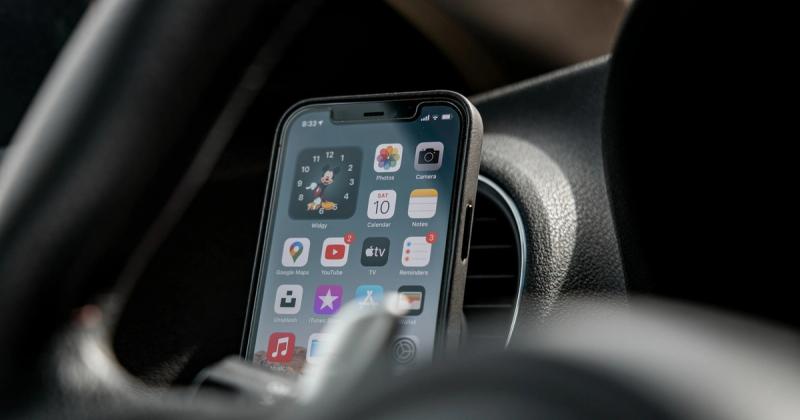
Flitsmeister doesn't need CarPlay at all. It started as a normal phone app and still works that way. If your car has no CarPlay — an older model, or a Tesla — mount the phone and run it directly. This is what I do in the Model 3.
- Put the iPhone in any car mount — vent, suction, or dash.
- Open Flitsmeister and let it run full-screen for the map and alerts.
- Send its audio to the car over Bluetooth, or a cheap FM transmitter if the car has no Bluetooth.
- Want a fuller dashboard the rest of the time? Car Play Connect's Mount Mode turns the same mounted phone into a CarPlay-style screen with a speedometer and widgets.
The honest limit:a mounted phone runs one app at a time, so you switch between Flitsmeister and a dashboard rather than seeing both at once. Car Play Connect doesn't do camera alerts — that's Flitsmeister's job. It fills the gaps CarPlay leaves: a GPS speedometer, weather, music, and a custom startup sound.
Flitsmeister in the car: three ways compared
There are three honest ways to use Flitsmeister on the road. Pick the row that matches your car and how much you want on-screen:
| Way | What you need | Where it shows | Best for |
|---|---|---|---|
| On CarPlay | iPhone + a CarPlay car | The full car screen | Everyday driving with a modern car |
| Mounted iPhone | iPhone + a phone mount | The phone screen | Older cars or a Tesla with no CarPlay |
| Audio only | iPhone, no screen needed | Spoken alerts only | Short trips when you can't mount it |
Frequently Asked Questions
Does Flitsmeister work with Apple CarPlay?
Yes, Flitsmeister works with Apple CarPlay. Once you install it on your iPhone, grant location access, and connect the phone to a CarPlay car, the Flitsmeister icon appears on the CarPlay home screen. It shows speed-camera warnings, average-speed zones, and your speed limit on the car display, and speaks the alerts through the car speakers.
Why is Flitsmeister not showing on CarPlay?
Flitsmeister usually doesn't show on CarPlay because you haven't opened it on the phone yet, or it's hidden in the Customize list. Open the app once and accept the permissions, then check Settings → General → CarPlay → your car → Customize and move Flitsmeister to the visible side. Updating the app and iOS fixes most remaining cases.
Is Flitsmeister free on CarPlay?
Flitsmeister's core camera and speed-limit alerts are free on CarPlay, the same as on the phone. A few extra features sit behind Flitsmeister's paid tier, and the app tells you which ones. CarPlay support itself costs nothing extra — if a feature works on your phone, it works on the car screen.
Does Flitsmeister work without CarPlay?
Yes, Flitsmeister works without CarPlay. It runs as a normal iPhone app, so you can mount the phone and use it directly in any car, including older cars and Teslas that can't get CarPlay. You lose the big built-in display, but the camera and speed alerts work exactly the same.
Is it legal to use Flitsmeister while driving?
In the Netherlands and Belgium, Flitsmeister is legal to use while driving. Some countries restrict live speed-camera warnings, though — Germany, for example, bans using camera-warning apps behind the wheel. Check the local rules before you rely on it abroad, and always mount the phone rather than holding it.
Flitsmeister or Waze on CarPlay — which is better?
Neither Flitsmeister nor Waze is clearly better on CarPlay — they do different jobs. Flitsmeister focuses on Dutch and Belgian speed cameras, trajectcontroles, and road rules. Waze is a global community navigation app with lighter camera data for the region. Many drivers in the Netherlands run Flitsmeister for alerts and a maps app for routing.
Whichever way you use it, Flitsmeister covers the alerts but leaves the rest of the CarPlay screen thin. Car Play Connect adds 11 car-tuned widgets, a custom startup sound, and a Mount Modedashboard for the cars that can't run CarPlay at all. Want to see which other apps are worth a slot? Read the best CarPlay apps for 2026. And for the platform basics, Apple's CarPlay overview lists every supported car.