Add Car Widgets
On this page▾
- The 30-second version: will you see Live Activities at all?
- What Live Activities look like on CarPlay in iOS 26
- Step 1: Update to iOS 26 and confirm your CarPlay
- Step 2: Turn on Live Activities for the apps that matter
- Step 3: Keep an always-on glance with a widget stack
- Fix: When CarPlay Live Activities don't show up
- Live Activities vs widgets on the CarPlay screen
- Related guides
- Frequently Asked Questions
Quick answer
Yes — iOS 26 shows Live Activities on the CarPlay screen. When an app has a live event running — a flight, a sports game, a delivery ETA — the tile appears on your CarPlay Dashboard on its own. It's on by default after you update to iOS 26; just leave each app's Live Activities switch on.
iOS 26 is the first update where a delivery tile can just show up on the CarPlay dash without you touching anything. It's genuinely useful — and, when an app doesn't support it, quietly missing. Here's exactly what appears, how to control it, and how to fix the “nothing shows up” case.
The 30-second version: will you see Live Activities at all?
Two things decide whether Live Activities reach your CarPlay screen. Check both in half a minute:
- Your iPhone runs iOS 26 or later.This is the release that added Live Activities to CarPlay. On iOS 18 or earlier, they stay on the phone only.
- The app actually posts a Live Activity.Flights, sports scores, ride and delivery tracking, timers, EV charging — those apps push live tiles. A note-taking or banking app usually doesn't, so there's nothing to mirror.
The honest catch: Live Activities are event-driven. They appear while something is happening and disappear when it ends. So on a normal quiet drive, you may see none at all — that's the feature working, not a bug. If you want something on-screen every drive, that's the widget pane's job, and I cover it in Step 3.
On-screen every drive, not just during an event
Fill the iOS 26 widget slots with live tiles you control
Live Activities only show while a flight or delivery is active. Car Play Connect fills the iOS 26 widget pane with an always-on GPS speedometer, album-locked Photos, and route-aware weather — the glance that's there every time you start the car. Free to try.

Car Play Connect: Auto Sync
4.6·2,735+ ratings·Free


What Live Activities look like on CarPlay in iOS 26
A Live Activity is the compact, real-time card iOS first put on the Lock Screen and Dynamic Island back in iOS 16. iOS 26 lets that same card render on CarPlay. It appears on the Dashboard — the home view that already shows Maps, Now Playing, and suggestions — and updates itself as the event moves.
These are the ones that actually earn the space:
| Live Activity | What you glance at |
|---|---|
| Flight status (Flighty, airline apps) | Gate, delay, and boarding time on the way to the airport |
| Sports scores (Apple Sports and others) | Live score without unlocking the phone |
| Food & grocery delivery | Driver ETA while you head home to meet it |
| Ride-share and courier tracking | Where your pickup or package is right now |
| Timers and EV charging | Time left, or charge percentage on a supported charger |
Two useful details from Apple. iOS 26 can show more than oneLive Activity at once, so a flight tile and a delivery tile can sit side by side. And not everything qualifies: an ongoing Clock stopwatch or a background file download won't appear, because those aren't true Live Activities. Apple documents the behaviour on its View Live Activities in CarPlay support page.
Step 1: Update to iOS 26 and confirm your CarPlay
Live Activities on CarPlay ride on iOS 26. No adapter or car update adds them — it's an iPhone software feature. So the first move is the update, then a quick connection check.
- On the iPhone, open Settings → General → Software Updateand install iOS 26 or later.
- Connect to your car the way you normally do — plug in the cable, or start wireless CarPlay.
- Confirm CarPlay opens and you can see the Dashboardview (the home screen with Maps and Now Playing). That's where Live Activities land.
When this won't settle it: a few very old head units run a cut-down CarPlay that never shows the Dashboard. If yours only ever shows a grid of app icons, Live Activities may not have anywhere to appear. New to the platform? Our what Apple CarPlay isguide explains the Dashboard and how the iOS 26 redesign fits together.
Step 2: Turn on Live Activities for the apps that matter
This is the free path, and it's the whole answer for most people. Live Activities are on by default after the update, but two switches decide whether a given app's tile actually reaches the car. Set them once:
- Per-app switch (iPhone). Open Settings, scroll to the app — say Flighty or your delivery app — tap it, and turn Live Activitieson. If an app has no such switch, it doesn't post Live Activities at all.
- Master switch (car screen). The on/off control for CarPlay specifically lives on the car's screen, not the phone. Start CarPlay, open the Settings app on the car display, and confirm Live Activities is on. It ships on, so you only touch this to turn the whole thing off.
- Optional: for tiles that update on the Lock Screen too, leave Settings → Face ID & Passcode → Live Activities enabled so nothing is hidden while the phone is locked.
The honest limit: you can't pick whichLive Activities show on CarPlay or pin one permanently. It's all-or-nothing per app, and each tile is driven by the app's own event. That's by design — Apple keeps the driver's view simple.
No CarPlay in the car at all?
Get a live dashboard on a Tesla or older car
Live Activities need native CarPlay. If your car skips CarPlay — a Tesla, a Rivian, or something older — Car Play Connect's Mount Mode turns a mounted iPhone into a CarPlay-style screen with big maps and live widgets.
Car Play Connect: Auto Sync
Free
Step 3: Keep an always-on glance with a widget stack
Live Activities are brilliant during an event and blank the rest of the time. If you want something useful on-screen on every ordinary drive, that's the iOS 26 widget pane — a separate, always-on part of the CarPlay redesign. It's free, and it pairs naturally with Live Activities.
- Connect to your car, then open Settings → General → CarPlay → your car and arrange the widget pane.
- Fill the slots with tiles you glance at — a GPS speedometer, album-locked Photos, weather, or trip stats. Our how to add widgets to CarPlay guide walks the native setup.
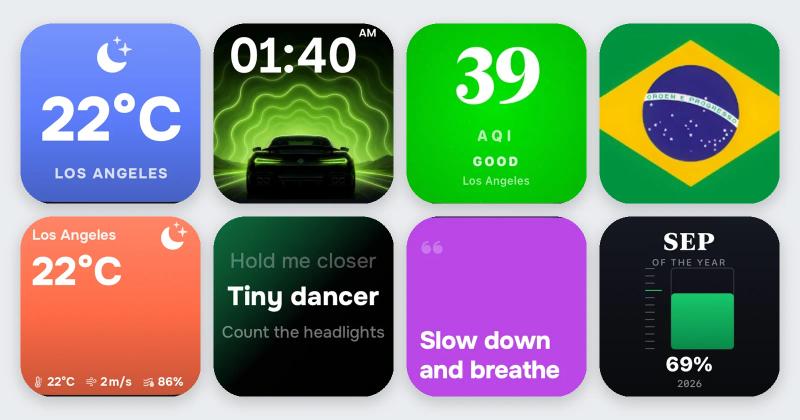
- Want more than the built-in tiles? Car Play Connectadds 11 car-tuned widgets — a live GPS speedometer, route-aware weather, and an album-locked Photos tile — into the same iOS 26 pane, wired or wireless.
Think of it as two layers: Live Activities handle the “what's happening right now” moments, and the widget stack handles the “show me this every drive” basics. Our pick of the best CarPlay widgetscovers what's worth a slot. One nice overlap: enabling Live Activities is also how synced lyrics show up on CarPlay.
Fix: When CarPlay Live Activities don't show up
Most “they never appear” reports come down to one of four things. Work down the list — the first two fix the large majority:
- No event is actually live.A Live Activity only shows while the app has one running. Start a real one — track a flight, open an active delivery — then look at the car screen. An idle app shows nothing, correctly.
- The app's Live Activities switch is off. Go to Settings → that app → Live Activities and turn it on. A missing switch means the app never supported them.
- The car-side master switch got turned off. On the car screen, open the CarPlay Settings app and switch Live Activities back on.
- CarPlay itself is glitching. If the Dashboard is frozen or CarPlay keeps dropping, fix the connection first. Our iOS 26 CarPlay not working guide walks the reconnect and reset steps.
Still nothing after all four? Toggle Live Activities off and on in the car's Settings app, unplug and reconnect, and give a fresh event a minute to post. That clears most of the last stubborn cases.
Live Activities vs widgets on the CarPlay screen
These two get mixed up constantly, because both are iOS 26 additions and both live on the Dashboard side. Here's the clean split so you know which one to reach for:
| Live Activities | CarPlay widgets | |
|---|---|---|
| When they show | Only while an event is active | Always, every drive |
| What triggers them | The app's live event | You pin them, once |
| Can you choose them? | No — all-or-nothing per app | Yes — you pick and reorder |
| Best for | Flights, deliveries, scores, ETAs | Speed, weather, Photos, music |
| How to set up | Per-app switch + car master switch | Settings → CarPlay → your car |
For the full widget walkthrough, see iOS 26 CarPlay widgets. For the wider picture of what iOS 26 added, our Apple next-generation CarPlaystatus page keeps track. Apple's own CarPlay page lists the current feature set.
Related guides
- iOS 26 CarPlay widgets — the always-on tiles that pair with Live Activities.
- Best CarPlay widgets 2026 — which tiles actually earn a slot.
- Apple next-generation CarPlay — everything iOS 26 and Ultra changed.
- Lyrics not showing on CarPlay — the Live Activities lyrics fix.
- iOS 26 CarPlay not working — when the Dashboard won't load at all.
Frequently Asked Questions
Does iOS 26 add Live Activities to CarPlay?
Yes. iOS 26 is the release that brings Live Activities to the CarPlay screen. When a supported app has a live event — a flight, a delivery, a game — its tile appears on the CarPlay Dashboard automatically and updates in real time. The feature is on by default once your iPhone updates to iOS 26, so most drivers get it without changing a single setting.
How do I turn off Live Activities in CarPlay?
Turn them off from the car's screen, not the iPhone. Start CarPlay, open the Settings app on the car display, and switch Live Activities off. That stops all Live Activity tiles from showing on CarPlay while leaving them working normally on your iPhone Lock Screen and Dynamic Island.
Why aren't Live Activities showing on my CarPlay screen?
Usually because no event is actually live — the tiles only appear while an app has one running. Start a real activity, like tracking a flight or an active delivery, then check the Dashboard. If it still doesn't show, confirm the app's Live Activities switch is on in Settings, and that the car-side master switch hasn't been turned off. A frozen CarPlay connection can also block them.
Which apps show Live Activities on CarPlay?
Any app that posts a Live Activity can show one on CarPlay. Common ones are flight trackers like Flighty and airline apps, Apple Sports and other score apps, food and grocery delivery, ride-share and courier tracking, timers, and EV charging apps. Note-taking, banking, and similar apps generally don't, so they never appear on the car screen.
Do I need CarPlay Ultra to get Live Activities?
No. Live Activities come with standard CarPlay on iOS 26, not the separate CarPlay Ultra hardware. Any car with normal CarPlay and an iPhone on iOS 26 gets them. Ultra adds the instrument-cluster takeover on a handful of luxury models, but Live Activities and the widget pane reached nearly every CarPlay car for free. See our next-generation CarPlay guide for the split.
Can I add Live Activities to a car without CarPlay?
No. Live Activities on CarPlay need native CarPlay, so a car that skips it — a Tesla, a Rivian, or something older — can't show them. The workaround is to mount your iPhone and run a CarPlay-style dashboard with an app such as Car Play Connect's Mount Mode, which gives you big maps and live widgets on any car with a phone mount.