Add Car Widgets
On this page▾
- The 30-second test
- Method 1: Confirm factory Apple CarPlay on your 300
- Method 2: Know what a Tesla-style screen actually is
- Method 3: Verify CarPlay before you install one
- Method 4: Use Mount Mode if the screen falls short
- Method 5: Finish the dash once CarPlay works
- Chrysler 300 CarPlay paths compared
- Frequently Asked Questions
- Related guides
A Tesla-style screen for the Chrysler 300 is an aftermarket vertical touchscreen, not a Tesla part. Some units run real Apple CarPlay through a licensed receiver. Others only mirror your phone's display and never show a CarPlay session. Check your factory dash first, verify the listing's exact wording, and use Mount Mode on your iPhone if the screen never delivers CarPlay.
A reader asked about a 10.4-inch vertical touchscreen listed as a Tesla-style upgrade for a 2012 Chrysler 300. The photos looked close enough to a real Tesla dash. The spec sheet never once used the words Apple CarPlay — only phone mirroring and multimedia system. That gap is exactly what this guide is built to close.
The 30-second test
Before you shop for a screen, sit in the driver seat of the 300 you already have. Turn the ignition to accessory. Wake the factory Uconnect display. Then answer one question: is there a CarPlay icon anywhere on the home page?
- Tile is there — you do not need a new screen. Plug in a data USB cable. If a session starts, skip to Method 5.
- No tile — your 300's factory radio never shipped with CarPlay, or this trim year skipped it. Keep reading through Methods 2 to 4 before you order anything.
Build your CarPlay
Already seeing a CarPlay tile? Skip to the dash setup
Car Play Connect adds weather, clocks, battery, and car-brand logos to the CarPlay widget row. Free to try on iOS 16.3 and up; the annual plan is $19.99/year.

Car Play Connect: Auto Sync
4.6·2,735+ ratings·Free


Method 1: Confirm factory Apple CarPlay on your 300
This step is free, and it stops you from buying hardware you do not need. Apple describes CarPlay as your iPhone's features on the car's own display — maps, calls, messages, and music. The 300 only has that if its Uconnect radio was built to speak the CarPlay protocol.
- Use a cable that carries data, not a charge-only cable.
- Unlock the iPhone and keep it on the lock screen while you plug in.
- Wait about 5 seconds for the CarPlay splash screen.
- If nothing happens, open Settings on the iPhone, search "CarPlay", and check whether the 300 shows up under Available Cars.
Still unsure about your exact year? Check your Chrysler owner's manual, or ask a dealer to run your VIN. Trim levels inside the same model year can differ, so do not trust a forum cutoff over that check.
When this fails: no tile and no session means Method 1 is done. Move on to understanding what a Tesla-style screen actually is before you spend anything on one.
Method 2: Know what a Tesla-style screen actually is
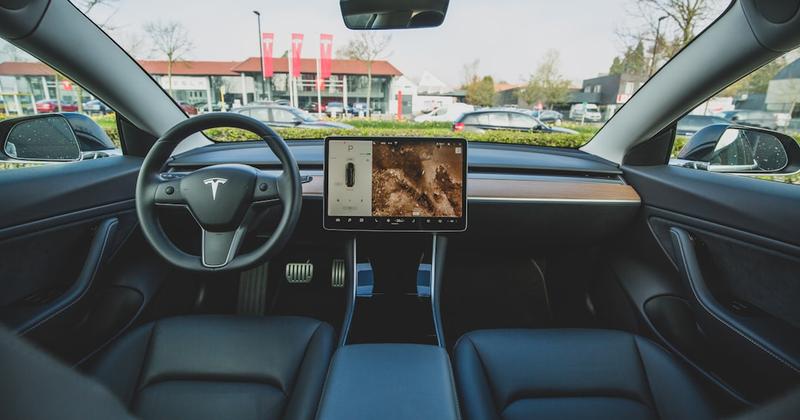
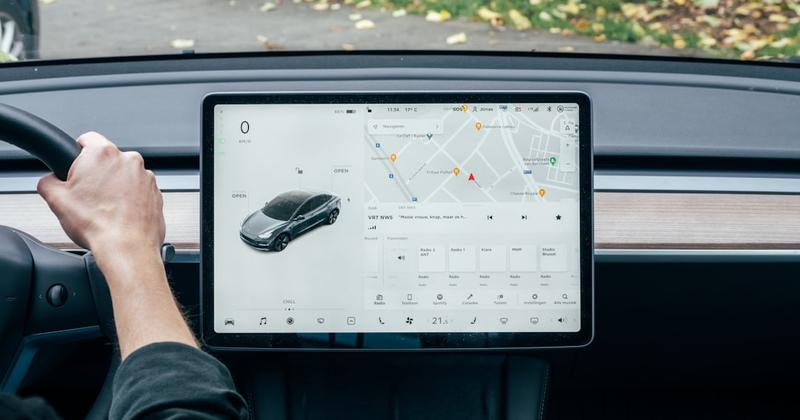
A Tesla-style screen is a vertical, portrait-orientation touchscreen head unit built to resemble Tesla's dashboard display. Tesla does not make or sell these units. They are aftermarket products designed for cars that never had a screen like it, including older Chrysler 300s.
The honest limit: not every one of these screens runs real Apple CarPlay. Some genuinely support it, wired or wireless, through a built-in receiver. Others only mirror whatever is on your phone's display, without ever opening an actual CarPlay session. A mirrored screen looks similar in photos, but it will not show the CarPlay app grid, and it will not carry CarPlay widgets once you install something like Car Play Connect.
This is the same gap covered on our own Mount Mode page: real Tesla vehicles get third-party CarPlay hardware adapters today because Tesla's own screen was never built to run the protocol. A Tesla-style screen for a 300 sits in the same category — the look is not the license. If you want the full timeline on when Tesla's own dash might run real CarPlay, see our Tesla CarPlay delay guide.
Method 3: Verify CarPlay before you install one
Do this before you cut into the 300's dash, not after. A returned screen is easy. A dash you already trimmed is not.
- Read the spec sheet for the exact phrase "Apple CarPlay" — wired or wireless. "Phone link" and "screen mirroring" are a different, weaker feature.
- Ask the seller for a video of the real iOS CarPlay interface: the CarPlay app grid, Apple Maps, and the CarPlay Now Playing screen — not a skinned Android launcher.
- Get the return window in writing before you pay the balance or book an install slot.
- If you are buying locally, bring your own iPhone and a known-good data cable and ask to test it on the shop's own demo unit first.
When this will not work: if a seller cannot produce a real CarPlay demo on request, treat the listing as an Android tablet, not a CarPlay upgrade. Prices for these units vary by seller and feature set, so confirm the total cost against what you actually verified, not against the product photos.
Build your CarPlay
Once CarPlay is confirmed, plan the rest of the dash
Rated 4.6 from 2,700+ App Store ratings. Car Play Connect adds a custom connect sound and synced lyrics once the new screen runs a real CarPlay session.
Car Play Connect: Auto Sync
Free
Method 4: Use Mount Mode if the screen falls short
A pre-2016 Chrysler 300, or a Tesla-style screen that turns out to be mirroring only, both land in the same spot: no real CarPlay on the dash. Car Play Connect's Mount Mode turns the iPhone itself into a dashboard instead of gambling on a second screen swap.
Mount Mode gives you a GPS speedometer, configurable to mph or km/h with day/night auto-switching, plus driver-mode buttons sized for volume, next-track, and end-call without looking down. Apple Maps and Google Maps run full screen with auto-rotate, and a voice-only mode hides the screen when you do not need to look at it. Hands-free dialing uses a quick contacts grid.
When this will not work: you already confirmed real CarPlay in Method 1 or Method 3. Mount Mode is the no-screen path, not a second dashboard on top of a working one.
Method 5: Finish the dash once CarPlay works
Getting CarPlay onto the glass, factory or aftermarket, is only half the job. Car Play Connect: Auto Sync ships a widget gallery built for that screen: weather cards, clocks, air quality, iPhone battery, and year progress sit next to your own photos, car-brand logos, affirmations, faith verses, football crests, and country flags.
Add them per car under Settings → CarPlay → Customize → Widgets — that pane itself needs iOS 26 or later, since Apple only added CarPlay widget support then. The app's own App Store minimum is lower, iOS 16.3, for everything else it does. Do this parked, not while merging.
Want the 300 to announce itself when CarPlay connects? Open Sounds → Connect Sound in the same app. Pick a preset from the 7 built-in packs, or import your own .m4a, .mp3, or .wav file up to 5 seconds long. The chime plays within 1 second of CarPlay connecting, and setup takes about 30 seconds.
Music on the new screen can also show Dynamic Lyrics — synced, karaoke-style lines from Apple Music or Spotify, with the active line highlighted as the song plays. The App Store minimum is iOS 16.3; full Live Activities sync needs iOS 26.0 or later.
When this will not work: Methods 1 through 4 never produced a real CarPlay session. Widgets and sounds cannot appear on a screen that only mirrors your phone.
Chrysler 300 CarPlay paths compared
Use this as a parked decision before you order a screen, not as a shopping list.
| Path | When it fits | What changes | Honest limit |
|---|---|---|---|
| Factory CarPlay (Method 1) | A CarPlay tile is already on the 300's Uconnect screen | A data USB cable | A missing tile is not a software toggle |
| Tesla-style screen with real CarPlay (Methods 2–3) | The listing says "Apple CarPlay" and shows a demo | The whole head unit | Verify it before you cut the dash |
| Tesla-style screen, mirroring only | Listing only says phone mirroring or screen mirroring | The display, not the protocol | No CarPlay tile, no widgets, ever |
| Mount Mode (Method 4) | Pre-2016 300, or a mirroring-only screen | A phone mount plus Car Play Connect | Not a factory-screen CarPlay session |
| Dash customization (Method 5) | CarPlay already runs, real or aftermarket | Settings → CarPlay → Customize → Widgets | Cannot create CarPlay on a screen that lacks it |
Frequently Asked Questions
Do Teslas have Apple CarPlay?
No Tesla on the road today ships with native Apple CarPlay. Tesla announced CarPlay support in May 2026 with a windowed panel design, but the rollout was still delayed as of July 2026. A Tesla-style screen bolted into a Chrysler 300 has nothing to do with Tesla's own software. It is an aftermarket unit built to look similar.
When will Tesla release its CarPlay update?
There was no firm ship date as of June 2026, and the rollout was still delayed as of July 2026. Tesla announced the feature in May 2026, limited to Hardware-4 cars like the Model 3 Highland, Model Y Juniper, and Cybertruck. Pre-2024 Teslas likely never get it. Check Tesla's own release notes before expecting it on any Tesla dash.
Is a Tesla-style screen the same thing as Apple CarPlay?
No. A Tesla-style screen is an aftermarket vertical touchscreen built to resemble Tesla's dashboard, sold for cars like the Chrysler 300 that never shipped one from the factory. Whether it runs real Apple CarPlay depends entirely on that unit's own hardware and firmware, not on anything Tesla makes.
Can you put a Tesla screen in any car?
Not a real one. Tesla's own display is tied to Tesla's hardware and software, so it cannot drop into a Chrysler 300 or any other car. What actually gets installed is a separate aftermarket vertical touchscreen built to resemble that look, wired through a dash kit and harness matched to your specific model year.
Does the Chrysler 300 have Apple CarPlay from the factory?
It depends on the year and Uconnect trim. Wake the factory screen and look for a CarPlay tile before buying any aftermarket screen. If there is no tile, check your Chrysler owner's manual and Apple's CarPlay vehicle list for your exact VIN year. A forum year cutoff is not a substitute for that check.
Can I add Car Play Connect widgets to an aftermarket Chrysler 300 screen?
Yes, once the screen runs a genuine Apple CarPlay session. Widgets render through iOS itself, not the head unit's own software, so any real CarPlay display works the same way. Open Settings → CarPlay → Customize → Widgets on the iPhone and turn on Car Play Connect.
Related guides
- Tesla screen CarPlay: what works in 2026 — the three setups that work on a real Tesla screen, Chrysler or not.
- Tesla Apple CarPlay delay: what to do now — the full timeline on Tesla's own stalled rollout.
- Mount Mode for Tesla & older cars — the phone-dashboard path when a screen never delivers real CarPlay.
- Car Play Connect widgets — the gallery that dresses up any CarPlay screen once it works.
- Custom CarPlay connect sound — set a startup and disconnect chime for the 300's dash.