Add Car Widgets
On this page▾
- The 30-second test
- Fix 1: Use the data USB port, not the charge-only one
- Fix 2: Swap in a certified cable
- Fix 3: Un-grey CarPlay in your iPhone's Screen Time
- Fix 4: Reset the NissanConnect head unit
- Fix 5: Re-pair after an iOS or car update
- Which Sentra do you have? Wired vs wireless by year
- Frequently Asked Questions
Quick answer
Most Nissan Sentra CarPlay failures are a wired-connection problem. Almost every Sentra through 2025 is wired-only. CarPlay needs the data USB port — the one with the smartphone icon — not a charge-only port, and a certified cable. Swap both first. Then soft-reset NissanConnect: hold the power knob for 10 seconds.
The Sentra uses Nissan's NissanConnect infotainment for CarPlay. Its CarPlay quirks are predictable once you know the system. The catch that trips up most owners is the connection type. Newer cars go wireless first. The Sentra, through 2025, expects a cable — and it's picky about the port and the cable.
On a Sentra, two changes fix most random dropouts: move off the armrest USB to the console data port, and swap a frayed no-name cable for a short MFi one. A greyed-out CarPlay, on the other hand, usually traces back to the iPhone's Screen Time settings, not the car.
The 30-second test
Before you touch settings, run one check. Plug your iPhone into the console USB port with the smartphone icon. Unlock the phone. Watch the screen for the “Trust This Device” or “Allow” prompt, and tap it. If the CarPlay icon still never appears, the fixes below go in order — fastest first.
Once CarPlay does load, you may notice the screen looks empty. That's where Car Play Connecthelps: it adds custom widget tiles — weather, your photos, a date-and-time readout — into iOS 26's five CarPlay slots. Free to try. It's a customization app, though, not a repair tool, so work the fixes below first.
Once CarPlay loads
Fill your Sentra's empty CarPlay screen
Car Play Connect adds custom widget tiles to CarPlay — weather, your photos, a date-and-time readout — each in one of iOS 26's five slots. Free to try.

Car Play Connect: Auto Sync
4.6·2,735+ ratings·Free


Fix 1: Use the data USB port, not the charge-only one
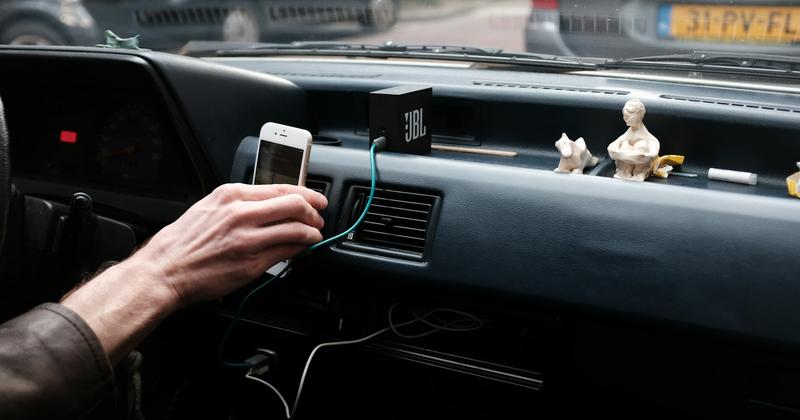
The Sentra has more than one USB port, and they are not equal. Only the port marked with a small smartphone icon carries data. The armrest and rear ports on many trims are charge-only. Plug into the wrong one and the phone charges while CarPlay never starts.
Move your cable to the console port with the phone icon. This single change often fixes it. If your dash has no labeled port, use the front USB closest to the screen.
Fix 2: Swap in a certified cable
A charging cable and a data cable can look identical. Worn data lines still pass power, so the phone charges but CarPlay drops. Use an Apple MFi-certified Lightning or USB-C cable. Keep it under about one meter — long, cheap cables lose signal.
Test with a cable you know is good before blaming the car. If a fresh cable in the right port works, you found it.
Fix 3: Un-grey CarPlay in your iPhone's Screen Time
“CarPlay greyed out” is an iPhone setting, not a Sentra fault. A Screen Time restriction can switch CarPlay off. Open Settings on the phone. Go to Screen Time, then Content & Privacy Restrictions, then Allowed Apps. Make sure CarPlay is toggled on.
If Content & Privacy Restrictions is off entirely, CarPlay is already allowed — look elsewhere. This one catches people whose CarPlay “never worked” on a car that clearly supports it.
Once the connection holds, a stable screen is worth building on. Car Play Connectcan also give your Sentra a custom startup sound the moment CarPlay connects, plus an optional separate disconnect tone. Import your own clip and it plays on connect. Again, it customizes CarPlay — it doesn't fix the cable.
Make the connection yours
A custom startup sound the moment your Sentra connects
Car Play Connect plays a chime you choose when CarPlay starts, with an optional separate disconnect tone — import your own clip and it plays on connect.
Car Play Connect: Auto Sync
Free
Fix 4: Reset the NissanConnect head unit
When CarPlay chimes but the screen stays dark, reboot the head unit. Hold the audio power knob for about 10 seconds. Wait for the screen to blank and the Nissan logo to return. The reset is non-destructive — your pairings and settings survive.
This clears a stuck session without a trip to the dealer. If the black screen comes back weekly, ask the dealer whether a newer NissanConnect firmware is available for your car. Our full reset walkthrough covers the phone side too.
Fix 5: Re-pair after an iOS or car update
An update on either side can break the pairing. On a wired Sentra, unplug and replug after rebooting the head unit. On a 2026 Sentra with wireless CarPlay, delete the car under Settings → General → CarPlay on the iPhone. Then forget it in the head unit's Bluetooth list and pair again.
If drops keep happening after that, the pattern-reading in our keeps-disconnecting guideapplies to the Sentra unchanged. Apple's official CarPlay help covers the connection basics as well.
Which Sentra do you have? Wired vs wireless by year
The Sentra's CarPlay type depends on the model year, and that changes the fix. Almost the entire lineup is wired. Wireless is a 2026 addition on some trims. Here's the map.
| Model year | CarPlay type | What usually breaks | First fix |
|---|---|---|---|
| 2017–2019 | Wired (standard from 2019, except base S) | No CarPlay icon at all | Data USB port + certified cable |
| 2020–2024 | Wired, 8-inch screen | Charges but won't start; black screen | Right port, then head-unit reset |
| 2025 | Wired, all trims | Drops mid-drive | Certified cable under one meter |
| 2026 (SV, SR, SL) | Wireless | Won't auto-connect after an update | Delete pairing on both sides, re-pair |
Frequently Asked Questions
How do I activate CarPlay on a Nissan Sentra?
Plug your iPhone into the console USB port marked with a smartphone icon. Unlock the phone. Tap Allow or Trust on the first-connect prompt. On most Sentras CarPlay then launches on its own. If it doesn't, unplug and replug the cable, then watch for the prompt again.
Why is Apple CarPlay greyed out on my Nissan Sentra?
A greyed-out CarPlay is an iPhone restriction, not a car fault. Open Settings → Screen Time → Content & Privacy Restrictions → Allowed Apps and turn CarPlay on. If Content & Privacy Restrictions is off entirely, CarPlay is already permitted, so the problem is the cable or the port instead.
How do I reset CarPlay on a Nissan Sentra?
Reset the NissanConnect head unit: hold the audio power knob for about 10 seconds until the Nissan logo reappears. It's non-destructive. To reset the pairing itself, delete the car under Settings → General → CarPlay on the iPhone, forget it in the car's Bluetooth list, then connect again.
Does the Nissan Sentra have wireless CarPlay?
Only the redesigned 2026 Sentra offers wireless CarPlay, on the SV, SR, and SL trims. Every Sentra from 2017 through 2025 is wired-only and needs a USB cable. A wireless adapter can add it to a wired car — see our adapter ranking for models that behave with NissanConnect.
Why does my Nissan Sentra CarPlay keep disconnecting?
A worn cable or a charge-only port causes most Sentra drops. Move to the smartphone-icon port with a certified cable under one meter. If it still drops after an update, reboot the head unit and re-pair. The brand-wide pattern is in our Nissan CarPlay guide.