Add Car Widgets
On this page▾
- The 30-second test
- Method 1: Check whether your 7-inch screen already runs CarPlay
- Method 2: Compare a 7-inch screen against the bigger trims
- Method 3: Turn on CarPlay on a 7-inch screen that has it hidden
- Method 4: Replace a 7-inch screen with an aftermarket head unit
- Method 5: Skip the dash screen with Mount Mode instead
- 7-inch CarPlay options compared
- Frequently Asked Questions
- Related guides
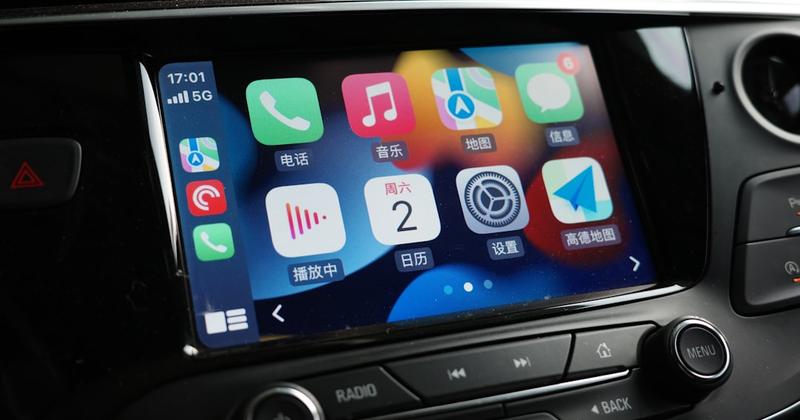
A 7-inch touchscreen works fine with Apple CarPlay. Screen size isn't what blocks the feature — the automaker's software is. Plenty of 7-inch factory units from the last several years run CarPlay without any extra steps. Others need a software update, a dealer unlock, or a different head unit before CarPlay shows up at all.
We build CarPlay apps at Car Play Connect, so we spend more time testing the handshake between iPhones and dash screens than most drivers ever will. That handshake looks the same on a cramped 7-inch unit and a sprawling 12.3-inch one. Plug in or pair over Wi-Fi, confirm on the lock screen, and the CarPlay interface loads. What changes is how much of that interface you can see at once, and that's where screen size actually matters.
The 30-second test
Sit in the driver's seat with the ignition on accessory power. Wake the touchscreen and look at the home screen.
- CarPlay icon is there — plug in a data cable, or open Settings → General → CarPlay on the iPhone and check whether the car shows up. Skip to Method 3 if nothing launches.
- No icon anywhere — move to Method 2 to see what a 7-inch screen typically includes, then Method 3 or Method 4 depending on what you find.
Apple describes CarPlay as your iPhone's maps, calls, messages, and music on the car's own display. A 7-inch screen can show all of that just as well as a bigger one — the automaker just has to build the connection into that unit's software first.
Build your CarPlay
Want more on that 7-inch screen than icons?
Car Play Connect adds weather, clock, and battery widgets to the CarPlay screen once it connects, sized to fit a 7-inch display as easily as a larger one. Free to try; the annual plan is $19.99/year.

Car Play Connect: Auto Sync
4.6·2,735+ ratings·Free


Method 1: Check whether your 7-inch screen already runs CarPlay
This costs nothing and takes under a minute. Park first — don't try this while driving.
- Unlock the iPhone and leave it on the lock screen.
- Plug in a cable that carries data, not a charge-only cable from a gas-station rack.
- If nothing happens, try wireless: open Settings → General → CarPlay on the iPhone and look for the car's name under available cars.
- Confirm Siri is turned on in Settings before blaming the screen — CarPlay leans on it for voice commands.
When this doesn't work: no icon, no wired prompt, and no wireless listing. That points to Method 2 — a lot of base-trim 7-inch screens simply don't ship with CarPlay hardware turned on.
Method 2: Compare a 7-inch screen against the bigger trims
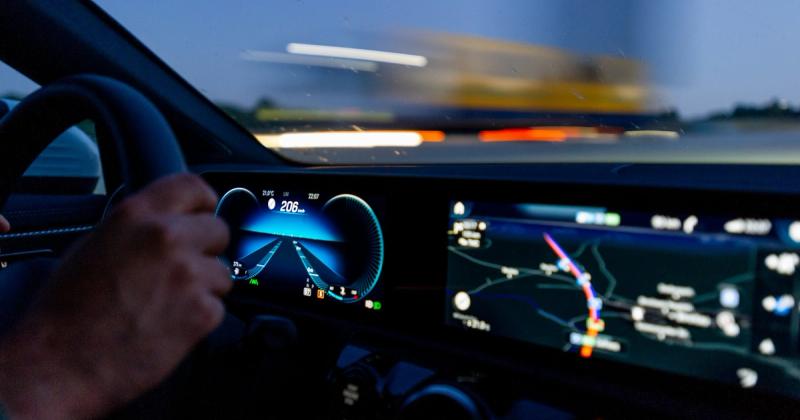
Automakers often reserve a 7-inch touchscreen for a car's base or entry trim, then offer an 8-inch, 9-inch, or 10.25-inch screen one or two trims up. CarPlay itself usually works the same way on both sizes. What differs is how much fits on screen at once, and sometimes whether wireless CarPlay comes standard or costs extra.
A bigger screen shows larger album art and a wider map view. A 7-inch screen still runs the same CarPlay widgets and apps — it just shows less of the layout at once.
When this doesn't work: you're buying used and the exact trim's screen size isn't listed anywhere. Check the window sticker, the build sheet, or Apple's own list of CarPlay-compatible vehicles for that model year before you assume.
Method 3: Turn on CarPlay on a 7-inch screen that has it hidden
Some 7-inch factory units have the CarPlay hardware but ship with it switched off, or gated behind a paid activation some automakers have used for wireless CarPlay specifically. Call the dealer's service desk before assuming the unit can't do it at all.
- Give the dealer your VIN and ask specifically whether CarPlay is included or available as an add-on for that build.
- Ask whether an infotainment software update is needed, and whether one exists for your car's build date.
- Have the update installed, then retest with a known-good data cable or a fresh wireless pairing.
When this doesn't work: the dealer confirms the 7-inch unit never had CarPlay hardware, full stop. Move to Method 4 for a head-unit swap, or Method 5 to skip the dash screen entirely.
Build your CarPlay
Already connected? Add a widget row before you drive off.
Open Settings → CarPlay → Customize → Widgets on the iPhone and turn on Car Play Connect for weather, a clock, air quality, and more — the layout adjusts to fit a 7-inch screen or a bigger one.
Car Play Connect: Auto Sync
Free
Method 4: Replace a 7-inch screen with an aftermarket head unit
If the 7-inch unit truly has no CarPlay hardware, a dealer visit won't fix it. The radio itself needs to change. Aftermarket double-DIN and OEM-fit head units with built-in CarPlay support exist for most cars. Prices vary by brand and screen size, so check a car-audio retailer for your specific dash.
- Measure your dash opening before buying — 7-inch factory slots don't always match standard double-DIN dimensions.
- Look for a unit that lists Apple CarPlay support by name, not just Bluetooth or screen mirroring.
- Budget for a dash kit and a wiring-harness adapter alongside the head unit itself — most cars need both.
- Have it installed by a car-audio shop unless you're comfortable pulling your own dash trim and reconnecting the factory harness.
When this doesn't work: your dash trim or steering-wheel controls don't integrate cleanly with an aftermarket unit. That happens more often on newer cars with climate controls built into the factory screen. Method 5 sidesteps the dash entirely.
Method 5: Skip the dash screen with Mount Mode instead
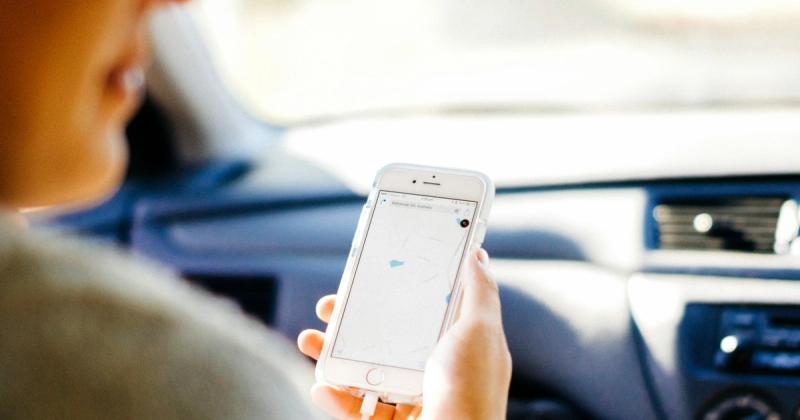
If you'd rather not touch the factory radio at all, Car Play Connect's Mount Mode turns the iPhone itself into a CarPlay-style dashboard. No 7-inch screen, no aftermarket unit, no dealer visit required.
- Install Car Play Connect from the App Store and open Mount Mode.
- Mount the iPhone where you can see it without taking your eyes far off the road.
- Use the on-screen GPS speedometer, driver-mode buttons, and Maps integration in place of the car's own screen.
When this doesn't work: you specifically want CarPlay running on the car's own factory or aftermarket screen, not on the phone. In that case, Method 3 or Method 4 is the better fit.
7-inch CarPlay options compared
Pick the row that matches what your own screen already showed you.
| Option | What it takes | Good for |
|---|---|---|
| Screen check (Method 1) | A parked car and a data USB cable | Confirming CarPlay for free, right now |
| Trim comparison (Method 2) | The window sticker or build sheet | Deciding whether to size up before you buy |
| Dealer unlock (Method 3) | A VIN and a dealer visit | 7-inch units with hardware CarPlay never activated |
| Head-unit swap (Method 4) | An aftermarket CarPlay radio and install | A 7-inch screen with no CarPlay hardware at all |
| Mount Mode (Method 5) | An iPhone, a mount, and Car Play Connect | Skipping the dash screen in any 7-inch car |
Frequently Asked Questions
Does a 7-inch touchscreen support Apple CarPlay?
Yes, most 7-inch factory touchscreens from the last several years support Apple CarPlay. Screen size doesn't block the feature — the automaker's software does. Some 7-inch units ship with CarPlay switched on by default, others need a dealer software update or a paid unlock before the option shows up.
What is the smallest screen Apple CarPlay works on?
Apple doesn't publish a minimum screen size for CarPlay. The car maker decides what display to pair with the feature, and some factory units run smaller than 7 inches. If your car has any built-in touchscreen at all, check its settings menu for CarPlay before assuming it's too small.
Can I add Apple CarPlay to my 7-inch screen if it doesn't have it?
It depends on what's inside that unit. Some 7-inch radios have the hardware but need a dealer software update to turn CarPlay on. Others have no CarPlay hardware at all, and need a full head-unit swap. If neither path works for your car, Mount Mode skips the dash screen entirely.
Is a 7-inch screen too small for Apple CarPlay widgets?
No. CarPlay widgets work on a 7-inch screen the same way they do on a larger one — screen size isn't a compatibility blocker. A smaller display simply shows less at once. Core apps like Maps and Music look and work the same either way.
Should I upgrade from a 7-inch screen to a bigger CarPlay display?
Only if you want more on screen at once. A bigger display shows a wider map and more icons per row, but a 7-inch screen runs the exact same CarPlay apps. Upgrade for comfort and visibility, not because the smaller screen is somehow incompatible with CarPlay itself.
How do I check if a car's screen supports CarPlay before I buy it?
Ask to see the CarPlay icon on the home screen with the ignition on, or plug in a phone to test it on the lot. For a specific model and trim, Apple keeps its own list of CarPlay-compatible vehicles you can check against the car's build sheet or window sticker.
Related guides
- CarPlay widgets — build a weather, clock, and battery widget set sized for a 7-inch screen or bigger.
- Mount Mode — a dashboard for any car without native CarPlay, no head-unit swap needed.
- Custom connect sound — give your car a custom chime whenever CarPlay connects.
- Dynamic Lyrics — synced song lyrics on the CarPlay screen once a track is playing.
- More CarPlay guides — setup, troubleshooting, and customization for every CarPlay car.