Add Car Widgets
On this page▾
- The 60-second check
- Method 1: Look for the CarPlay icon on your Audi's screen
- Method 2: Cross-check your exact model and year
- Method 3: Connect CarPlay — wired, then wireless
- Method 4: Fix CarPlay that won't connect or keeps dropping
- Method 5: No CarPlay at all? Use Mount Mode instead
- Audi CarPlay check and connect options compared
- Frequently Asked Questions
- Related guides
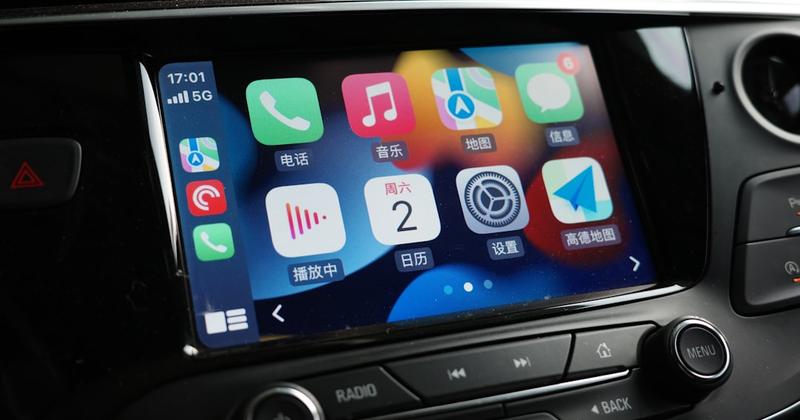
Yes, most current Audi models include Apple CarPlay, and so do many from the last several years — but availability depends on the specific model, model year, and trim level. Check your own car directly: look at the infotainment home screen for a CarPlay icon before you plug anything in.
We build CarPlay apps, which means we spend more time testing the handshake across iPhones and iOS versions than sitting in any one car. That handshake — iPhone to head unit — has stayed fairly consistent from iOS 16.3 through iOS 26. What changes between brands is the screen you land on once it connects, and Audi's MMI layout is its own thing. So the fastest answer is the one your own dash gives you, not a forum post about a different model year.
The 60-second check
Sit in the driver's seat with the ignition on accessory. Wake the touchscreen. Look for a CarPlay icon on the home screen, or a phone-connectivity entry somewhere in settings — exact wording and position shift between MMI generations, so there's no single menu path that covers every Audi.
- Icon is there — plug in a data-capable USB cable. If a CarPlay session starts, skip ahead to Method 3.
- No icon anywhere — that model, year, or trim likely never shipped with CarPlay. Move to Method 2, then Method 5.
Apple describes CarPlay as your iPhone's maps, calls, messages, and music on the car's own display. An Audi only offers that if the infotainment system was built to speak the protocol — a dongle plugged into a non-CarPlay screen won't create it.
Build your CarPlay
Already found the icon? Make the screen yours.
Car Play Connect adds weather, clock, and battery widgets to the CarPlay screen once your Audi connects, plus a custom startup sound. Free to try; the annual plan is $19.99/year.

Car Play Connect: Auto Sync
4.6·2,735+ ratings·Free


Method 1: Look for the CarPlay icon on your Audi's screen
This is the only method that costs nothing and tells you the truth immediately. Park first — don't do this while driving.
- Unlock the iPhone and leave it on the lock screen.
- Plug in a cable that carries data, not a charge-only lead from a gas-station rack.
- If nothing happens, open the iPhone's Settings, search "CarPlay," and check whether the Audi shows up under available cars.
- Confirm Siri is turned on in Settings before assuming the car is the problem — CarPlay relies on it for voice commands.
When this doesn't work: no icon on the screen and no session after plugging in means this trim's infotainment system doesn't speak CarPlay. A wireless adapter can't invent that protocol on a radio that never had it.
Method 2: Cross-check your exact model and year
If you're still shopping, used, or just unsure, don't rely on a single remembered year cutoff — option packages and regional trims vary. Apple keeps its own list of CarPlay-compatible vehicles you can check your exact Audi model and year against before you buy or trade in.
Ask the dealer's service desk to run the VIN if you're buying used — they can confirm whether that specific build included CarPlay as standard or as part of an optional technology package. A sales brochure for the current model year won't tell you much about a used car from several years back.
When this doesn't work: a VIN check or the compatibility list still says no CarPlay. At that point, stop shopping for a software fix and go straight to Method 5.
Method 3: Connect CarPlay — wired, then wireless
Start wired every time, even if your Audi supports wireless CarPlay. A cable connection is the most reliable first test, and it rules out Bluetooth or Wi-Fi interference while you're troubleshooting.
- Match the cable to both ends: the iPhone's port and the car's USB port.
- Plug in and wait a few seconds for the CarPlay screen to load.
- If your Audi also supports wireless CarPlay, pair the iPhone over Bluetooth once with the car parked.
- Unplug and drive off on a later trip — a wireless-capable system should offer to reconnect on its own.
Once the screen is live, Car Play Connect adds a widget gallery on top of it — weather, a clock, iPhone battery, and more — so the dashboard shows more than app icons alone.
When this doesn't work: wired CarPlay never launches even with a known-good cable. That's a Method 1 problem, not a wireless issue — go back and confirm the car actually has CarPlay before chasing a Bluetooth pairing that was never going to help.
Build your CarPlay
Connected? Add a widget row before you drive off.
Open Settings → CarPlay → Customize → Widgets on the iPhone and turn on Car Play Connect for weather, clocks, air quality, and more on the CarPlay screen.
Car Play Connect: Auto Sync
Free
Method 4: Fix CarPlay that won't connect or keeps dropping
A session that starts and then drops is usually a cable or pairing problem, not a dead radio. Work through these in order before you assume the worst.
- Swap the USB cable. Charge-only cables are the single most common cause of a CarPlay session that won't start or keeps cutting out.
- Forget the car and re-pair it: Settings → General → CarPlay, tap the car, choose Forget This Car, then reconnect from scratch.
- Check for a pending iOS update on the iPhone — an older iOS version can behave oddly against a newer car software build.
- Try a different USB port on the car if it has more than one; not every port on every vehicle carries data.
When this doesn't work: you've tried a fresh cable, a clean re-pair, and a current iOS version, and the session still won't hold. That points toward a car-side fault worth raising with an Audi dealer, not something an app or a cable swap can fix.
Method 5: No CarPlay at all? Use Mount Mode instead
Some older Audis simply never shipped with CarPlay, full stop. For those, Car Play Connect Mount Mode turns the iPhone itself into a driving dashboard — no modification to the car required. You get a GPS speedometer, driver-mode buttons for volume and calls, and full-screen Apple Maps or Google Maps.
Mount the phone, plug it in for power, and drive. The factory screen still runs climate and the rest of the car's own controls; the iPhone just takes over navigation, calls, and music the way CarPlay would if the radio supported it.
When this doesn't work: your Audi already has a CarPlay-capable screen. Stay on Methods 1 through 4 instead — Mount Mode is the no-radio fallback, not a replacement for a working CarPlay session.
Audi CarPlay check and connect options compared
Pick the row that matches what your own screen already showed you.
| Option | What you need | Good for |
|---|---|---|
| Screen check (Method 1) | A parked Audi and a data USB cable | Confirming CarPlay for free, right now |
| Model/year check (Method 2) | Your exact Audi model, year, and VIN | Checking before you buy, lease, or trade in |
| Wired connection (Method 3) | A certified Lightning or USB-C cable | The most reliable first connection |
| Wireless connection (Method 3) | A wireless-capable Audi and one Bluetooth pairing | Skipping the cable on every later drive |
| Mount Mode (Method 5) | An iPhone, a mount, and Car Play Connect | Older Audis with no CarPlay screen at all |
Frequently Asked Questions
Does my Audi have Apple CarPlay built in?
Not every Audi does, but most from the last several years do. Park, wake the touchscreen, and look for a CarPlay icon on the home screen or in the settings menu. A missing icon usually means that trim or model year skipped it. Don't trust a forum year cutoff over your own screen — option packages differ.
How do I turn on Apple CarPlay in my Audi?
Plug your iPhone into the car's USB port with a data-capable cable, then confirm on the lock screen when CarPlay prompts you. If your Audi supports wireless CarPlay, pair the iPhone over Bluetooth first and it should offer to connect wirelessly on later trips. Either way, do this parked, not at a light.
How do I enable Siri for CarPlay?
Siri doesn't need a separate CarPlay switch. Turn it on for the iPhone itself under Settings → Siri & Search, then hold the voice-command button on your Audi's steering wheel to talk to it over CarPlay. If holding the button does nothing, check that Siri is on before you blame the car.
Why does my CarPlay keep disconnecting in my Audi?
Usually it's a cable that only charges and doesn't carry data, a loose USB connector, or a wireless CarPlay pairing that needs refreshing. Try a known-good cable first. For wireless CarPlay, forget the car under Settings → General → CarPlay and reconnect. An iOS update that lags behind your car's software can also cause drops.
How do I turn off or disconnect CarPlay in my Audi?
Unplug the USB cable, or for wireless CarPlay, open Settings → General → CarPlay on the iPhone, tap the car, and choose Forget This Car. Turning the ignition off ends the session too. There's no separate CarPlay app to close — it runs as part of the connection itself.
When did Apple CarPlay come out?
Apple introduced CarPlay in 2014, and the core connection — plugging an iPhone into a compatible touchscreen for maps, calls, and music — hasn't changed much since. What's changed is how many cars ship with it standard, Audi's current lineup included.
Related guides
- CarPlay widgets — build a weather, clock, and battery widget set for the CarPlay screen once it's connected.
- Mount Mode — a dashboard for Audis, and any car, without a native CarPlay screen.
- Custom connect sound — give the Audi a different chime than the factory CarPlay default.
- Dynamic Lyrics — synced song lyrics on the CarPlay screen once a track is playing.
- More CarPlay guides — setup, troubleshooting, and customization for every CarPlay car.