Add Car Widgets
On this page▾
- The 30-second test
- Method 1: Confirm Apple CarPlay on your Nissan Sentra
- Method 2: Connect Apple CarPlay with a USB cable
- Method 3: Connect Apple CarPlay wirelessly
- Method 4: Fix a Sentra that won't connect to CarPlay
- Method 5: Customize the CarPlay screen
- Wired vs. wireless CarPlay in a Nissan Sentra
- Frequently Asked Questions
- Related guides
It depends on your model year and trim — newer Sentras tend to include Apple CarPlay, while older ones may not have it at all. Check your own touchscreen for a CarPlay icon first. Then connect by cable, or go wireless if your trim supports it. The steps below cover a stuck connection, too.
Build your CarPlay
Already have CarPlay? Dress up the Sentra screen
Car Play Connect adds weather, clocks, battery, and car-brand logos to the CarPlay widget row. Free to try on iOS 16.3 and up; the annual plan is $19.99/year.

Car Play Connect: Auto Sync
4.6·2,735+ ratings·Free


People show up here with an iPhone already in hand, usually an iPhone 12 or newer. They're standing next to a Sentra that looks ready for CarPlay. The session still won't start. A touchscreen on the dash doesn't tell you enough on its own. Model year decides more than the shape of the display does.
The 30-second test
Sit in the driver's seat. Turn the ignition to accessory or on, then wake the touchscreen. Answer one question: is there a CarPlay icon on the home screen?
- Icon is there — your Sentra supports CarPlay. Plug in a data cable and skip to Method 2. Or try Method 3 to go wireless.
- No icon — your Sentra's radio likely predates Apple CarPlay support for this model. A wireless dongle won't add CarPlay to a radio that was never built to run it.
Still unsure of your model year? Check the window sticker that came with the car. Or call a Nissan dealer with your VIN and ask them to confirm the infotainment package. That beats guessing from a forum thread about a different model year.
Method 1: Confirm Apple CarPlay on your Nissan Sentra
This step is free, and it stops you from buying a cable or dongle you don't need. Apple's CarPlay page describes it as your iPhone's maps, calls, messages, and music on the car's own display. Whether your Sentra ships with it standard depends on model year and trim, so check your own touchscreen rather than assuming based on the car's age.
- Park, then wake the touchscreen without plugging in anything.
- Look for a CarPlay icon alongside the radio, Bluetooth, and camera icons.
- Unlock the iPhone and plug in a cable that carries data. Skip any charge-only cable from a gas station rack.
- Open Settings on the iPhone, search "CarPlay," and see whether the Sentra appears under Available Cars.
When this fails: no icon, and no session after trying a data cable. That points to a Sentra built before CarPlay was offered on this model. Nothing in Methods 2–5 fixes a radio that was never built for it.
Method 2: Connect Apple CarPlay with a USB cable
Wired is the connection every CarPlay-capable Sentra supports, so start here even if you plan to go wireless later.
- Unlock the iPhone and keep it on the lock screen.
- Plug the cable into the Sentra's USB port. Skip any auxiliary charging port if the car has more than one.
- Wait a few seconds for the CarPlay splash screen to load.
- Open Settings → Siri & Search on the iPhone and confirm Siri is on. CarPlay leans on it for voice commands.
When this fails: the session starts and drops right away, or never starts at all. Try a different cable first. A charge-only cable is easy to miss on a gas-station rack. If a second cable and a different port both fail, move to Method 4.
Method 3: Connect Apple CarPlay wirelessly
Whether your Sentra also supports wireless CarPlay depends on the trim and model year, not just the generation. Nissan has added wireless CarPlay to some trims over time, but not to every one at once. Check the car itself, or call a dealer with your VIN. Don't assume from a spec sheet for a different trim.
- Pair the iPhone to the Sentra once over a USB cable, as in Method 2.
- On the iPhone, turn on both Wi-Fi and Bluetooth under Settings.
- Unplug the cable and start the car. Check whether the Sentra appears under Settings → General → CarPlay → Available Cars.
- If it doesn't appear wirelessly, your trim's radio likely supports wired CarPlay only.
When this fails: the Sentra connects fine by cable but never shows up wirelessly. On a trim without the wireless-capable infotainment package, that's expected — the hardware doesn't include it. Stay on Method 2. A wireless adapter bolted onto a wired-only radio is a gray area. This guide can't verify it works the same way on every Sentra trim.
Build your CarPlay
Once CarPlay is stable, make the screen yours
Car Play Connect's widget gallery and connect-sound library run once CarPlay already launches. Rated 4.6 from 2,700+ App Store ratings. Free to download.
Car Play Connect: Auto Sync
Free
Method 4: Fix a Sentra that won't connect to CarPlay
Work through these in order. A stuck CarPlay session is rarely the radio itself.
- Swap the USB cable for one you know carries data. Try a different port if the dash has two.
- Open Settings → General → CarPlay on the iPhone and tap the Sentra. Choose Forget This Car, then reconnect from scratch.
- Restart the iPhone. A stuck background process can block the CarPlay handoff even when the cable and port are both fine.
- Confirm Siri, Bluetooth, and Wi-Fi are all on under Settings. A wireless session needs all three, even if you mostly use a cable.
- Check for an iOS update under Settings → General → Software Update. An outdated iOS version occasionally blocks the CarPlay handshake with newer car software.
When none of this works: the Sentra showed a CarPlay icon in Method 1. It still refuses every cable, port, and reset. That points to the car's own hardware. A dealer service visit, not another cable, is the next step.
Method 5: Customize the CarPlay screen
Getting CarPlay onto the Sentra's display is only half the job. Car Play Connect adds a widget gallery built for the dashboard. Weather cards, clocks, air quality, and iPhone battery sit next to year progress and your own photos. Car-brand logos, affirmations, faith verses, football crests, and country flags round out the set.

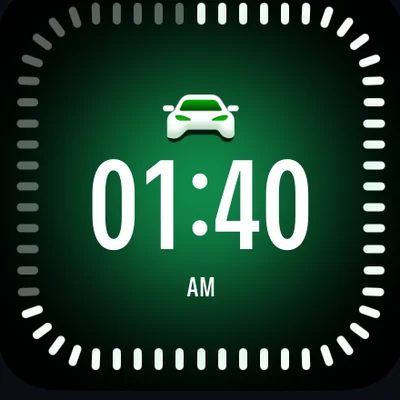
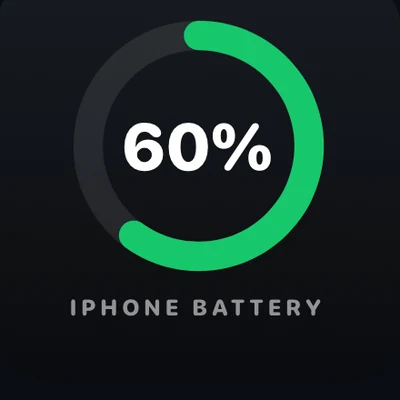
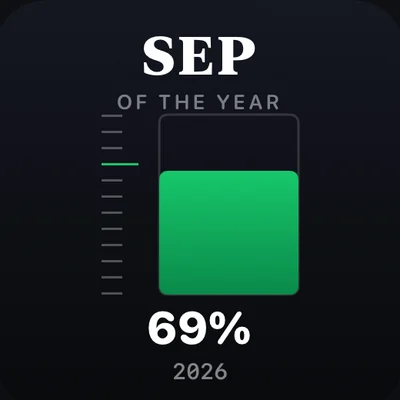
Add them per car under Settings → CarPlay → Customize → Widgets. The app lists iOS 16.3 as its minimum. Background colour, your own photos, and a day/night theme are all editable from there.
Want the Sentra to announce itself when it connects? Open Sounds → Connect Sound in the same app and pick a preset, or import your own file. A separate disconnect sound is optional, and setup takes about 30 seconds.
Music on the dash can also show Dynamic Lyrics. It syncs to Apple Music or Spotify. The active line highlights on the CarPlay screen instead of showing a static card.
A Sentra without factory CarPlay skips it entirely. Mount Mode turns the iPhone itself into a dashboard instead. It covers maps, calls, and a GPS speedometer, with no radio swap required.
When this won't work: Methods 1–4 never produced a live CarPlay session on the dash. Widgets and sounds can't appear on a radio that isn't already running CarPlay.
Wired vs. wireless CarPlay in a Nissan Sentra
Use this as a parked decision before you buy anything.
| Connection | What you need | Good for | Watch for |
|---|---|---|---|
| Wired (Method 2) | A data-capable USB cable | Every CarPlay-capable Sentra trim | Charge-only cables won't start a session |
| Wireless (Method 3) | Wi-Fi and Bluetooth on, paired once by cable first | Skipping the cable after setup | Not every trim's infotainment supports it |
| No CarPlay tile (Method 1 fails) | Car Play Connect Mount Mode | A Sentra with no CarPlay radio | A dashboard app, not a factory CarPlay session |
Frequently Asked Questions
Does the Nissan Sentra have Apple CarPlay?
It depends on your model year and trim. Newer Sentras tend to include it, while older ones may not have it at all. Wake the touchscreen first, with nothing plugged in. Look for a CarPlay icon before you buy any cable.
Is Apple CarPlay wireless in the Nissan Sentra?
It depends on your trim and model year, not just the generation. Nissan has added wireless CarPlay to some trims over time, but not to every one. Pair over a USB cable first. Then check Settings → General → CarPlay → Available Cars, with the cable unplugged. If the Sentra shows up there, it supports wireless CarPlay.
How do I turn off CarPlay in a Nissan Sentra?
Unplug the USB cable for a quick stop. For a full reset, open Settings → General → CarPlay on the iPhone and tap the Sentra. Choose Forget This Car. If you connected wirelessly, also forget the car's Wi-Fi network under iPhone Settings. That stops it from reconnecting on its own.
How do I enable Siri for CarPlay?
Open Settings → Siri & Search on the iPhone. Turn on Listen for "Siri" and Press Side Button for Siri. CarPlay routes voice commands for navigation, calls, and texts through Siri. A session that connects but never responds to voice usually traces back to Siri being off. It's rarely the Sentra's microphone.
How do I change the CarPlay startup sound in a Nissan Sentra?
There's no setting in the Sentra or iOS for this. Install Car Play Connect and pick a preset under Sounds → Connect Sound. It plays automatically the next time the Sentra connects. A separate sound for disconnecting is optional. Setup takes about 30 seconds.
When did Apple CarPlay come out?
Apple introduced CarPlay in 2014, several years before it reached the Sentra. Nissan's own rollout came later and in stages, and it varies by trim and model year — check your own touchscreen for a CarPlay icon to confirm.
Related guides
- CarPlay widgets for iOS 26 — the full gallery to add once your Sentra already runs CarPlay.
- Custom CarPlay connect sound — set a preset or your own file for when the Sentra connects.
- Dynamic Lyrics for CarPlay — synced lyrics on the dash for Apple Music and Spotify.
- Mount Mode — an iPhone dashboard for a Sentra with no CarPlay radio.
- More CarPlay guides — connection fixes and setup walkthroughs for other makes and models.