Add Car Widgets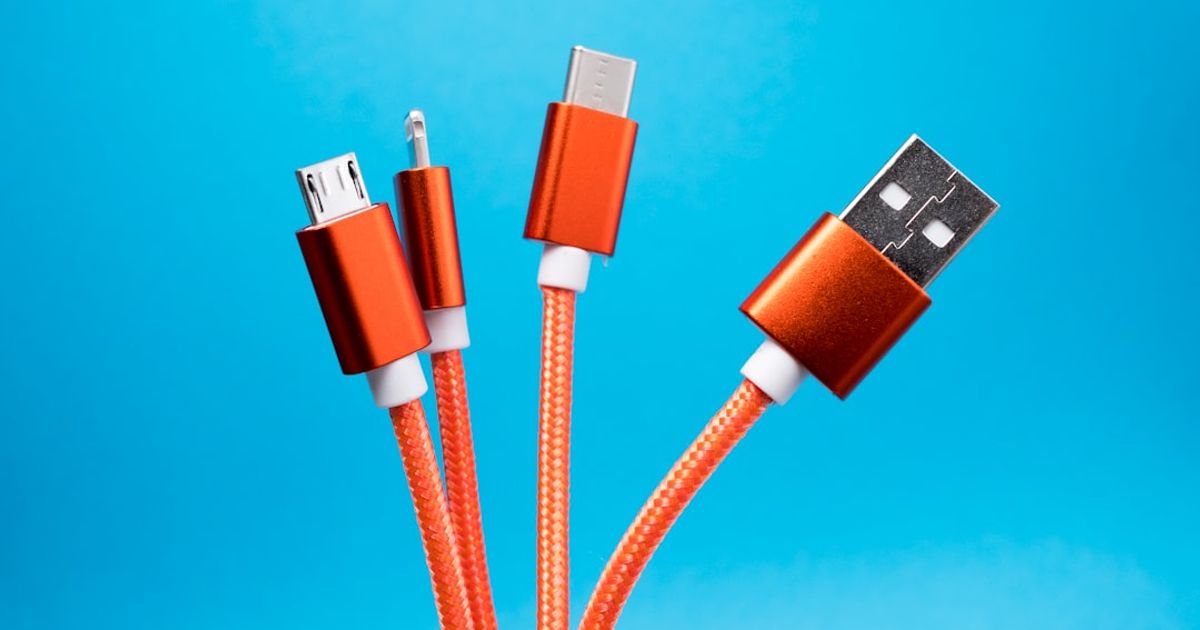
On this page▾
- The 30-second test
- Why wired CarPlay fails
- Fix 1: Swap in a known-good Apple USB cable
- Fix 2: Use the car's data USB port, not a charge-only one
- Fix 3: Clean the iPhone charging port and check for damage
- Fix 4: Allow CarPlay — trust prompt, USB Accessories, Screen Time
- Fix 5: Restart, update, then re-add the car
- Which fix matches your symptom
- Frequently Asked Questions
Quick answer
Wired CarPlay not working almost always means a charge-only cable or a car USB port that carries power but no data. Swap to Apple's own USB cable, plug into the port marked with a phone or “CarPlay” icon, and restart the car. That gets the screen back in most cases.
Cable or port giving up mid-drive?
A CarPlay-style dashboard that doesn't ride on the USB cable
If your car's port is dead or wired-only CarPlay keeps failing, Car Play Connect (the app from Add Car Widgets) mounts on your phone and shows a CarPlay-style dashboard — speedometer, maps glance, weather, trip stats — running over Bluetooth audio instead of the USB data link. Free to try while you troubleshoot the cable.

Car Play Connect: Auto Sync
4.6·2,735+ ratings·Free


The frustrating part is that everything looks alive. Your iPhone charges. The car's screen stays on its own menu. But the CarPlay home screen never loads. It happens with both connector types — a USB-C iPhone or an older Lightning one.
The reason is almost always a cable or car USB port that carries power but no data, and CarPlay needs those data lines to start. Below are the five fixes, fastest first. Stop the moment CarPlay appears.
The 30-second test
Before you change any settings, find out whether your cable can carry data at all. This one check saves you from re-pairing things that were never the problem.
- Plug your iPhone into a computer with the same cable you use in the car.
- If the computer sees the iPhone (Finder on a Mac, or a “Trust This Computer” prompt on the phone), the cable carries data — the fault is the car's port or a setting. Skip to Fix 2.
- If the phone only charges and the computer never notices it, the cable is charge-only or damaged. That's Fix 1.
- No computer handy? Try a second cable in the car. If a different Apple cable works, the first one was the culprit.
That single test settles most cases on its own. The rest of the guide covers the settings and restarts that catch the ones it doesn't.
Why wired CarPlay fails
Wired CarPlay runs the whole session — the screen, touch input, audio, and Siri — down one USB cable. If any link in that chain only passes power, CarPlay can't start. Wireless CarPlay works differently, over Wi-Fi; if yours is wireless, the Bluetooth connected but CarPlay not working guide fits better. Many cars are wired-only by design — every Nissan Sentra through 2025, for one, so a bad port or cable is the usual culprit; our Nissan Sentra CarPlay guide walks that case through step by step.
Four things break the wired chain most often. Here's how each one shows up and which fix clears it.
| What's wrong | How to spot it | Fix |
|---|---|---|
| Charge-only or damaged cable | Phone charges, but a computer can't see it either | Swap the cable (Fix 1) |
| Wrong car USB port | Works in one port, dead in another (or a rear port) | Use the data port (Fix 2) |
| Lint or damage in the iPhone port | Cable wiggles, connects on and off, or feels loose | Clean and inspect (Fix 3) |
| CarPlay blocked or trust denied | No CarPlay prompt at all, or you tapped “Don't Allow” | Allow CarPlay (Fix 4) |
Fix 1: Swap in a known-good Apple USB cable
This is the number-one cause, and it's the easiest to rule out. Third-party and bundled cables are often built for charging only, and many others degrade over time until they still charge but drop data. CarPlay needs the data lines working, so a marginal cable fails it while your battery keeps filling.
- Grab an Apple-made cable, or a certified one that came with a phone or iPad.
- Make sure it's a full USB cable, not a charge-only one — those are common with power banks.
- Plug the iPhone straight into the car's USB port with it. Skip any hub, splitter, or extension.
- Watch the head unit for the CarPlay prompt, and tap Allow on the iPhone if it asks.
One honest limit: a brand-new cable can be dead on arrival, so test with a cable you know already synced a phone to a computer. If a known-good Apple cable still gets you nothing, the cable isn't your problem — move to the port. For the specific “charges but the screen never loads” pattern, our phone charging but CarPlay not working guide digs deeper into cable and power quirks.
Fix 2: Use the car's data USB port, not a charge-only one
Most cars have more than one USB port, and they are not all equal. Some are wired for charging only, and some carry data. A port being newer or USB-C is no guarantee it carries data, so don't assume the shiny USB-C socket is the CarPlay one. Plug into the wrong port and CarPlay simply never starts, even with a perfect cable.
- Look for a port marked with a small phone or CarPlay icon, or the word “SYNC” / “DATA” near it. That's the data port.
- Prefer the front port in the center console or dash. Rear-seat and armrest ports are usually charge-only.
- If you have both USB-A and USB-C ports, try each one — the data port isn't always the newest-looking socket, so don't rule either out by shape alone.
- Plug in and wait 10–20 seconds for the CarPlay prompt.
When the manual isn't handy, check your automaker's support site for which port supports CarPlay — it varies by trim and model year. Apple's CarPlay support page walks through the same wired USB setup. If every port charges but none run CarPlay, the car may be a charge-only setup — jump to Fix 4 to rule out a block, then weigh a wireless route.
Fix 3: Clean the iPhone charging port and check for damage
Pocket lint packs into the iPhone's port and pushes the cable back just far enough to break the data pins while still touching the power pins. That gives you the classic “charges but no CarPlay” symptom, or a connection that flickers when you jostle the cable.
- Power off the iPhone first.
- Shine a light into the Lightning or USB-C port. A grey plug of lint at the bottom is common.
- Gently scrape it out with a wooden or plastic toothpick — never metal, which can short the pins.
- Brush away any loosened debris, then plug the cable back in and feel for a firm, full click — it should seat all the way with no wobble.
If the cable feels loose or the connection drops when you wiggle it, the port pins may be worn or corroded. That's a repair, not a settings fix — but a wireless workaround skips the port entirely, which I'll cover below.
Worn port that keeps cutting out?
Skip the USB port with a mounted CarPlay-style screen
A damaged Lightning or USB-C port is a repair, not a toggle. Car Play Connect gives you a phone-mounted, CarPlay-style dashboard — big widgets, night mode, a custom startup sound — over Bluetooth audio, so a flaky data port no longer keeps you stuck. Free to try.
Car Play Connect: Auto Sync
Free
Fix 4: Allow CarPlay — trust prompt, USB Accessories, Screen Time
Sometimes the hardware is fine and iOS is quietly blocking the connection. Three settings do this, and each has a one-tap fix. Work through them in order.
- Trust prompt. The first time you plug into a car, the iPhone asks to trust it. If you tapped “Don't Allow,” CarPlay stays blocked. Unplug, re-plug, unlock the phone, and tap Allow when it asks.
- USB Accessories. Go to Settings → Face ID & Passcode — or Touch ID & Passcode on an iPhone SE or older Touch ID model — and check the USB Accessories toggle under “Allow Access When Locked” (some iOS versions label it just Accessories). This one is on by default, so for most people it isn't the culprit — it only matters if someone turned it off, which lets a locked iPhone refuse a fresh USB connection. If it's off, turn it on; otherwise leave it be.
- Screen Time. Open Settings → Screen Time → Content & Privacy Restrictions → Allowed Apps, and make sure CarPlay is on. If CarPlay is missing from Settings entirely, this is usually why.
One caveat on the paths above: the exact wording and place of these toggles may differ between iOS versions, so your screen might not match these steps word for word. If a step here doesn't match your screen, pull down on the Settings home to reveal the search field and jump straight to “Accessories” or “CarPlay.”
After each change, unplug and re-plug the cable rather than just waiting. iOS re-runs the CarPlay handshake on a fresh connection. Still nothing? The full CarPlay diagnostic flowchart branches by symptom and covers the rarer cases.
Fix 5: Restart, update, then re-add the car
If the cable, port, and settings all check out, a stale software state is the usual holdout. A clean restart and re-pair clears it. This wipes the car's saved CarPlay layout, so you'll reorder your apps afterward — a fair trade for the stubborn cases.
- Restart the iPhone, and turn the car fully off and on (not just accessory mode).
- Update iOS: Settings → General → Software Update. iOS point releases may include CarPlay bug fixes, so running the latest version rules out a bug that could already be patched.
- Check the car's infotainment for a firmware update — many need a USB stick or dealer visit.
- Forget and re-add: Settings → General → CarPlay → tap the car → Forget This Car, then plug in again and set it up fresh.
Apple's official CarPlay setup guide lists the exact re-pair steps if your car's menu is buried. If the forget-and-re-add step still leaves the car refusing the phone outright rather than just the wired connection acting flaky, CarPlay won't connect works through that harder, won't-connect-at-all case. And if wired CarPlay keeps letting you down — a worn port, a car that only offers wired on a bad connector — a wireless CarPlay adapter plugs into that same USB port once and lets your phone connect over Wi-Fi from then on. Chinese-speaking readers working through the same cable-and-port checklist can also use our CarPlay連不上的排解指南.
Which fix matches your symptom
Not sure where to begin? Match your exact situation to the fix below.
| Your symptom | Start here |
|---|---|
| Phone charges, but a computer can't see it either | Fix 1 — swap the cable |
| Works in one port, dead in another | Fix 2 — use the data port |
| Connection flickers or the cable feels loose | Fix 3 — clean and inspect the port |
| No CarPlay prompt, or CarPlay missing from Settings | Fix 4 — allow CarPlay |
| Everything checks out but it still won't start | Fix 5 — restart, update, re-add |
Frequently Asked Questions
Why is my wired CarPlay not working but the phone still charges?
Because charging and CarPlay use different wires in the same cable. Charging needs only the power lines, while CarPlay needs the data lines too. A charge-only cable, a worn cable, or a car USB port wired for power only will charge your iPhone while CarPlay never starts. Swap to an Apple data cable and use the port marked with a phone or “CarPlay” icon.
Do I need a special cable for wired CarPlay?
You need a genuine USB data cable, ideally Apple-made or MFi-certified. A cable that can sync your iPhone to a computer carries the data lines CarPlay needs, so it's a safe bet — though a worn or borderline cable can still be flaky. Cheap charge-only cables — common with power banks and car chargers — pass power but no data, so CarPlay fails. If a cable reliably syncs to a Mac or PC, it will almost always run wired CarPlay too.
How do I know which USB port supports CarPlay?
Look for a USB port marked with a small phone or CarPlay icon, or labeled SYNC or DATA. That's the data port. Front ports in the center console usually carry data; rear-seat and armrest ports are often charge-only. If your car has several ports, try each front one, and check the automaker's manual for the CarPlay-capable port on your model.
Can lint in the charging port stop CarPlay?
Yes. Packed lint pushes the cable back just enough to break the data pins while still touching the power pins, so the phone charges but CarPlay won't start. Power off the iPhone, shine a light into the port, and gently clear any lint with a wooden or plastic toothpick — never metal. Then plug in and feel for a firm click.
Is a wireless CarPlay adapter worth it if the wired connection keeps dropping?
Worth it if your car's port or cable keeps failing even after you've tried a new cable and a different port. A wireless CarPlay adapter plugs into that same USB port once, then your iPhone connects over Wi-Fi from then on, so no cable or port can break the connection again. The trade-offs are a short pairing delay and the adapter's cost.